
Generating the Standard Audit File for Tax (SAF-T) in Dynamics 365 Finance and Operations (D365FO) is a crucial step to ensure compliance with legal requirements. This blog post provides a concise guide on how to generate SAF-T(DK) files seamlessly.
Before starting to generate SAF-T file, you need to perform following steps:
- Import latest configuration for “SAF-T Format (DK)”

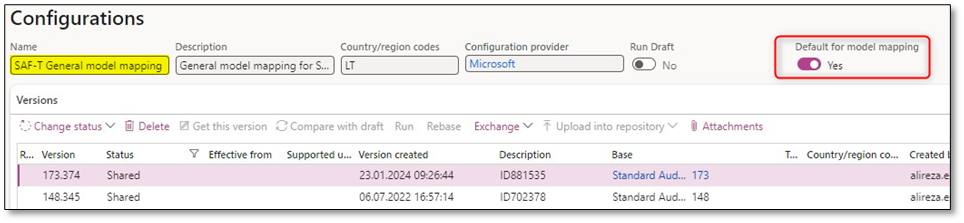
- Set “Default for model mapping” to ”Yes” for model mapping ”SAF-T General model mapping”
- Add mapping table for tax codes on “SAF-T Format (DK)” > Configurations > Application specific parameters > Setup.
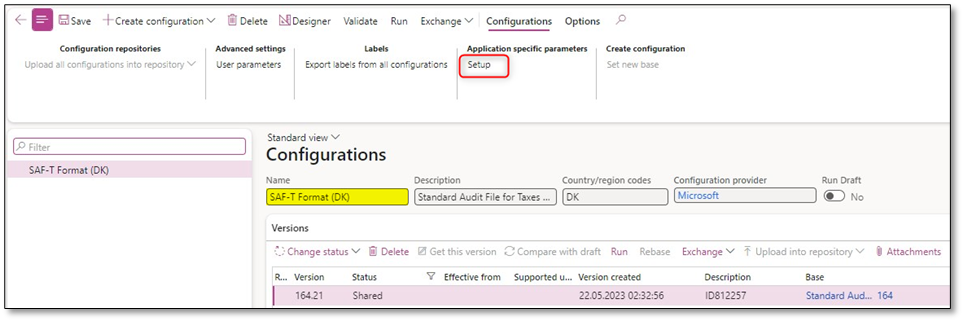

Note: In the list of conditions, select the value “Other” as the last condition. Set it to *Not blank* in the Tax code column.
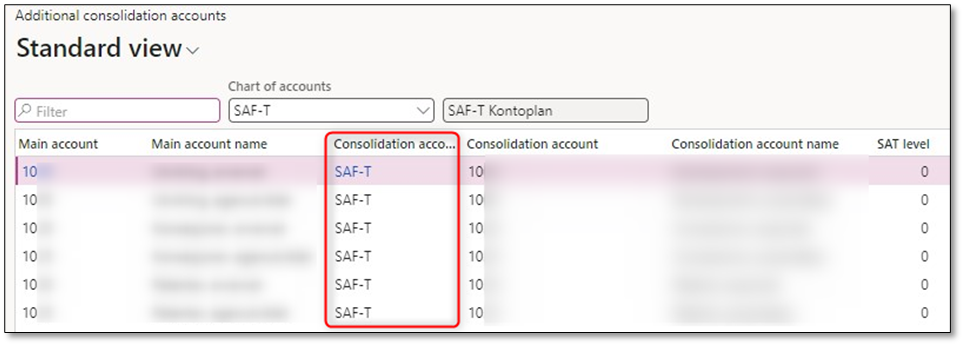
- Ensure that you have assigned SAF-T mapping table for the main accounts on General ledger > Chart of accounts > Accounts > Additional consolidation accounts.
- Add a contact person for the legal entity on Sales and marketing > Relationships > Contacts > All contacts.

- Add registration number for the legal entity on Organization administration > Organizations > Legal entities > Registration IDs


- Configure General ledger > Ledger setup > General ledger parameters > Standard Audit File for Tax (SAF-T) with “SAF-T Format (DK)”

Once you’ve configured and mapped main accounts, sales tax codes, legal entity contact person, and legal entity registration number initiating the SAF-T report generation is straightforward. Start by navigating to General ledger > Inquiries and reports > Standard Audit File for Tax (SAF-T) > Standard Audit File for Tax (SAF-T)

Key Configuration Parameters:
1. From date/To date (Date)
The period configuration is essential for defining the time frame of the SAF-T report. The “From date” and “To date” options allow you to specify the range for the report.


2. Print zero balance
With this option you will include all the main accounts of the company that have a zero balance during the specified period.


3. Export all customers
With this option you can choose Customers that have balance on the provided date interval or do not have zero opening balance.
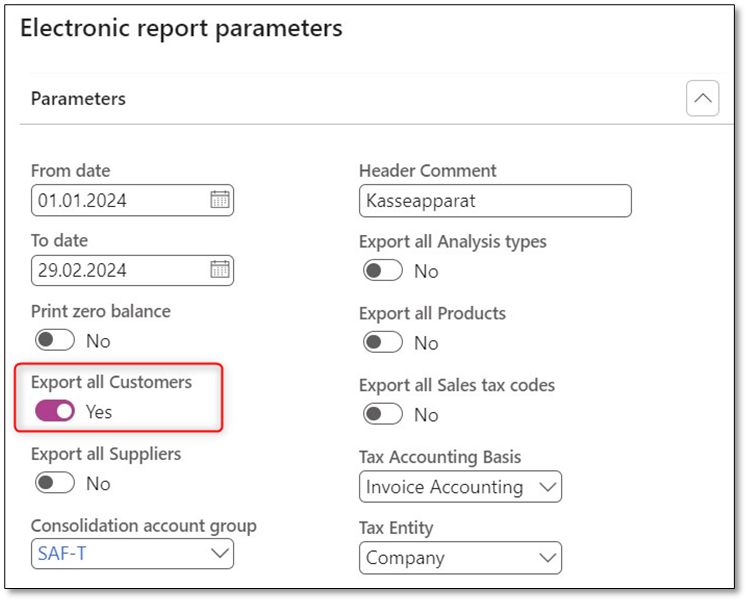

4. Export all Suppliers
With this option you can choose Suppliers that have balance on the provided date interval or do not have zero opening balance.


5. Consolidation account group
Choose the consolidation account group you previously established to configure the standard chart of accounts on General ledger > Chart of accounts > Accounts > Additional consolidation accounts.


6. Header Comment
Provide generic comment for SAF-T file on the provided date interval. This element can include a maximum length of 256 characters.


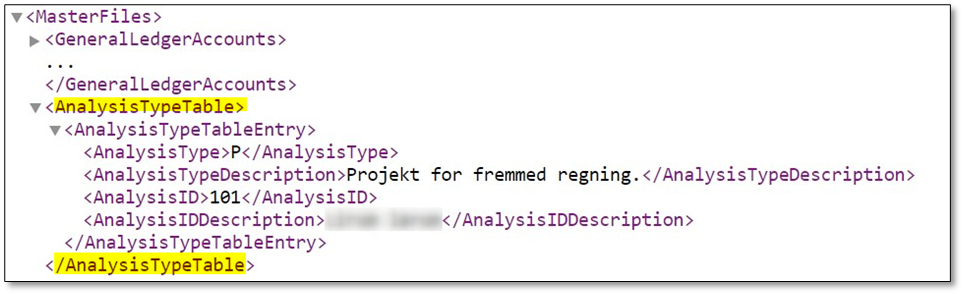
7. Export all Analysis types
Check it to include all company dimensions. Uncheck it to include only dimensions used in transactions reported during the specified period.

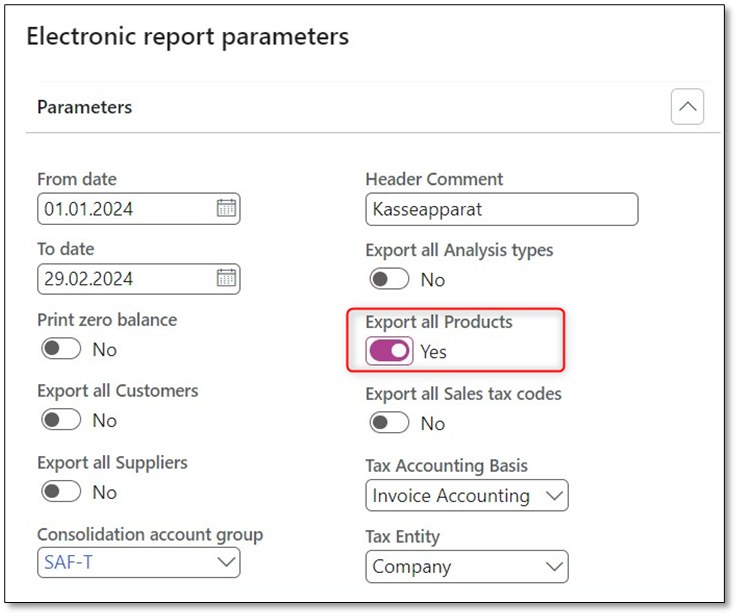
8. Export all products
Check this box to include all company products, even those with zero physical stock during the specified period. Uncheck the box to include only products with non-zero physical stock or transactions during the specified period.

9. Export all Sales tax codes
Check this box to include all sales tax codes for your company. Uncheck the box to include only sales tax codes used in transactions reported during the specified period.


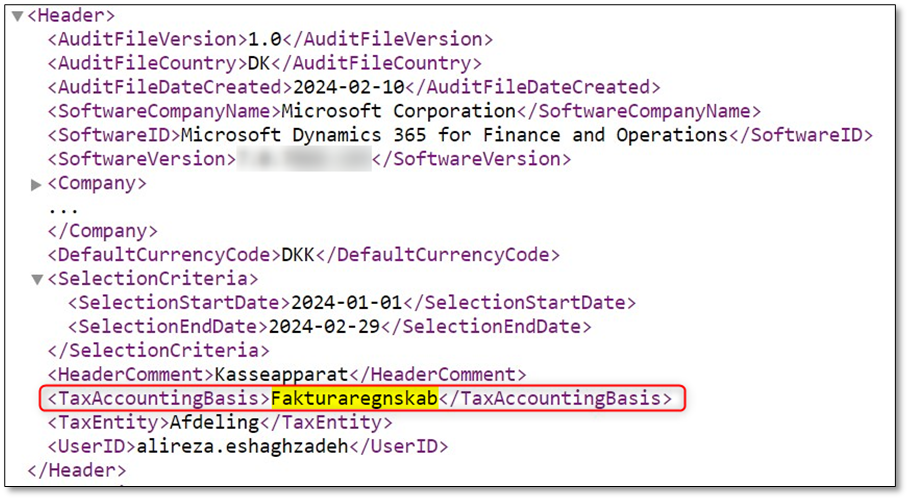
10. Tax Accounting Basis
Choose the type of data in the audit file. Invoice Accounting, Cash accounting, Delivery, and Other.

11. Tax Entity
Choose the type of tax entity in the audit file. Invoice Accounting, Cash accounting, Delivery, and Other.


Efficiently generating SAF-T files in D365FO ensures adherence to tax regulations and simplifies the process for financial reporting. Properly configuring the essential parameters outlined in this guide will streamline the generation process for a compliant and accurate SAF-T report.
I hope that this post has provided valuable insights into generating SAF-T files. Should you have any further questions or feedback, please feel free to utilize the ‘Leave a Reply’ feature. Your thoughts and inquiries are highly appreciated!
Useful links:
Danish SAF-T Financial data, version 1.0 – Technical description (erhvervsstyrelsen.dk)
Dansk SAF-T format til digital salgsregistring (skat.dk)
Standard Audit File for Tax (SAF-T) for Denmark – Finance | Dynamics 365 | Microsoft Learn
 DynFOTech
3 Comments Add yours