
Business Documents is a standard tool in Microsoft Dynamics 365 Finance & Operations (D365FO) that enables the visualization of documents and reports, using Electronic Reporting (ER) as the primary engine for data extraction. In my previous videos here, I provided an overview of Configurable Business Documents (CBD), their core functions, and how to customize them.
Date, Time, and Number Preferences in Business Documents
ER supports different ways to specify the culture for a generated report. In this video, I’ll demonstrate how to customize a business document by setting date, time, and number preferences for the entire document, and adding transformation rules to override these preferences for specific elements/nodes.
Setting Culture Preferences in the Format Designer
In the format designer, under “Format” level, you can set Date, time, and number format preferences by navigating to Culture settings > Culture preferences. Here are the available options:

- <Empty>: The system uses the preferred culture.
- User preference: The format follows the user’s culture setting from user options.

- Explicitly defined: The format is defined for a specific language ID.
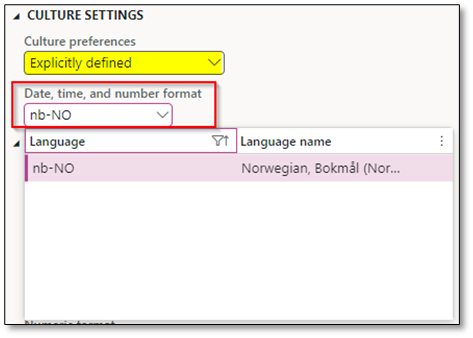
- Defined at run-time: The format is based on the culture specified at runtime. It means that you used a binding from model mapping that represents language id. Once you choose this alternative, you can navigate to “Mapping” field and add a value on “Date, time, and number format”. This value needs to be added from the model mapping.

Example of Culture Preferences:
- <Empty> (En-US): Uses the default culture.
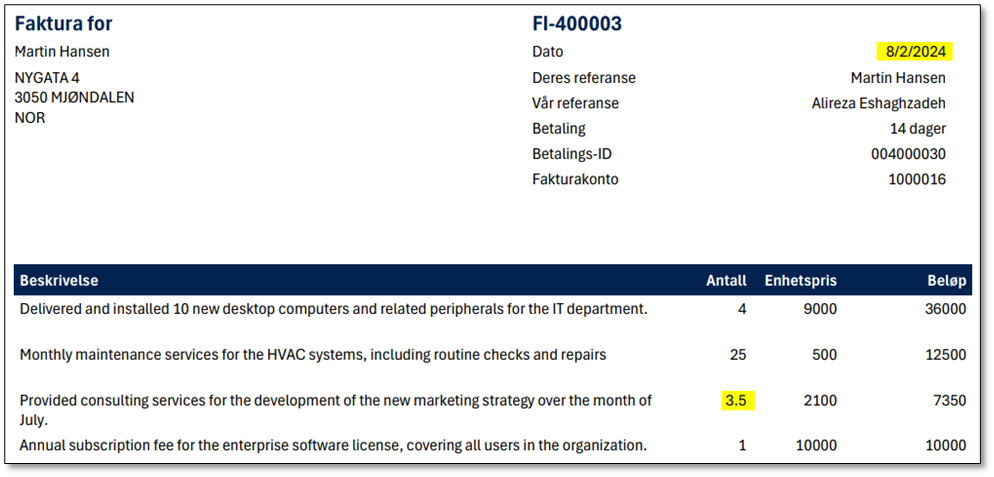
- Defined at run-time (Nb-NO): Uses the specified culture from model mapping.

Adding Transformation Rules
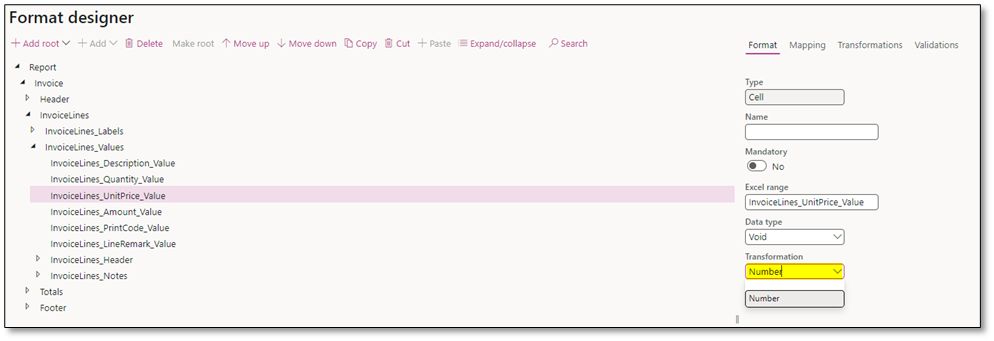
To override culture preferences for a specific element/node, you can create a transformation rule based on the parameter type. Use the “Learn more” link in the Function section to access Microsoft Learn resources, which provide examples and detailed explanations.


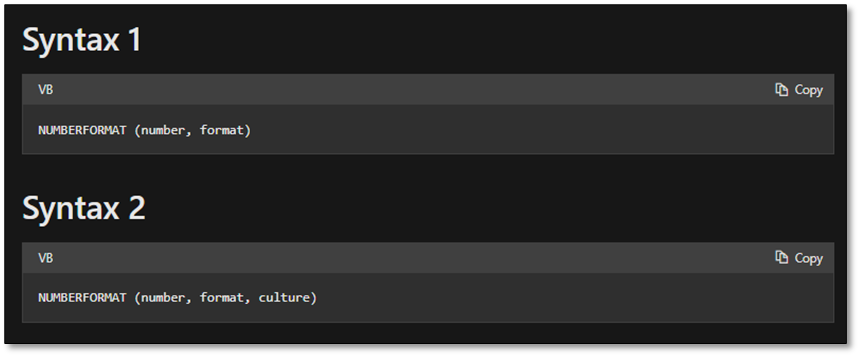
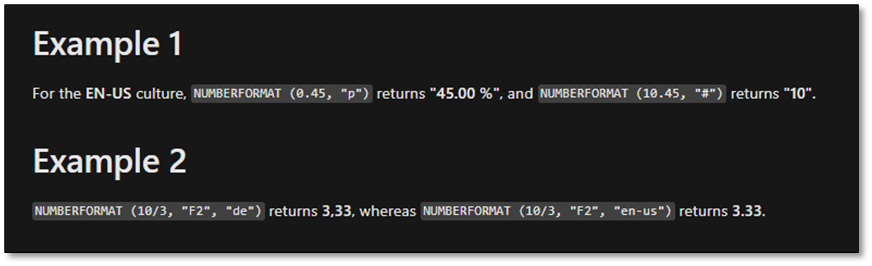
Once the rule is created, activate it on the required node (e.g., invoice lines for UnitPrice and Amount).
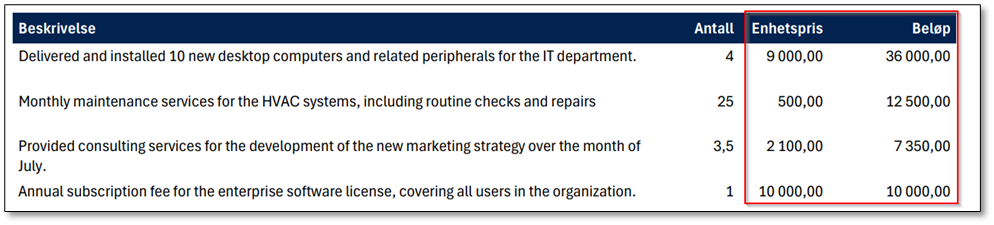
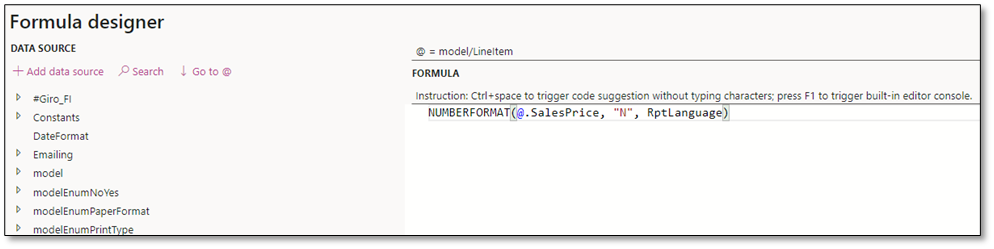
Alternatively, you can add format preferences directly in the format designer mapping using the formula designer without needing transformation rules.

I hope this post provides valuable insights into understanding Configurable Business Documents (CBD). If you have any questions or feedback, please leave a comment below. Your input is highly appreciated!
 DynFOTech