
Business Documents is a standard tool in Microsoft Dynamics 365 Finance & Operations (D365FO) that enables the visualization of documents and reports. It leverages the Electronic Reporting (ER) framework as the primary engine for data extraction and formatting. In my previous blog post here, I provided an overview of Configurable Business Documents (CBD), their key functionalities, and how to customize them. In this post, I’ll explore into another powerful feature of CBD: how to set a file name for a business document.
Setting File Names in the Format Designer
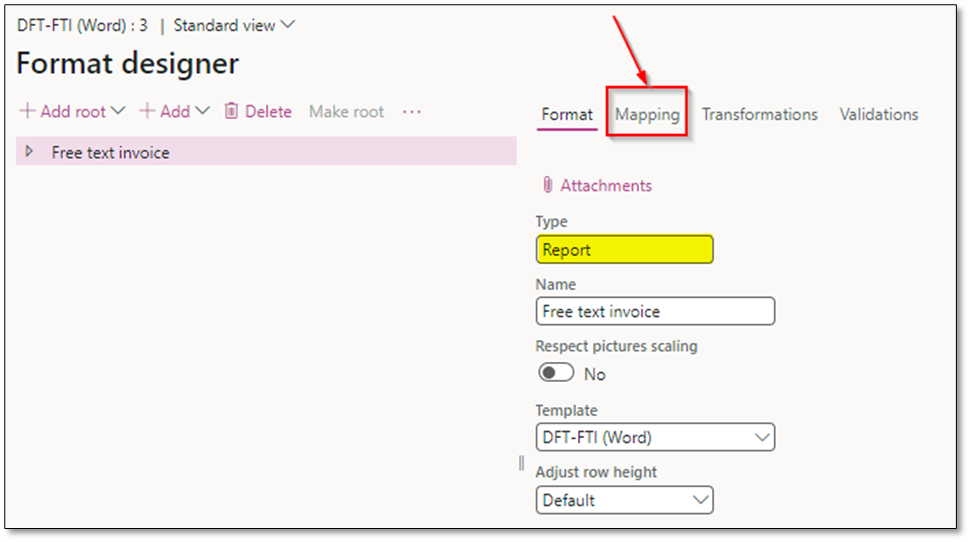
The ER Format Designer offers built-in functionality to define file names for documents generated via the ER framework. Here’s how you can configure it:
- Open the desired ER format in Format Designer.
- Select the main node (e.g., Report) and click on “Mapping.”
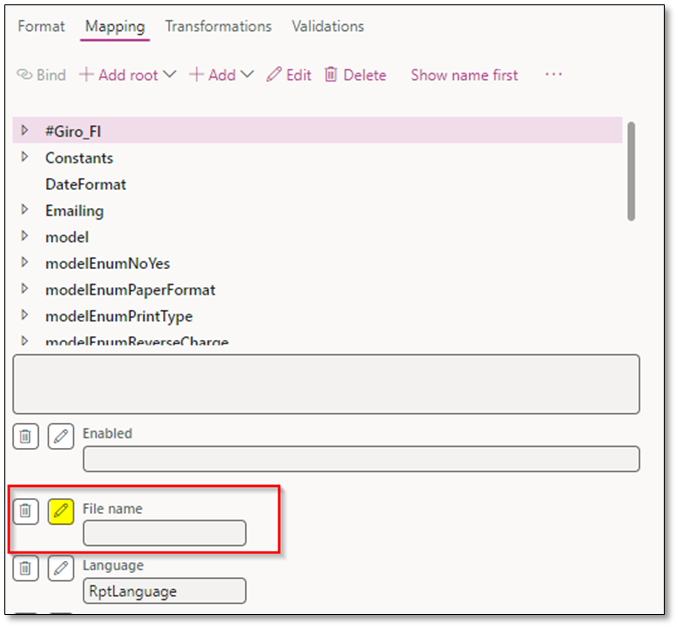
- Locate the “File name” field and click “Edit” to define the file name using model mapping variables.
Using Formulas to Generate Dynamic File Names
To assign a file name dynamically, you can use ER functions such as CONCATENATE to combine various text strings into one. This is especially useful when documents are distributed as File, Email, or Archive, as it allows the file name to contain meaningful information, such as the document type and timestamp.
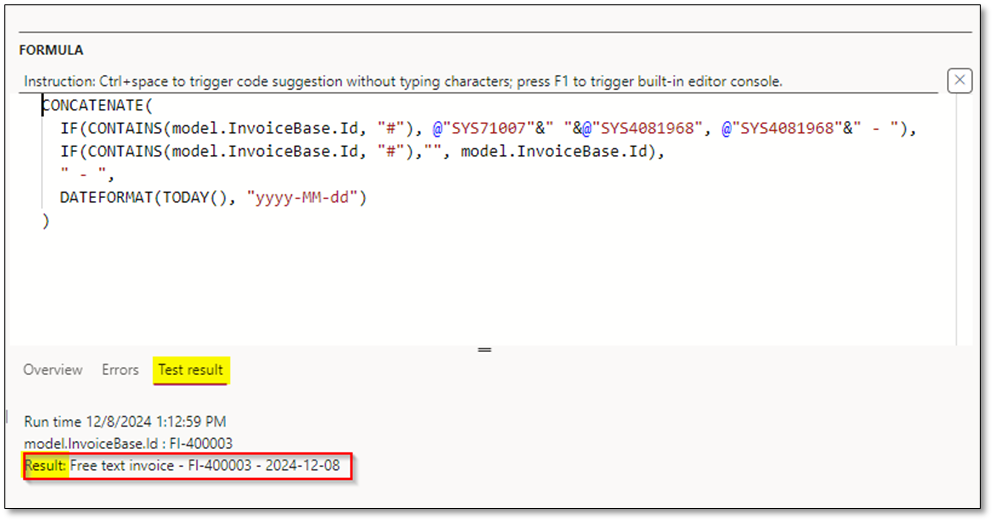
For example, the following formula generates a file name that includes the document type and the date it was generated:
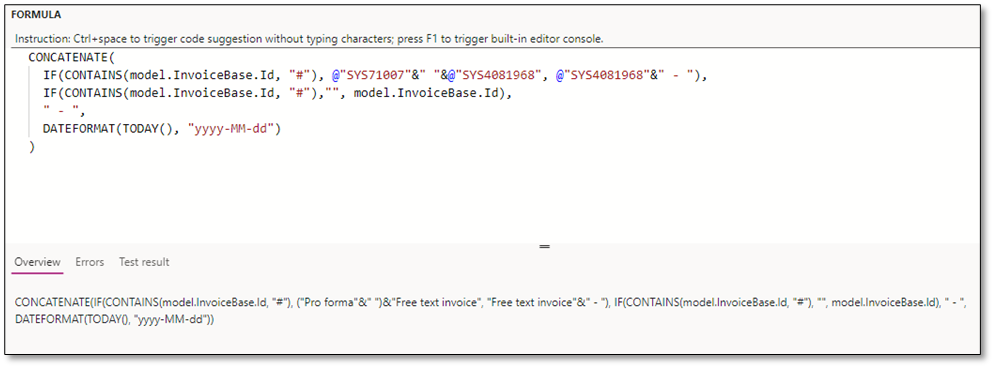
CONCATENATE(
IF(CONTAINS(model.InvoiceBase.Id, “#”), @”SYS71007″&” “&@”SYS4081968″, @”SYS4081968″&” – “),
IF(CONTAINS(model.InvoiceBase.Id, “#”),””, model.InvoiceBase.Id),
” – “,
DATEFORMAT(TODAY(), “yyyy-MM-dd”)
)
Explanation:
- The IF conditions check whether the model.InvoiceBase.Id contains certain characters and adjust the text accordingly based on invoice or pro forma.
- The DATEFORMAT(TODAY(), “yyyy-MM-dd”) function adds the current date in the specified format.
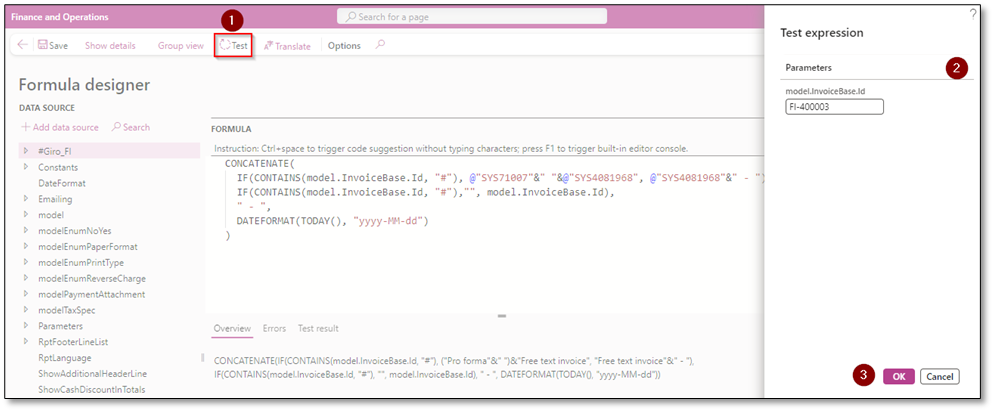
You can use the “Test” function in Format Designer to preview the generated file name.
Output Behavior
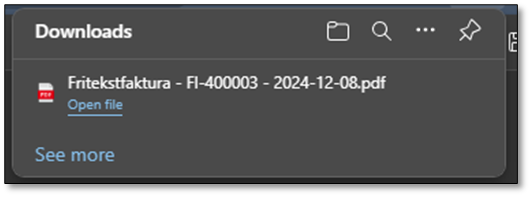
Once the configuration is complete, the file name will automatically populate when the document is generated (e.g., printed or viewed). The dynamic file name will apply to all outputs, whether saved as a file, sent via email, or archived.
I hope this post provides valuable insights into understanding and enhancing Configurable Business Documents (CBD). If you have any questions or feedback, feel free to leave a comment below—your input is highly appreciated!
 DynFOTech