
Business Documents is a standard tool in Microsoft Dynamics 365 Finance & Operations (D365FO) that enables the visualization of documents and reports. It leverages the Electronic Reporting (ER) framework as the primary engine for data extraction and formatting. In my previous blog post here, I provided an overview of Configurable Business Documents (CBD), their functionalities, and how to customize them. In this post, I’ll focus on the various distribution methods available for CBD.
Electronic Reporting Destinations
D365FO offers multiple options for managing CBDs, including PDF viewing, emailing, archiving, and SharePoint integration, all configured under Organization administration > Electronic reporting > Electronic reporting destinations. Both standard Microsoft CBD and custom documents can be utilized within this framework. Additionally, documents can be converted from Excel or Word to PDF, which is particularly useful for invoices and similar documents.
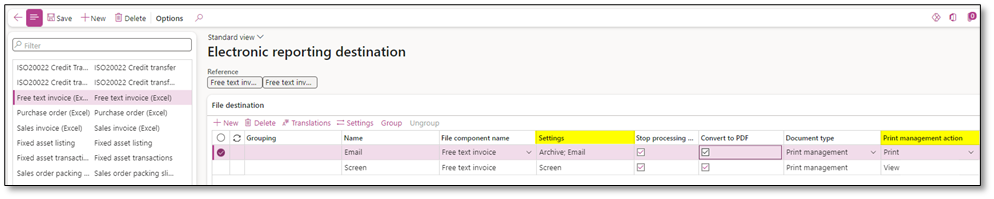
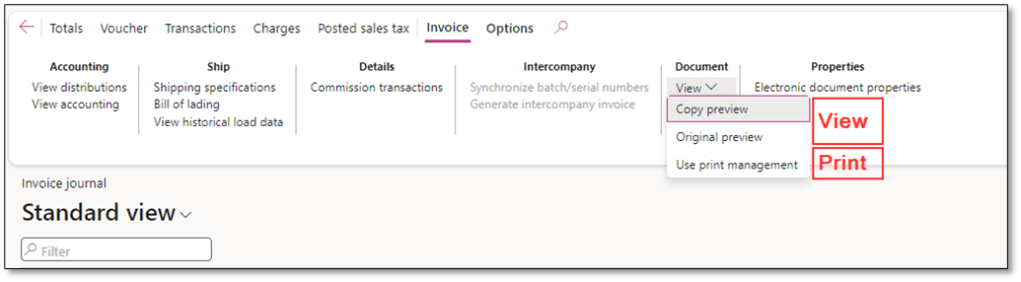
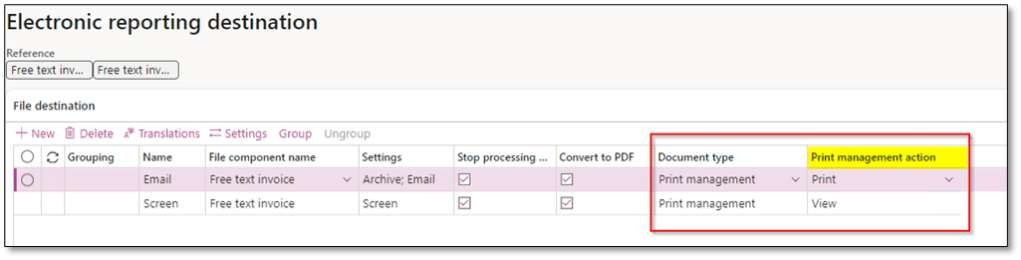
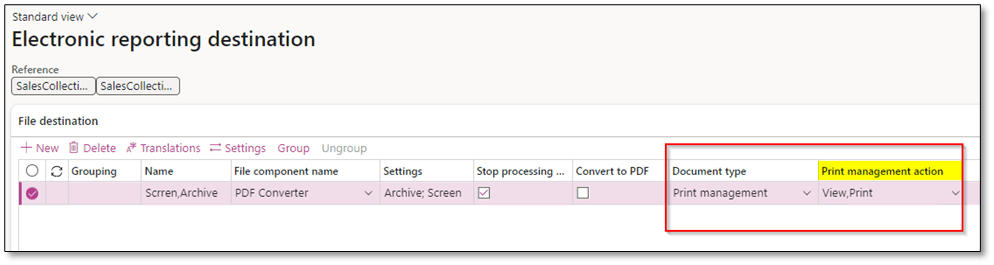
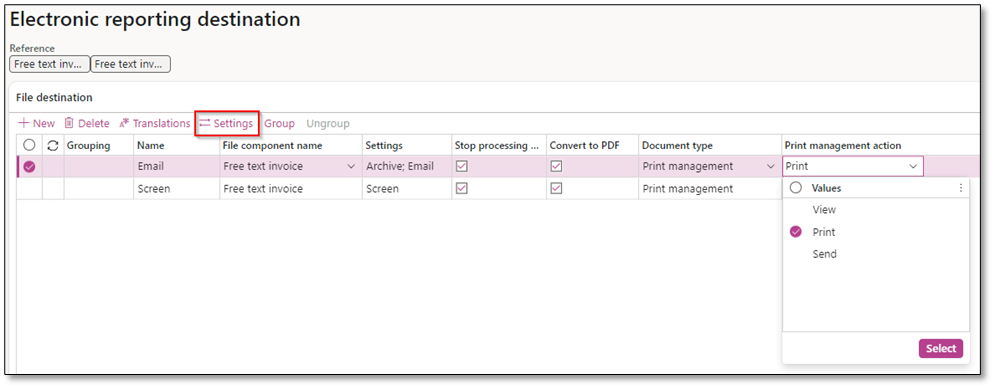
CBDs in D365FO support both “View” and “Print” actions, while the “Send” action is specifically for sending documents electronically. Some forms in D365FO may support both “View” and “Print” actions, while others support only “Print.”
Example Usage:
- Invoice Journal: Supports both View and Print actions.
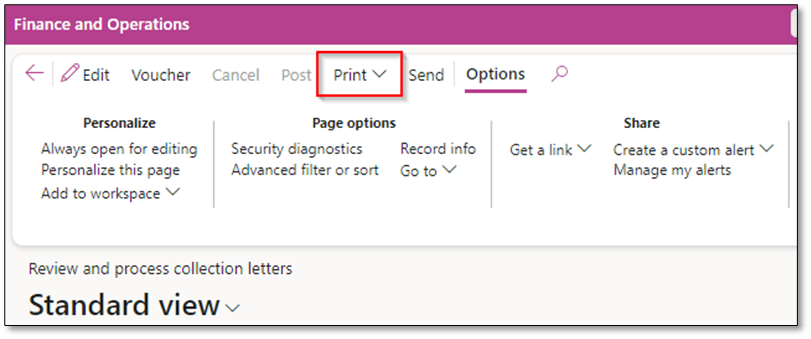
- Collection Letter: Only supports the Print action.
Distribution Methods
The distribution methods for CBDs allow users to determine how the document is handled, such as emailing, archiving, viewing on-screen, or saving locally. This flexibility ensures that document management processes align with specific business needs.
1. Email
CBDs can be sent via email directly from D365FO. Email recipients can be retrieved dynamically from model mapping or set as fixed values.
Prerequisites:
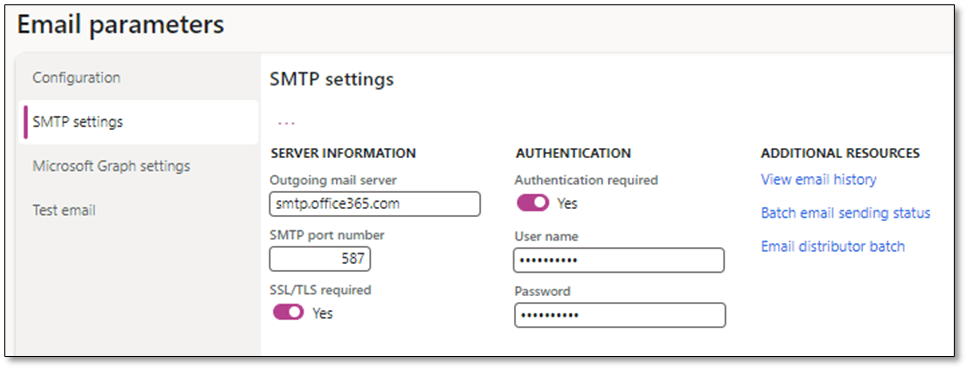
Ensure SMTP settings are configured in System administration > Setup > Email > Email parameters > SMTP settings.
Configuration Fields:
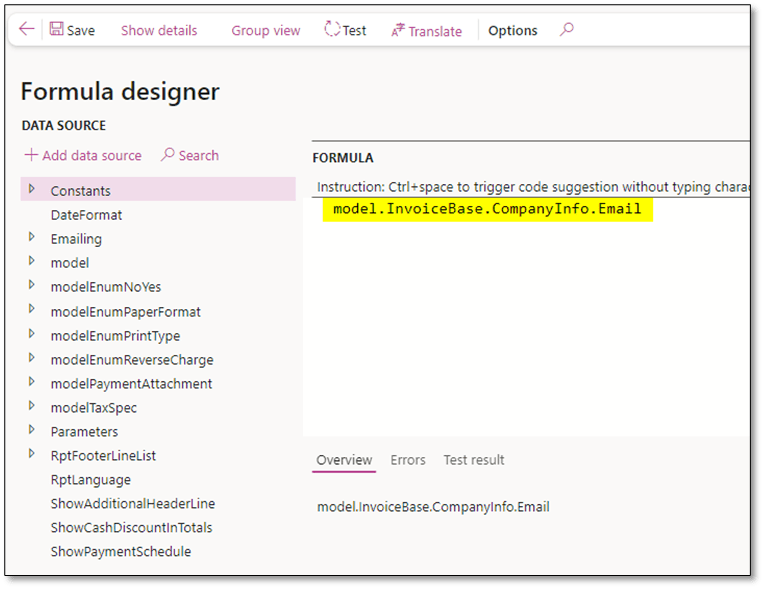
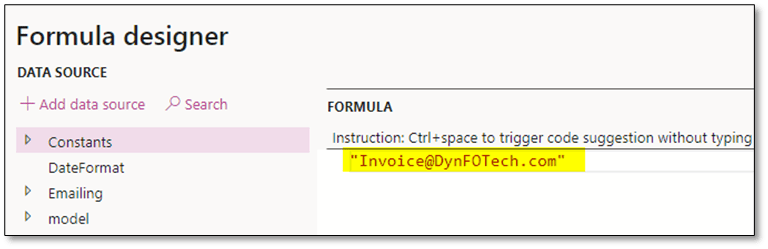
- From: Sender’s email address, either hardcoded or dynamically retrieved from model mapping.
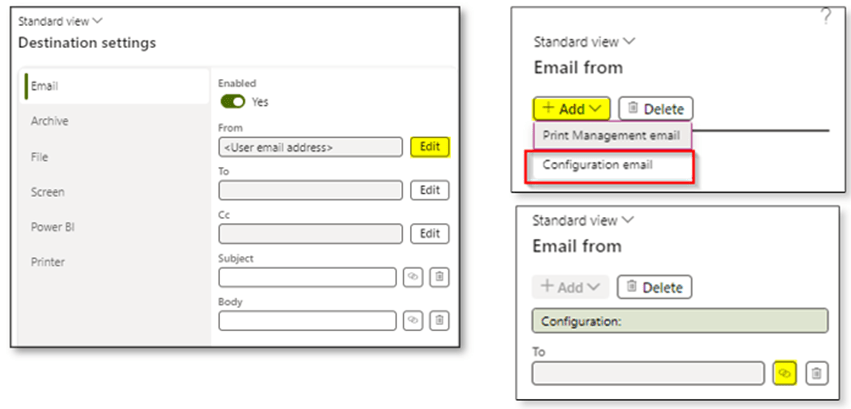
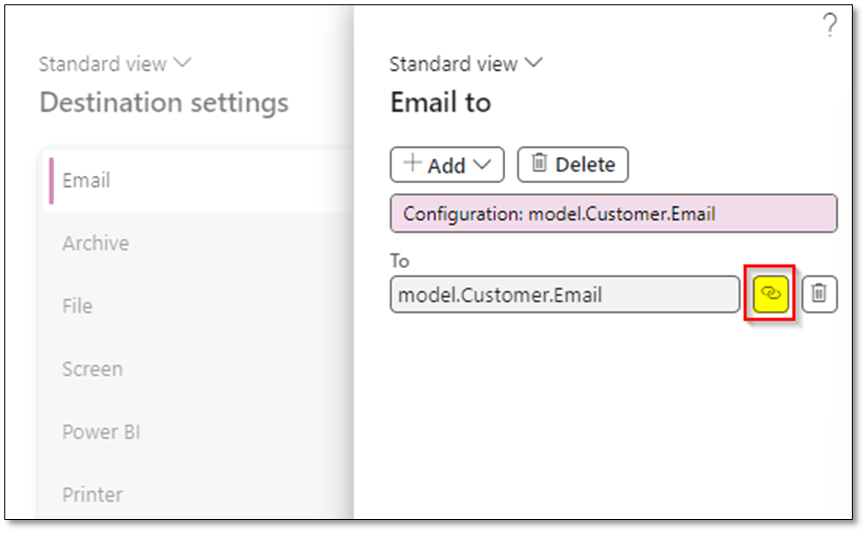
- To: Recipient’s email, typically linked to customer records in model mapping.
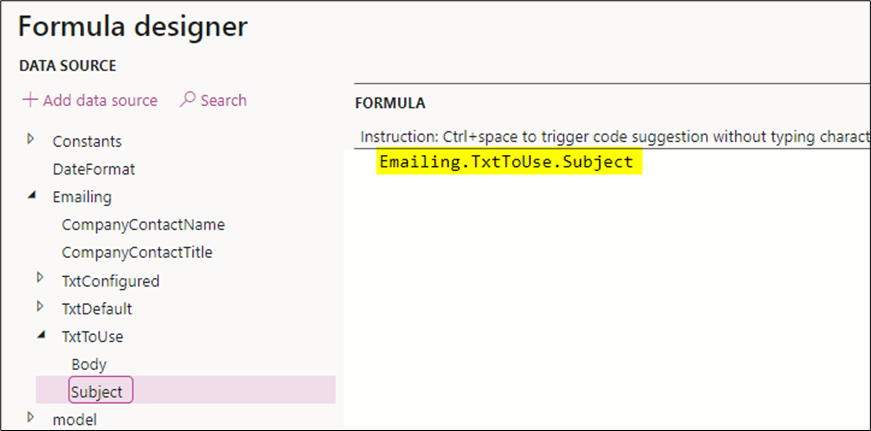
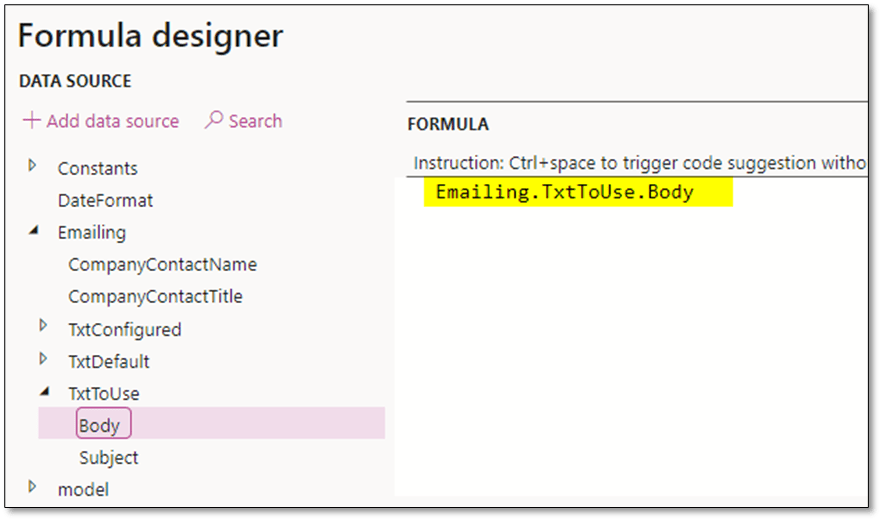
- Subject: Can be predefined or dynamically mapped.
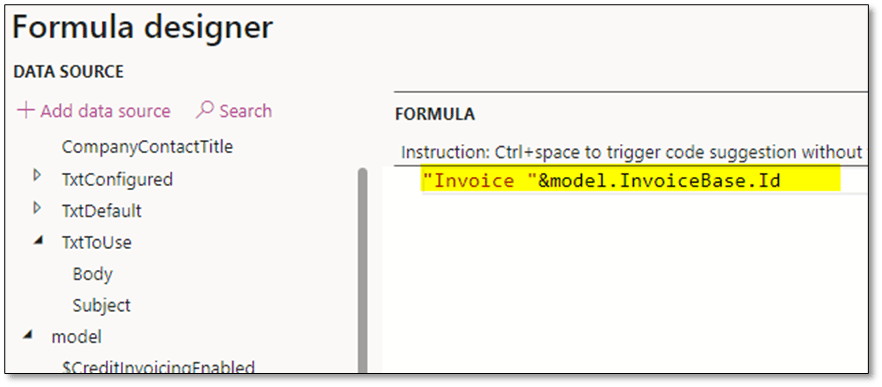
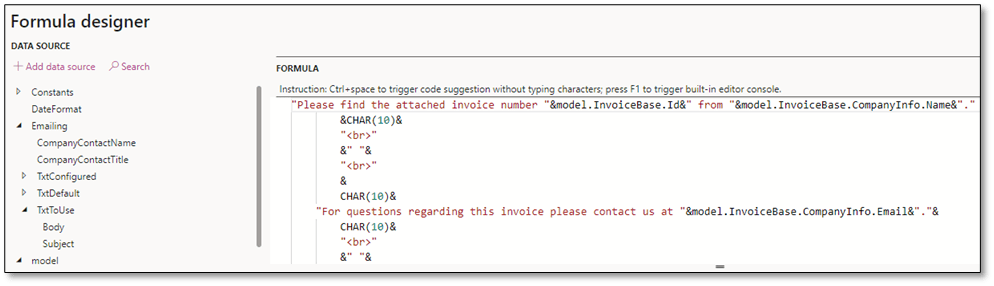
- Body: Content can include fixed text or dynamic, language-specific text from the model mapping.
2. Archive
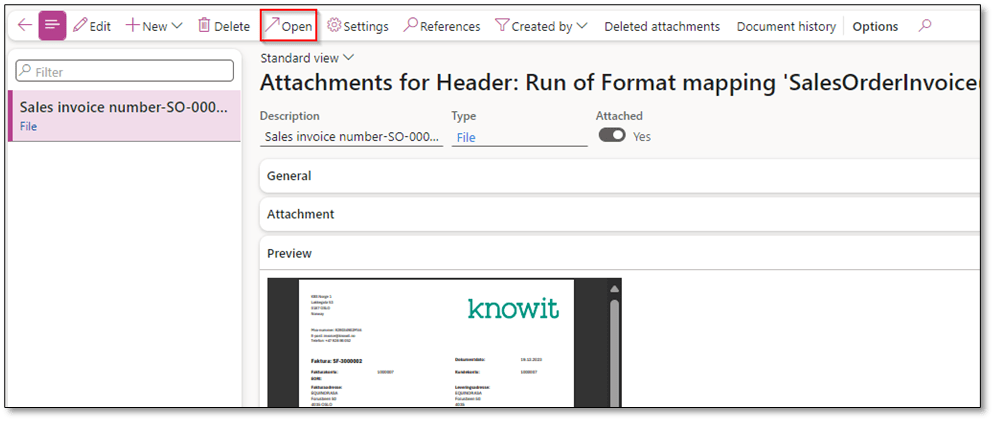
EBD files can be archived directly within D365FO. The archived files are stored in Organization administration > Electronic reporting > Electronic reporting archived jobs.
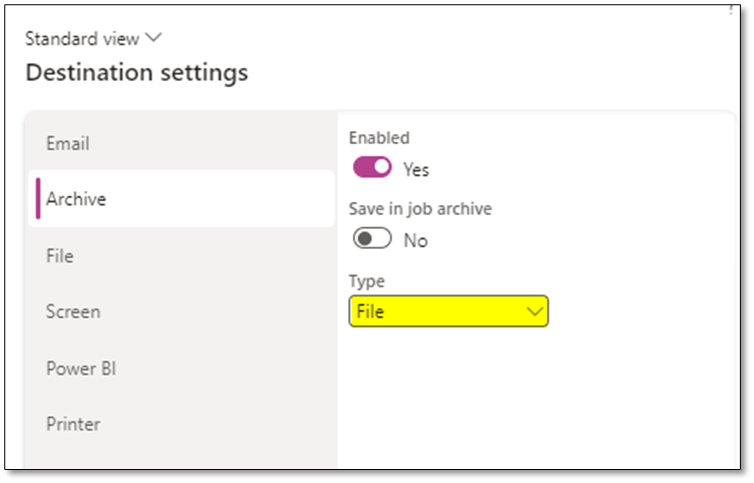
Steps to Access:
- Navigate to the ER archived jobs.
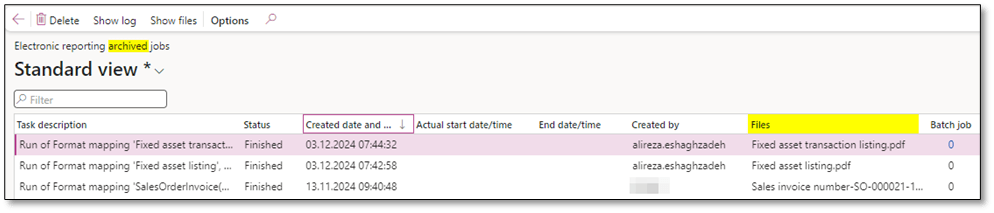
- Click Show files to view the document.
- Download the file using Open or preview it using the Preview tab.
3. File (Save to Local PC)
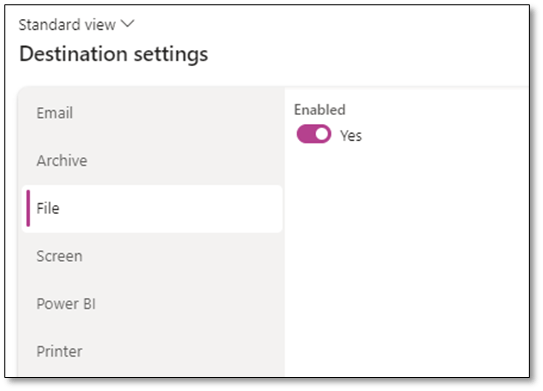
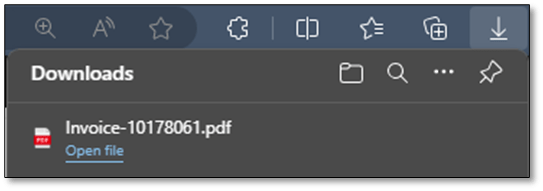
To save the generated CBD file directly to your local PC, enable the “File” option in the destination settings.
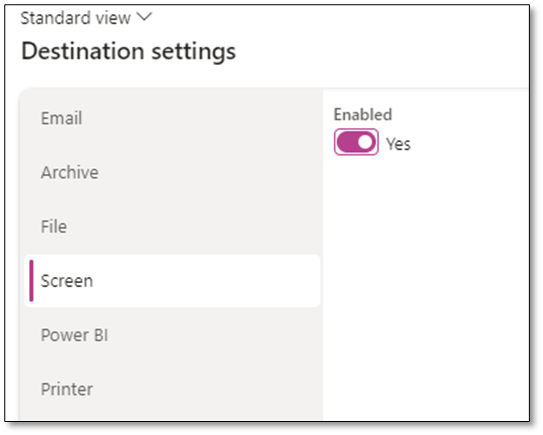
4. Screen (On-Screen Viewing)
You can view the EBD file in a new browser tab. This is useful for quick reviews and allows users to save the file locally if needed.
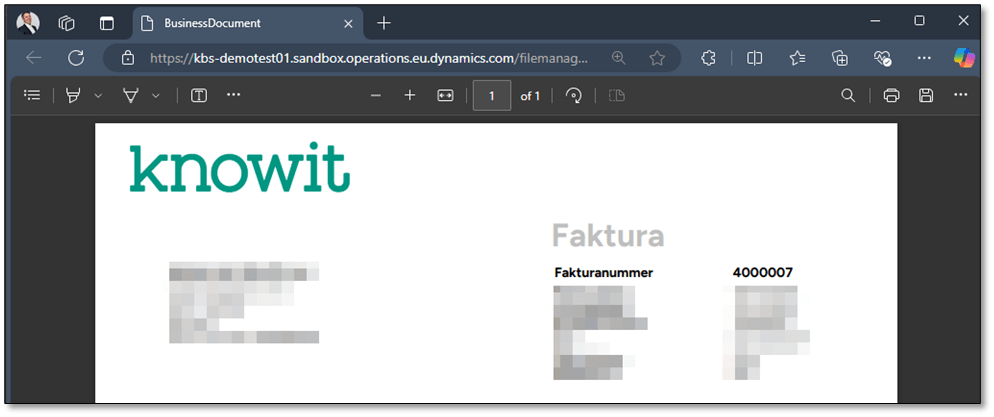
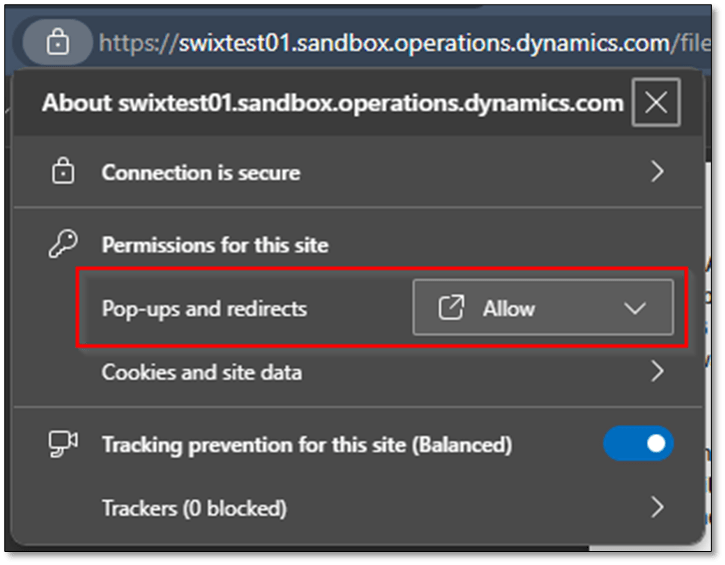
Note: Ensure Pop-ups and redirects are enabled in your browser settings to use this feature.
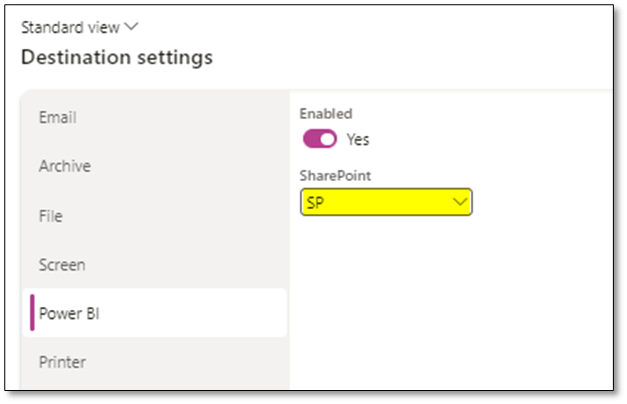
5. SharePoint
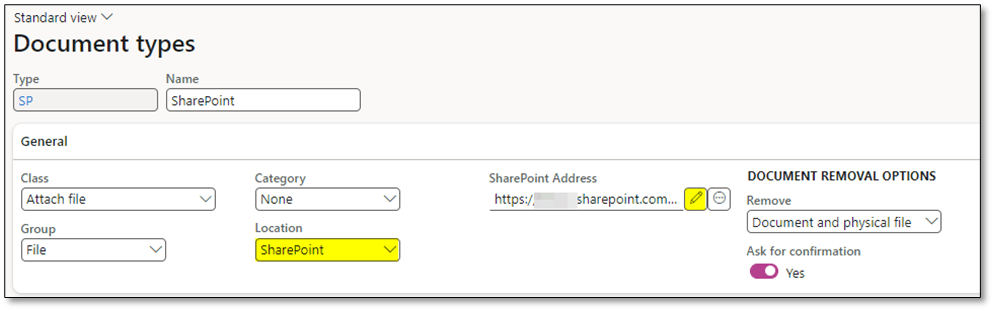
CBDs can be routed to SharePoint by defining a specific document type in D365FO and linking it to a SharePoint site. This ensures that documents are stored in the appropriate SharePoint folder.
6. Printer
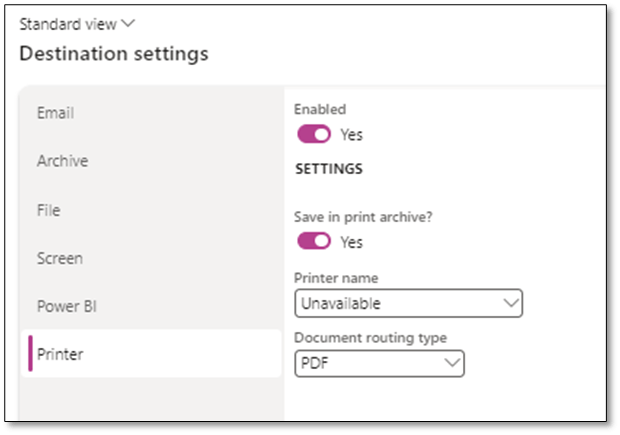
For printing documents, the Document Routing Agent must be installed and configured. After setup, network printers need to be registered in D365FO.
Additional Resources: Run the Document Routing Agent as a Windows service – Finance & Operations | Dynamics 365 | Microsoft Learn
This post highlights the flexibility and functionality of Configurable Business Documents (CBD) in D365FO. With a variety of distribution methods, businesses can tailor their document management processes to fit their needs.
I hope this post provides valuable insights into understanding and enhancing Configurable Business Documents (CBD). If you have any questions or feedback, feel free to leave a comment below—your input is highly appreciated!
 DynFOTech