
Business Documents is a powerful, standard tool in Microsoft Dynamics 365 Finance & Operations (D365FO) designed to streamline the creation and visualization of documents and reports. It utilizes the Electronic Reporting (ER) framework as its core engine for data extraction and formatting.
In my previous blog post, I provided a comprehensive overview of Configurable Business Documents (CBD), their capabilities, and how to customize them effectively. If you haven’t checked it out yet, you can read it here: Business Documents Overview.
In this blog post, I’ll walk you through the process of identifying and resolving missing binding elements in the Format Designer—a common challenge when working with CBD in D365FO.
Identifying Missing Bindings in Model Mapping
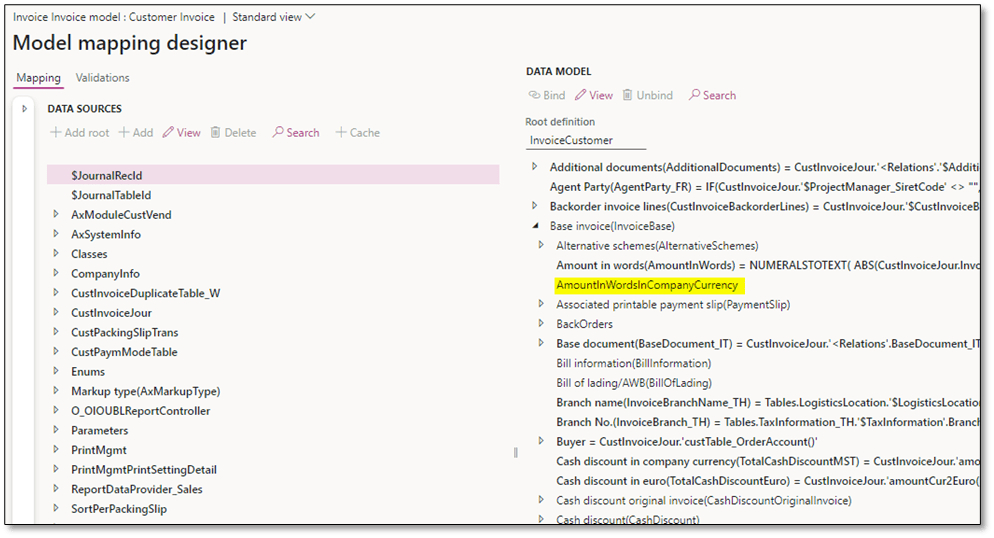
In some cases, elements in the model mapping may not be bound to a data source. To identify these missing bindings at the model mapping level, follow these steps:
- Navigate to the Data Model.
- Look for elements that are not bolded. These unbolded elements indicate missing bindings.
Binding Levels
Bindings can occur at three main levels:
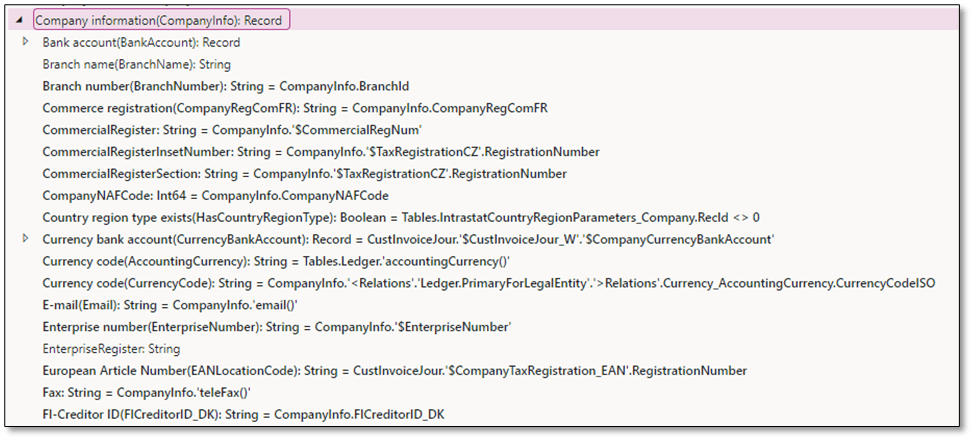
- Record:
Represents a single main record that may contain one or more subfields (e.g., String, Real, Integer).- Examples: Company table, Sales order header, Free text invoice header.
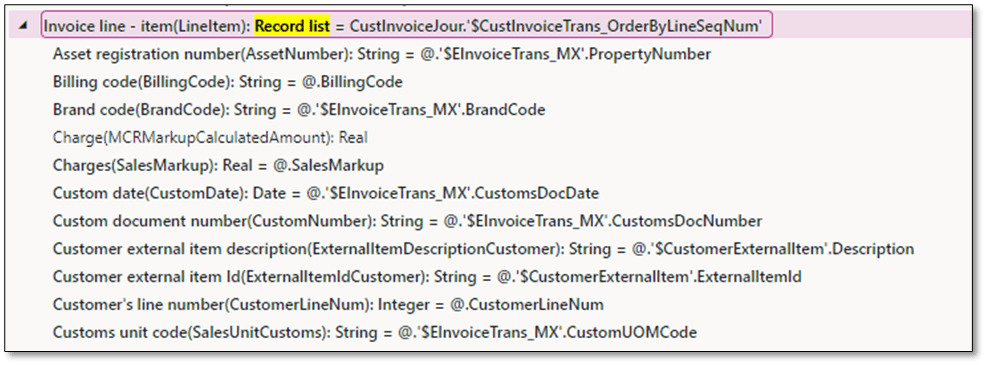
- Record List:
Represents one or more records that may contain subfields (e.g., String, Real, Integer).- Examples: Sales order lines, Free text invoice lines.
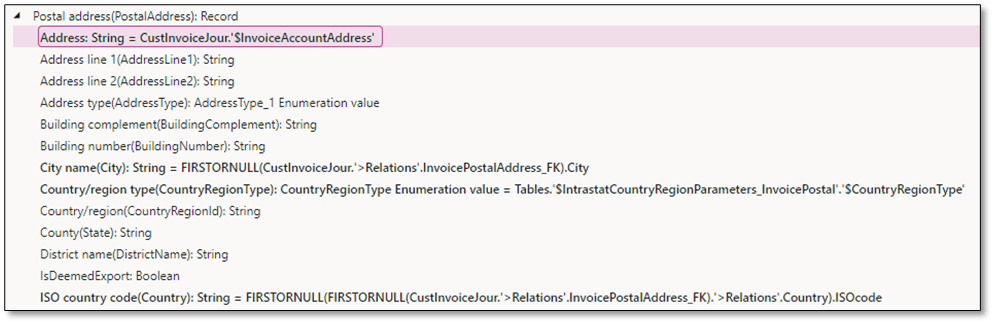
- Child:
Represents subfields within a Record or Record List, based on their item types (e.g., Real, String, Enum, Boolean).
Identifying Missing Mappings in the Format Designer
To identify unmapped items at the document level using the Format Designer:
- Go to the Mapping tab.
- Activate the Show details option.
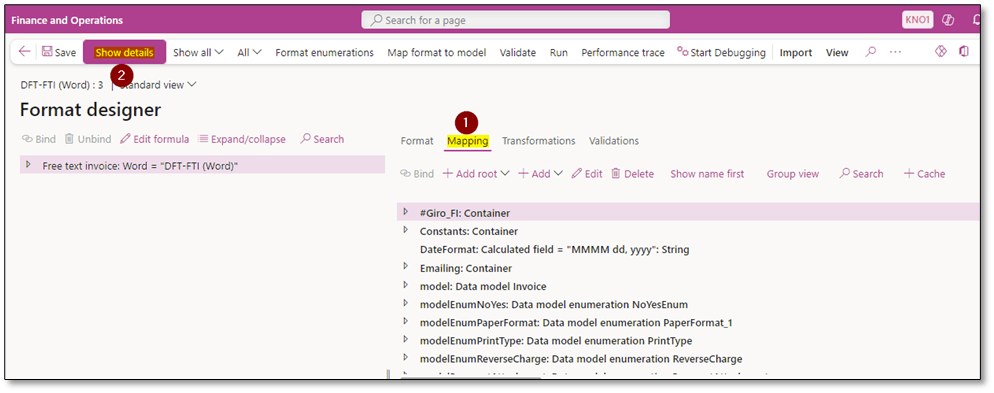
- Look for elements (e.g., Record, Record List, or subfields) with a [!] indicator.
- This icon signifies that the element is missing a mapping.
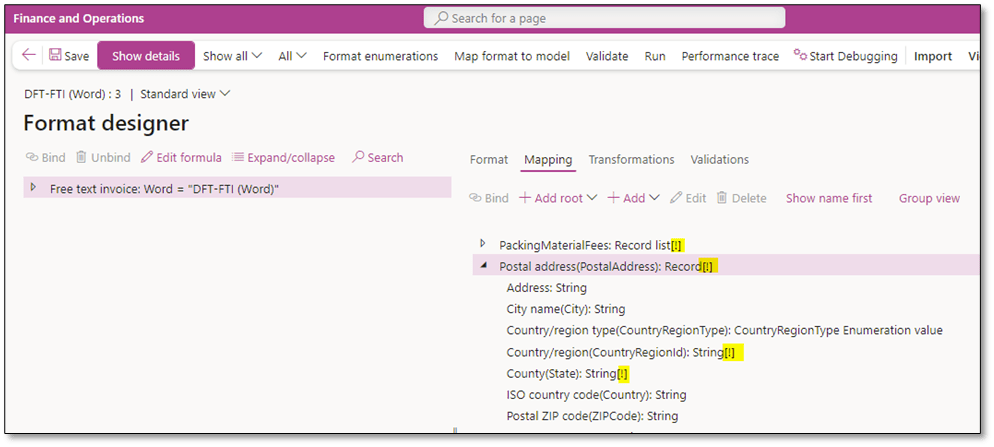
Addressing Missing Mappings
When you find unmapped elements, you have two options:
- Exclude unmapped elements: Avoid using these elements in your Format Designer to prevent error messages during file generation.
- Update the mapping: Navigate to the model mapping and bind the missing elements to the appropriate data source.
Missing bindings in Business Documents can cause errors during document generation. By following the steps outlined above, you can identify and address unmapped elements to ensure your document generation process runs smoothly.
I hope this post provides valuable insights into understanding and enhancing Configurable Business Documents (CBD). If you have any questions or feedback, feel free to leave a comment below—your input is highly appreciated!
 DynFOTech