
Business Documents is a powerful, standard tool in Microsoft Dynamics 365 Finance & Operations (D365FO) designed to streamline the creation and visualization of documents and reports. It utilizes the Electronic Reporting (ER) framework as its core engine for data extraction and formatting.
In my previous blog post, I provided a comprehensive overview of Configurable Business Documents (CBD), their capabilities, and how to customize them effectively. If you haven’t checked it out yet, you can read it here: Business Documents Overview.
In this post, I’ll guide you through the debugging process for CBD. Debugging is a critical step that allows you to:
- Identify the values replicated in the document.
- Verify that configured format mapping functions return the required values based on model mapping to the data source.
- Ensure the provided mappings in the model mapping work as intended and return actual values.
- Test formulas in the model mapping or format mapping to confirm correct bindings before publishing your model.
How to Activate Debugging Mode?
To activate debugging mode, follow these steps:
- Ensure an Active Configuration Provider
First, confirm that you have an active configuration provider.

- Enable Debugging Features
Navigate to the Advanced Settings in the ER workspace and activate the following options:- Run in debug mode
- Enable data debugging at format run
- Run settings
- Use destinations for draft status

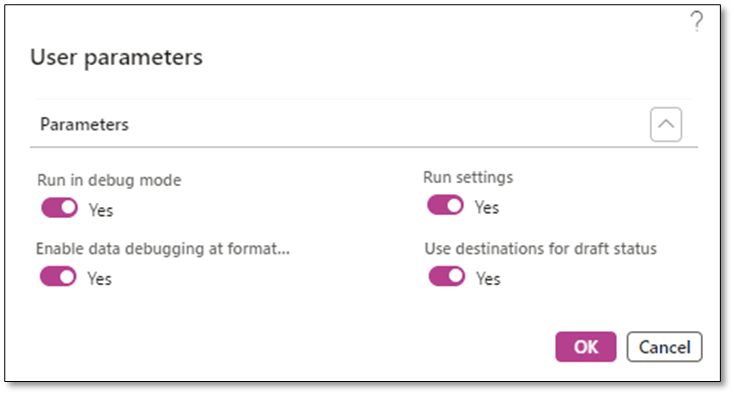
- Activate “Run Draft” for Configurations
To debug the ER configuration (Data model, Model mapping, and Format mapping), ensure that “Run draft” is enabled for each configuration. This allows you to debug your configuration live, ensuring the mappings are functioning correctly.

How to Run Debugging?
To begin debugging, generate the CBD by selecting View or Print.
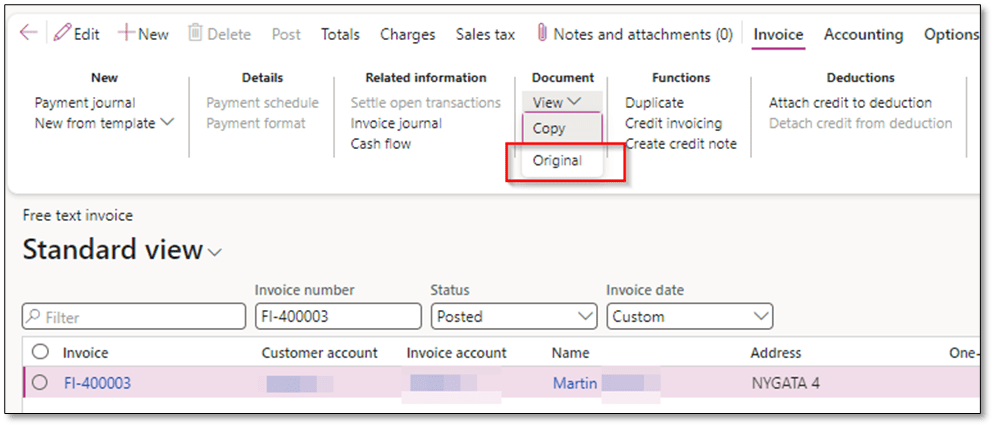
- A pop-up message will appear prompting you to proceed with debugging.
- Click Yes to start debugging. If you select No, the process will skip debugging and generate the document without showing debugging details.
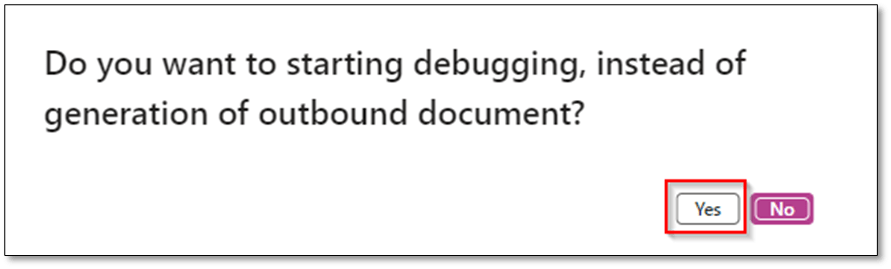
Debugging a CBD
1. Debugging at the Format Level
Debugging at the format level allows you to confirm if the values from the model mapping are correctly populated.
- If the values are not populated, you’ll need to revisit the mappings and ensure they are correctly linked in the layout (Excel or Word).

2. Debugging Format Mapping Formulas
On the Format Mapping level, you can test formulas and ensure they retrieve data as expected from the model mapping.
- Activate the Show details option to review and test the provided formulas.

- Verify that the formulas return the correct values based on your data source.

3. Debugging at the Model Mapping Level
At the model mapping level, you can confirm whether the provided mappings and formulas retrieve the expected data from the data source.
- Run debugging here to ensure that your formulas and bindings are correctly configured.

Debugging is an invaluable tool for ensuring the accuracy of CBD. It allows you to identify and resolve issues in your configurations before publishing, saving time and avoiding errors in production.
I hope this post helps you better understand how to use debugging with CBDs. If you have any questions or feedback, feel free to leave a comment below—your input is always appreciated!
 DynFOTech