
The Electronic Reporting (ER) framework in Microsoft Dynamics 365 Finance & Operations (D365FO) is a powerful tool designed to simplify integration and document management. Microsoft provides several prebuilt ER configurations that can be imported through the Dataverse repository. In this blog post, we’ll guide you through the steps to access the latest ER configurations and keep them up-to-date in your D365FO environment.
Step 1: Link Your D365FO Environment to the Power Platform Admin Center
To enable integration between D365FO and Dataverse, you must link your D365FO environment to the Power Platform Admin Center (PPAC). This connection is critical for leveraging virtual tables, business events, and the dual-write feature, as well as installing add-ins and connecting them to your FO apps.
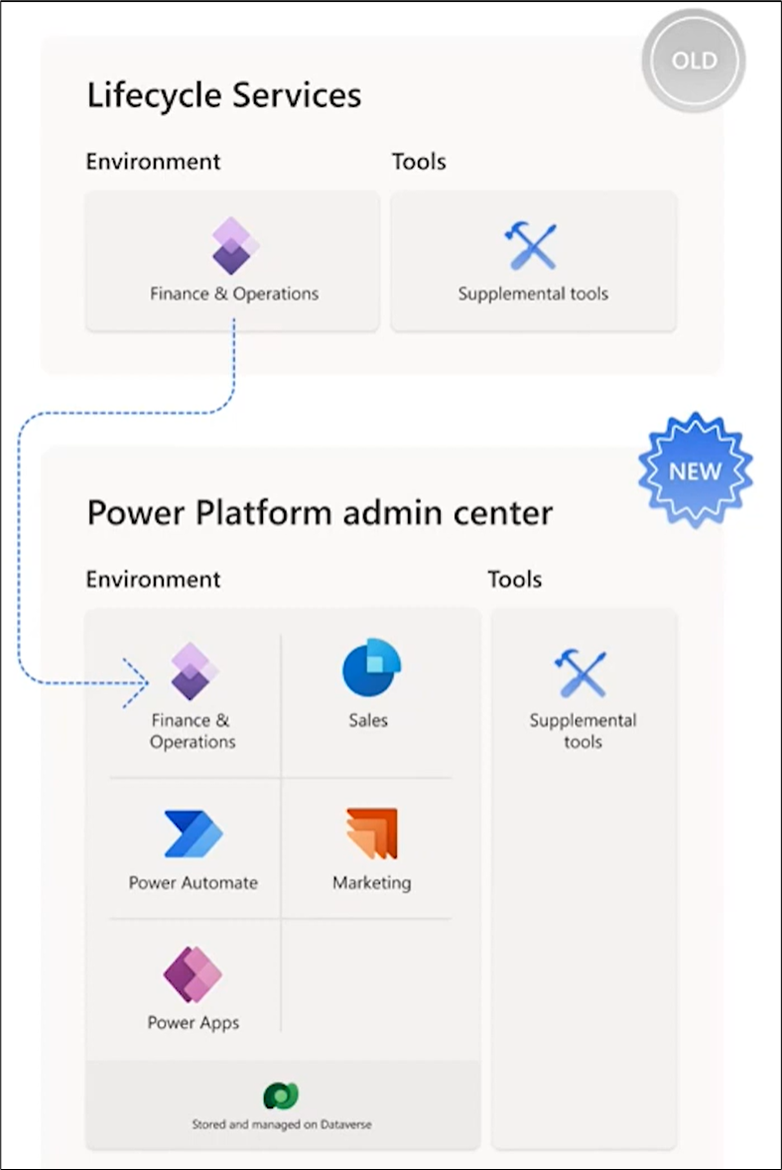
If you haven’t yet linked your environment to PPAC, start by following this TechTalk by Microsoft for detailed guidance: https://youtu.be/HmJIuHhx3Hg?feature=shared
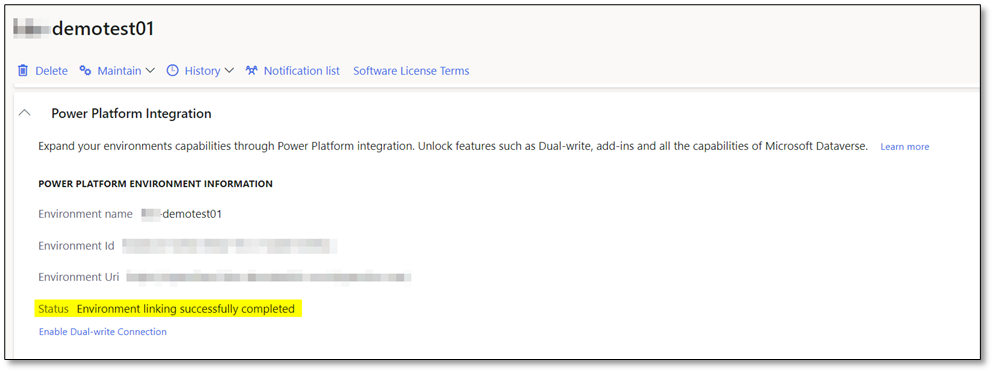
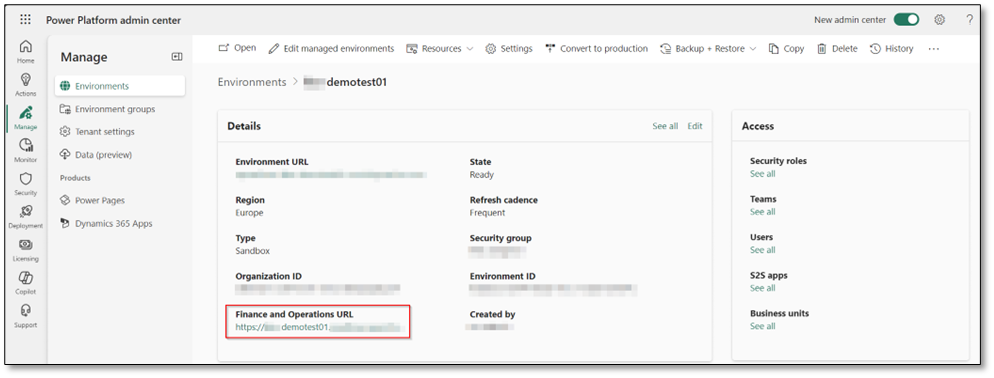
Step 2: Install the Globalization Solution
To access ER configurations, install the Globalization Solution for Microsoft Dynamics 365 Finance in PPAC. Follow these steps:
- Open this link: https://aka.ms/GlobalizationSolution.
- Click Get to begin the installation.
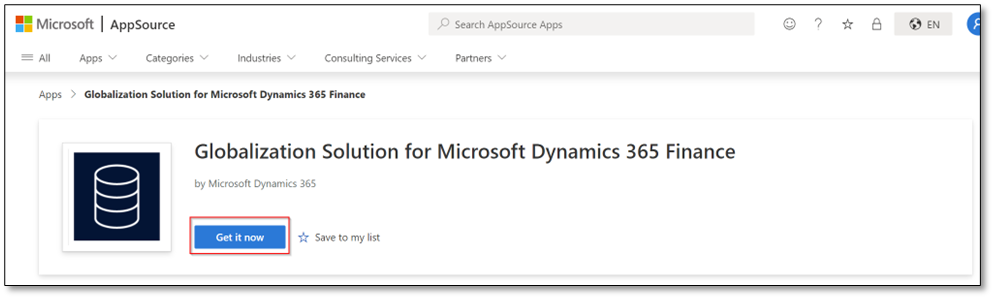
- Select the relevant environment in PPAC and click Install.
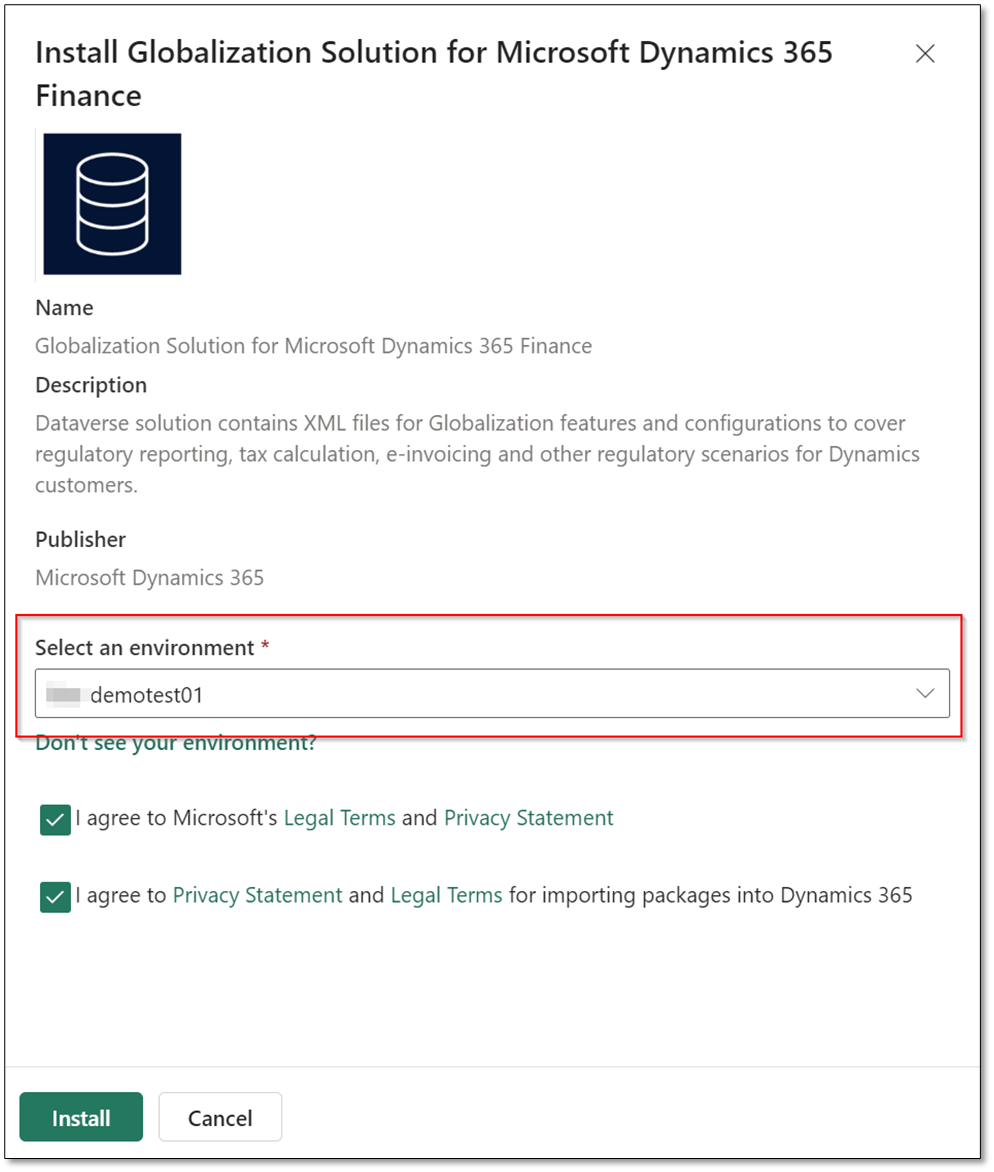
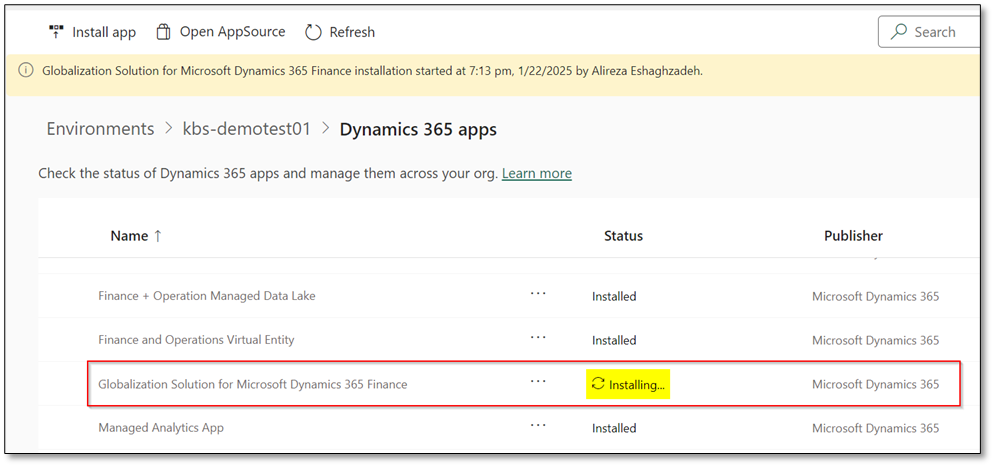
Step 3: Update the Globalization Solution
Occasionally, new configurations or updated versions of existing configurations may not appear in the Dataverse repository within your sandbox environment. To resolve this, follow these steps:
- Navigate to PPAC > Environments.
- Select your environment.
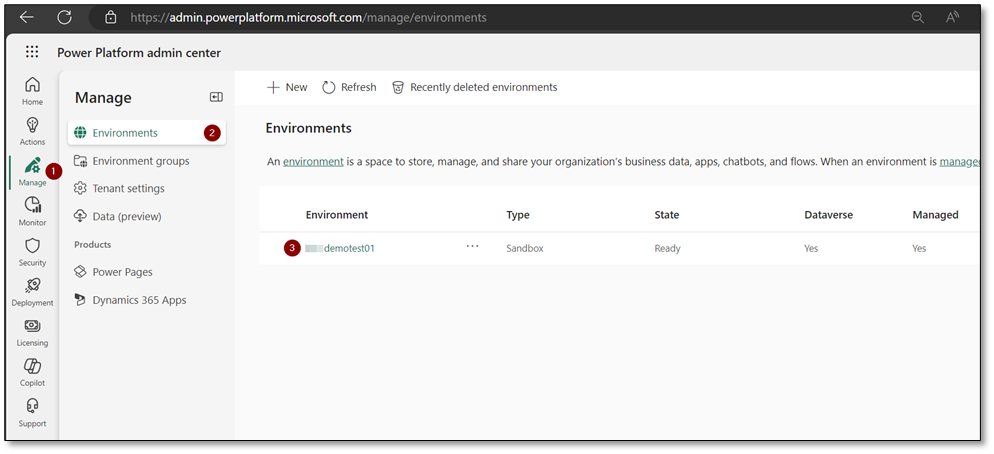
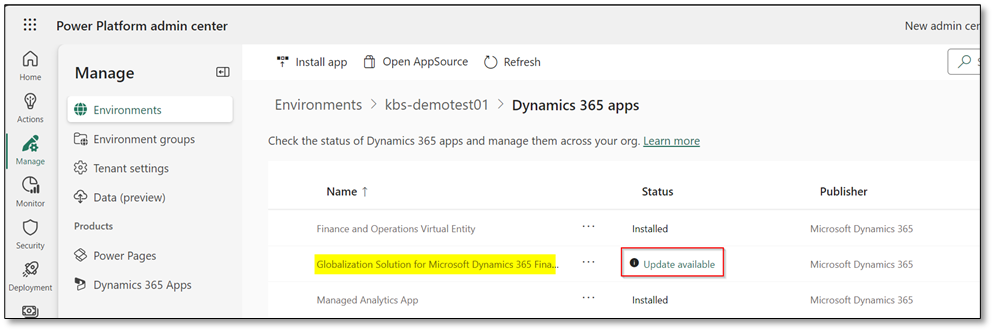
- Go to Resources > Dynamics 365 apps to view the list of installed applications.
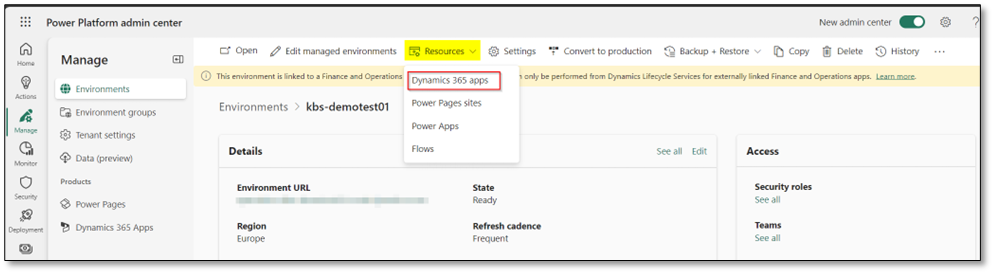
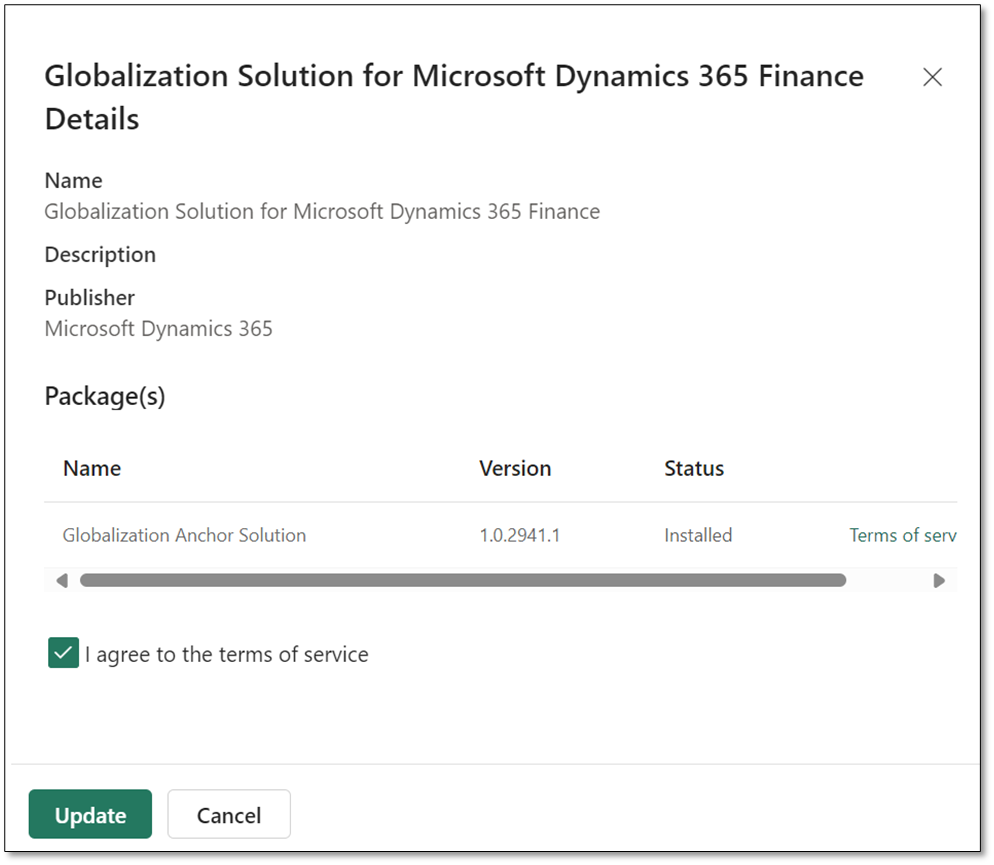
- Search for Globalization Solution for Microsoft Dynamics 365 Finance, and if an update is available, click Update to install it.
Step 4: Access Dataverse Repositories in D365FO
After the installation or update is complete, go to your D365FO workspace:
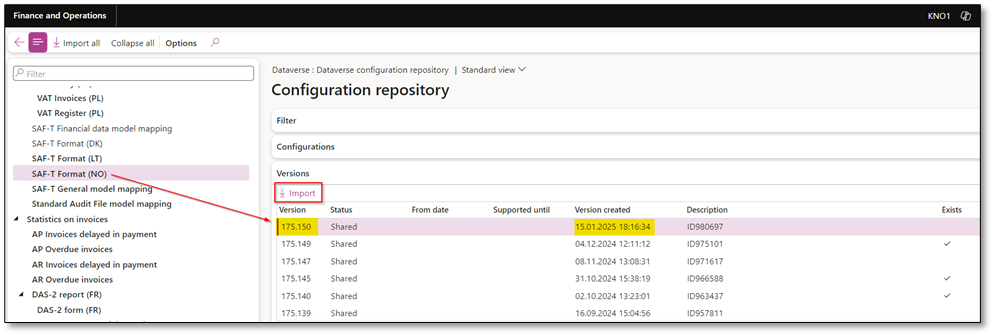
- Navigate to Workspaces > Electronic Reporting.
- Select Configuration Providers > Microsoft > Repositories.

- Choose Dataverse and click Open to access the repository.

Step 5: Grant User Access to Update the Globalization Solution
To enable specific users or user groups to update the Globalization Solution, assign the necessary security roles in PPAC:
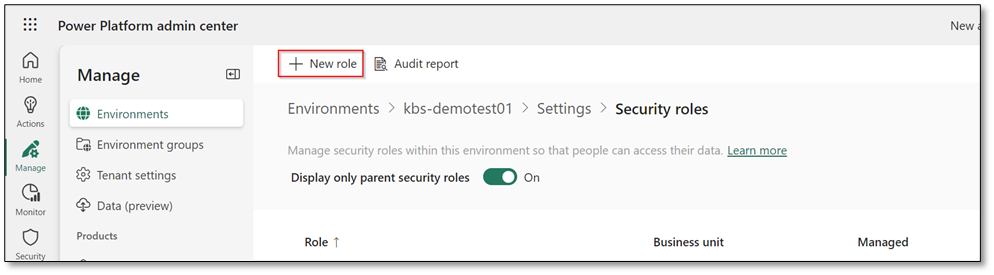
- Create a security role for the environment.
- Grant the following permissions for the Organization on these tables:
- Electronic Reporting Configuration File
- Electronic Reporting Configurations Index File
- Globalization Feature File
- Globalization Features Index File
- Assign the security role to relevant members so they can access Dataverse repositories in D365FO.
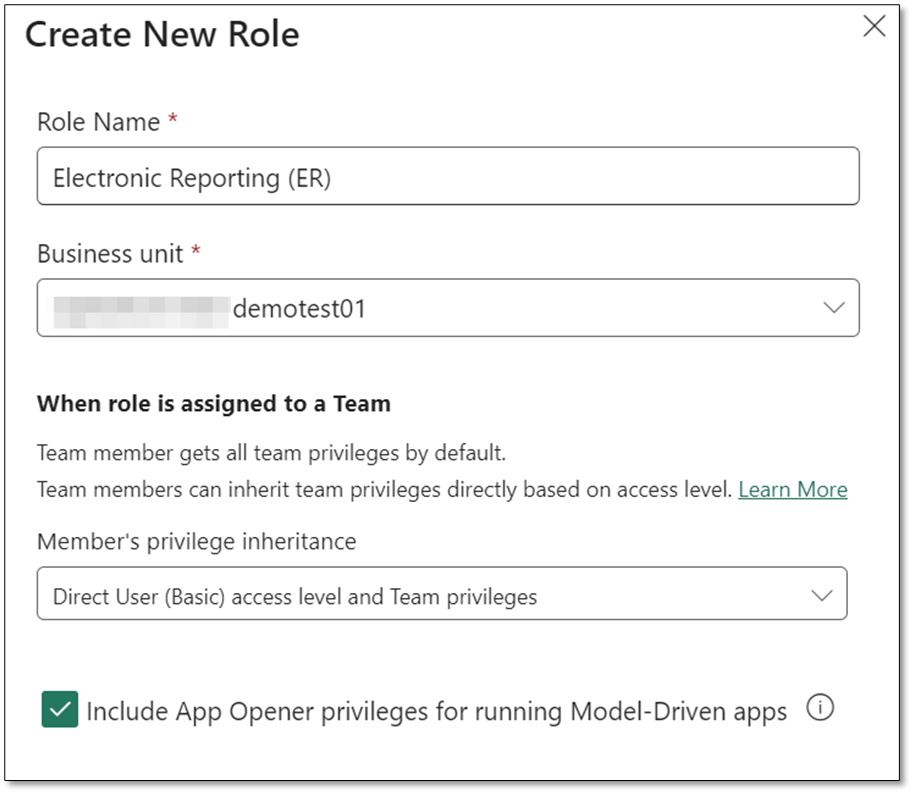
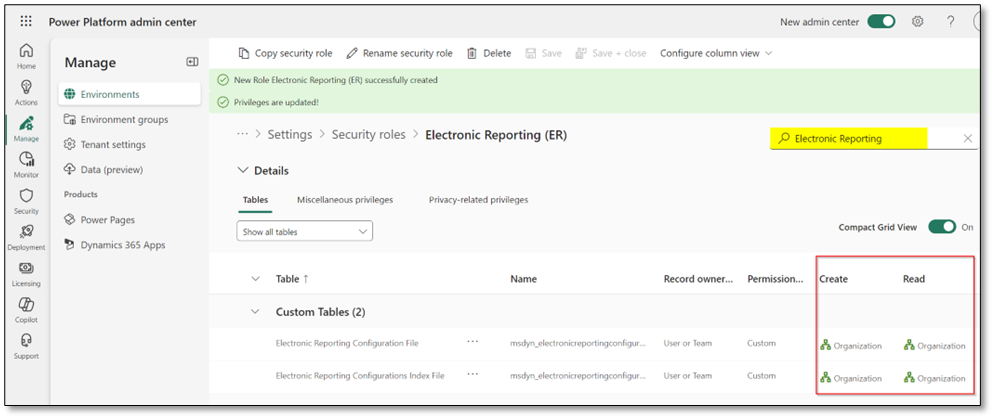
For detailed instructions, refer to the official Microsoft documentation: Import ER Configurations from Dataverse
Final Thoughts
This guide should help you seamlessly import and manage ER configurations in D365FO through Dataverse. If you have any questions or need further assistance, feel free to leave a comment below—I’m always happy to help!
 DynFOTech