
The Standard Audit File for Tax (SAF-T) is a critical regulatory requirement in Norway, enabling tax authorities and auditors to access structured, high-quality accounting data. However, for organizations operating with large volumes of transactions in Microsoft Dynamics 365 Finance, SAF-T (NO) reporting has often posed significant performance challenges.
That’s changing—thanks to new updates from Microsoft. With a series of performance enhancements and the introduction of flexible Execution Modes, generating SAF-T files is now faster, more stable, and more memory-efficient. This is especially timely with Version 1.3 of the SAF-T (NO) schema becoming mandatory from January 1, 2025.
📌 What’s New?
Microsoft has introduced a game-changing feature in D365FO: Execution Mode—a major leap forward in reducing SAF-T generation time and optimizing memory usage. This feature empowers users to generate SAF-T files in multiple ways:
- 📄 A Single file (traditional method)
- 🗂️ Separate files – one for Master Files and one for General Ledger Entries
- 📘 Only Master Files
- 📊 Only General Ledger Entries
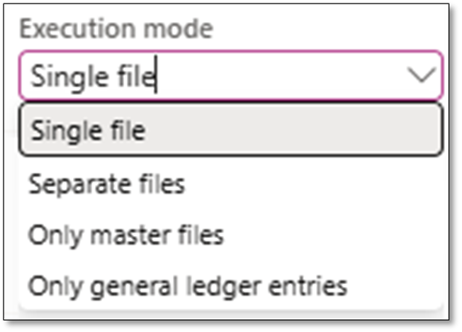
These enhancements are backed by feature flags, code-level performance improvements, and updated Electronic Reporting (ER) configurations—all working together to improve SAF-T (NO) reporting stability and scalability.
🔍 Why Execution Mode Matters
The new Execution Mode isn’t just a performance booster—it’s also a requirement enabler for large organizations with high data volumes.
According to the Altinn SAF-T documentation, the following limitations apply when submitting files:
- A maximum of 200 MB per attached file
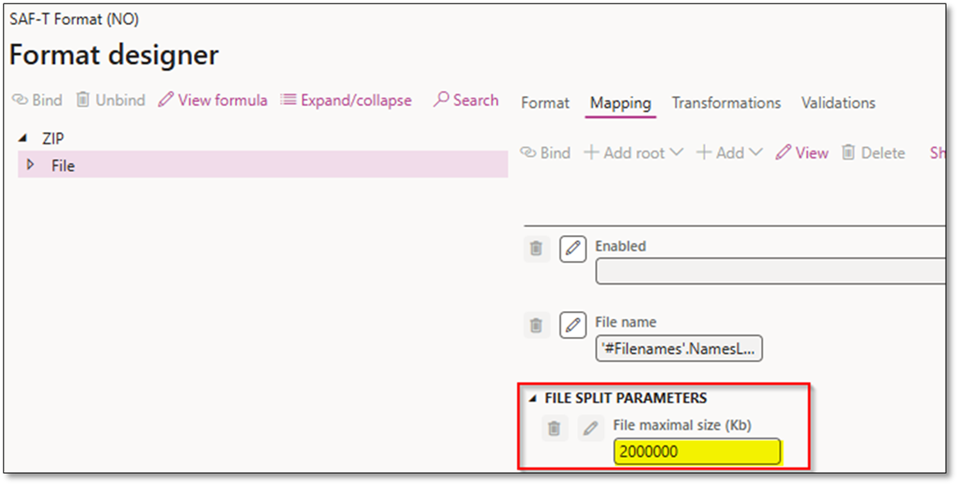
- Up to 2 GB of uncompressed XML data per single file
- A maximum of 10 files (ZIP or XML) can be submitted per transmission
- All XML files must validate with the SAF-T schema
- ZIP compression is strongly advised, reducing XML size by approximately 95%
🧠 With these constraints in mind, Execution Mode becomes a crucial enabler—allowing SAF-T reports to be split intelligently and efficiently for both submission compliance and runtime performance.
Whether you’re dealing with massive transactional volumes or aiming to stay within Altinn’s technical boundaries, Execution Mode ensures that SAF-T (NO) generation remains scalable, compliant, and robust.
👉 Recommendation: If your organization anticipates that the SAF-T file may approach or exceed the 2 GB XML limit, it is highly recommended to use the Separate Files mode. This ensures that the output is properly divided between Master Files and General Ledger Entries, significantly reducing the risk of file rejection or processing delays.
🛠️ Prerequisites & Feature Activation
To activate the improvements, make sure the following features are enabled in Feature Management:
- ✅ Performance improvement for Norwegian SAF-T report
- ✅ Performance enhancement for general ledger dimension set balance calculation
- ✅ Optimize datasets memory consumption at ER reports runtime
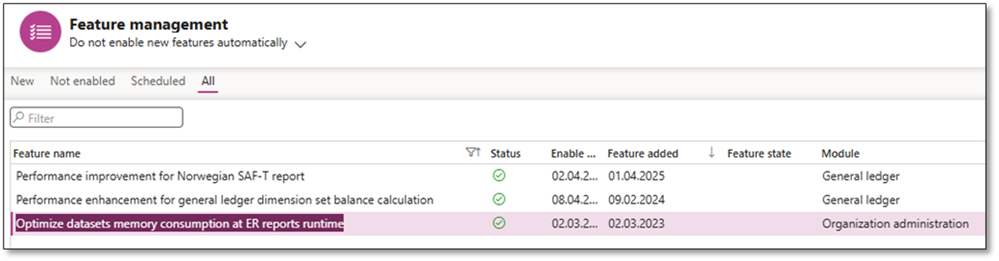
The balance calculation performance improvement feature enables balances to be calculated within seconds while ensuring full alignment with the system’s trial balance—eliminating the need for manual reconciliation..
📌 Availability:
The SAF-T performance improvements are available in:
- Version 10.0.44 and above
- 10.0.43 (build 10.0.2177.60)
- 10.0.42 (build 10.0.2095.136)
- 10.0.41 (build 10.0.2015.209)
👉 Recommendation: Upgrade your environment to a supported version before proceeding.
⚙️ ER Configurations You Need
Make sure your ER configurations are updated via the Global Repository (Dataverse). The following are the minimum versions required:
| Configuration | Minimum Version |
| Data Model | SAF-T v190 |
| Model Mapping | v190.139 |
| Format Mapping | v190.177 |
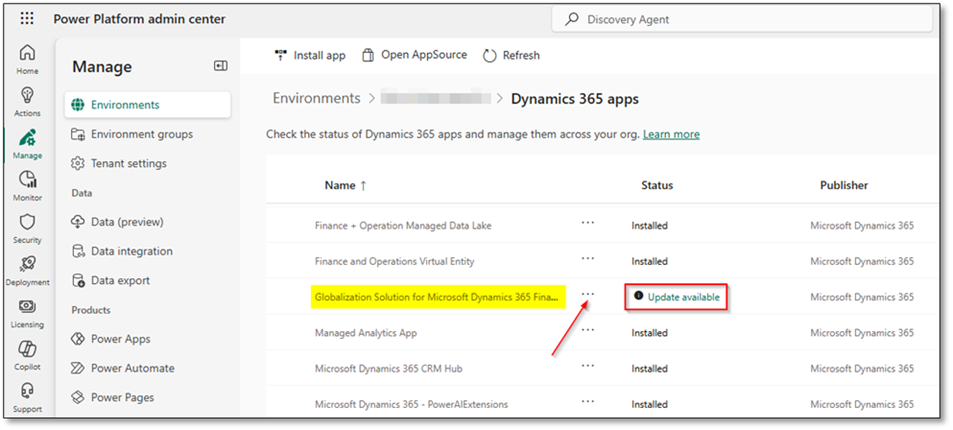
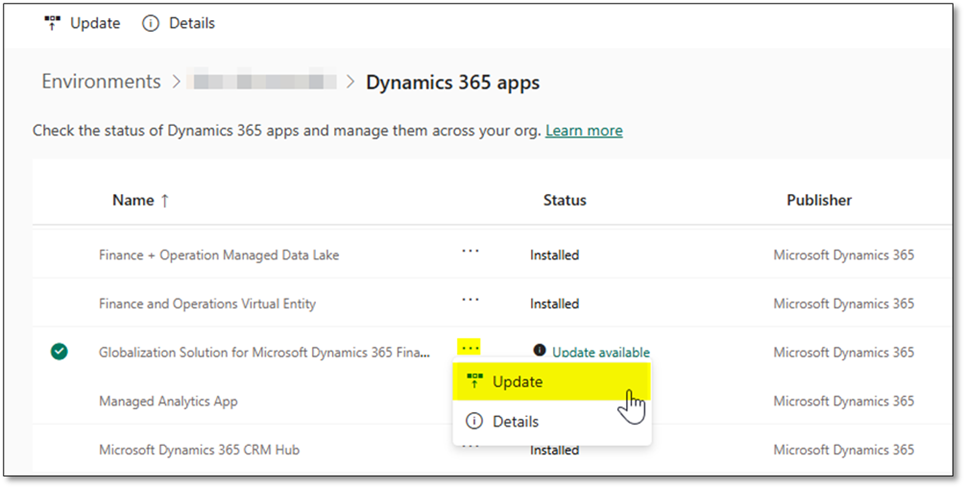
🔄 If these configurations aren’t visible, update the Globalization Solution for Microsoft Dynamics 365 Finance via the Power Platform Admin Center.
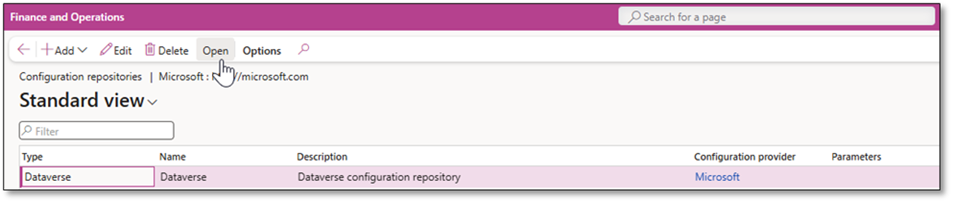
🧩 Setting Up Version 1.3: Step-by-Step
1. Activate Model Mapping
Set the model mapping “SAF-T Financial data model mapping” as the default for model mapping.

2. Import Tax Code Mapping Table
Use Application Specific Parameters to import or copy a mapping table:
- Export from an earlier version and import to the latest.
- Alternatively, manually enter or copy/paste the mappings.
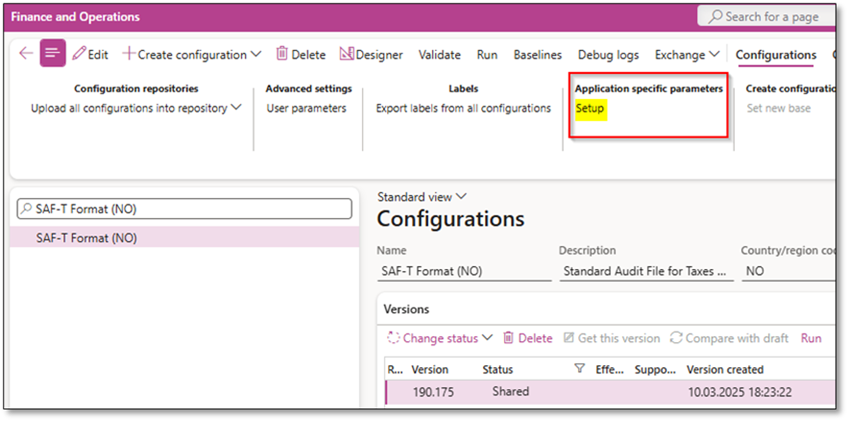
⏱ Note: Loading the parameters window might take a few minutes.
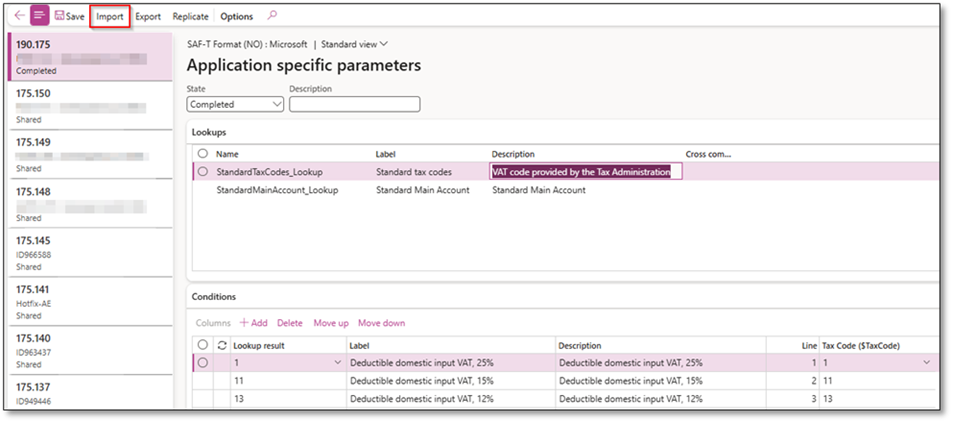
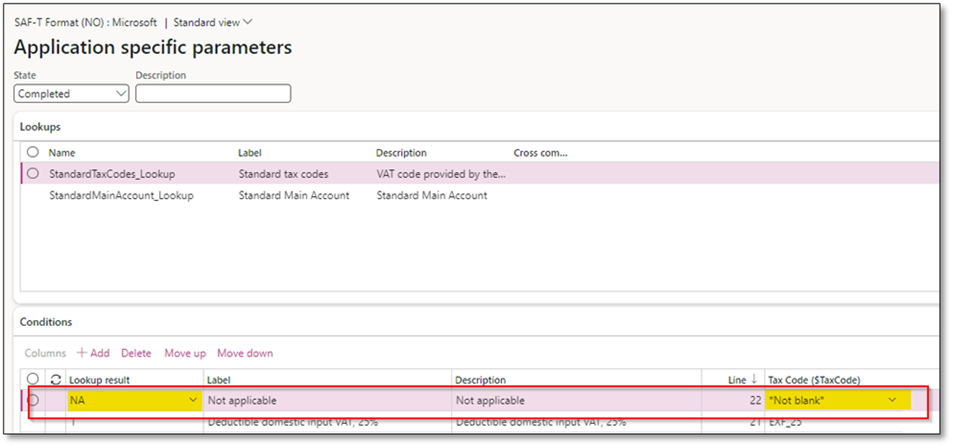
- Add “NA” as the last line for tax codes that lack mapping.
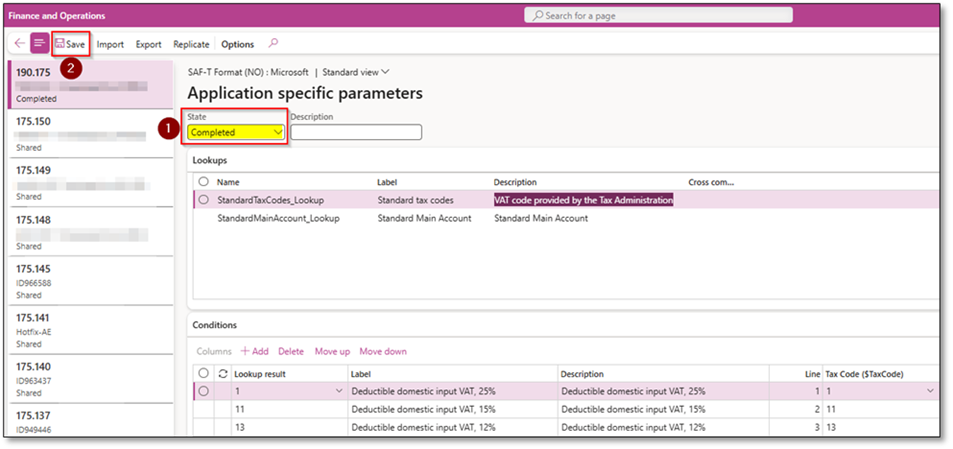
- Set the state to “Completed” and save.
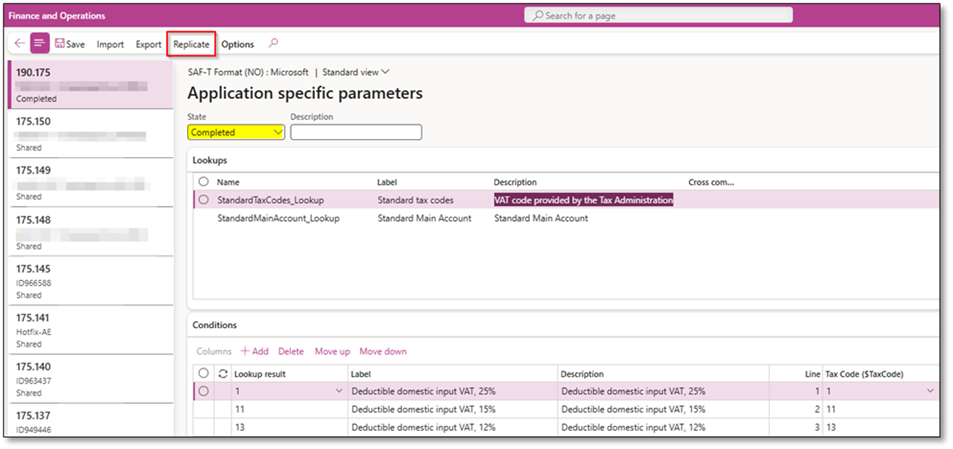
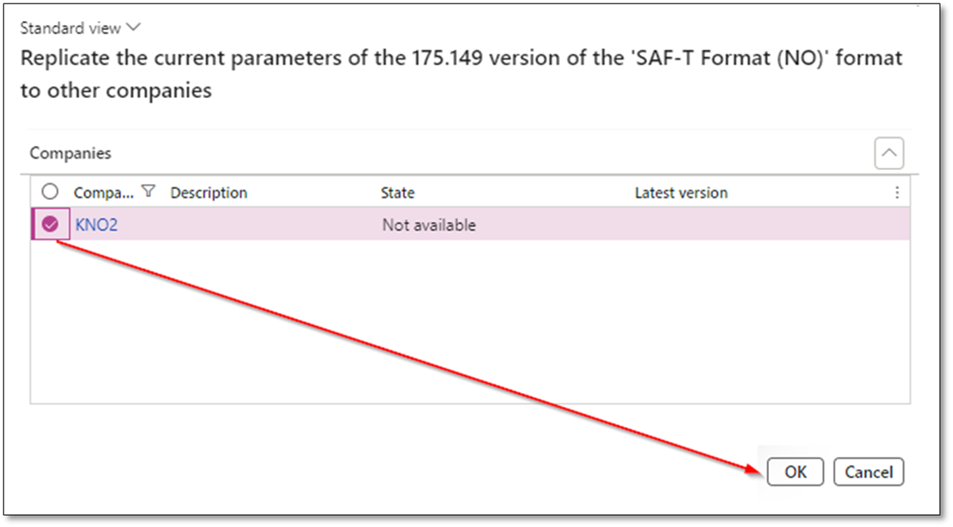
- Use the Replicate function to copy the mapping table across companies.
4. Add Main Account Mapping Table
- Version 1.3 uses the Additional Consolidation Accounts feature instead of Application Specific Parameters for main account mapping:
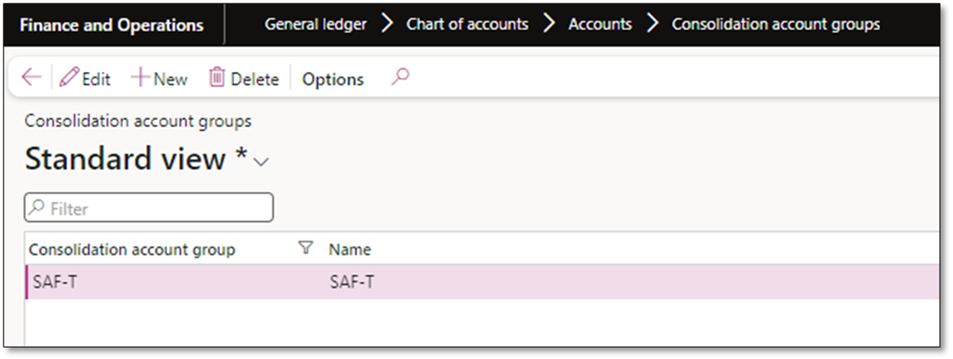
- Create a Consolidation Account Group in General Ledger > Chart of Accounts > Accounts > Consolidation Account Groups.
- Import the main account table to map the company’s COA to the standard chart of accounts via Additional Consolidation Accounts.
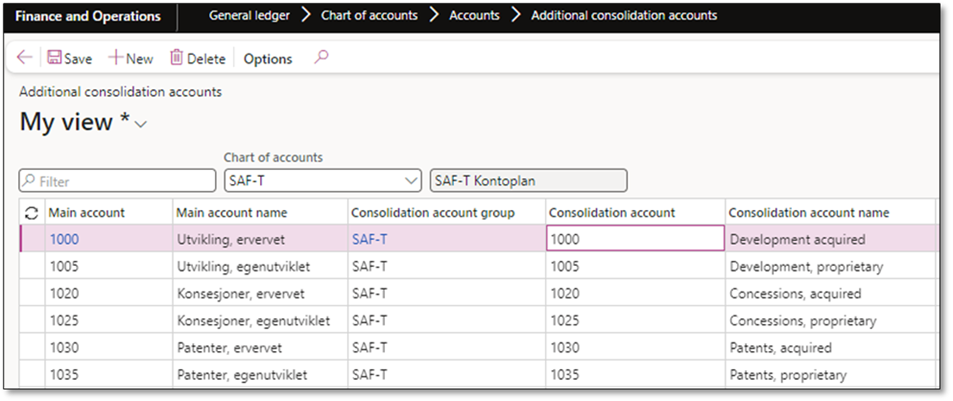
- Map your chart of accounts to the standard using the Excel Add-In or Data Management Framework (DMF) via the entity: Consolidation Groups and Accounts
- This mapping applies to all companies and doesn’t need replication.
- Use the official Norwegian Tax Administration’s standard account list from GitHub.
🧾Generating SAF-T File
Go to: General Ledger > Inquiries and Reports > SAF-T (NO)
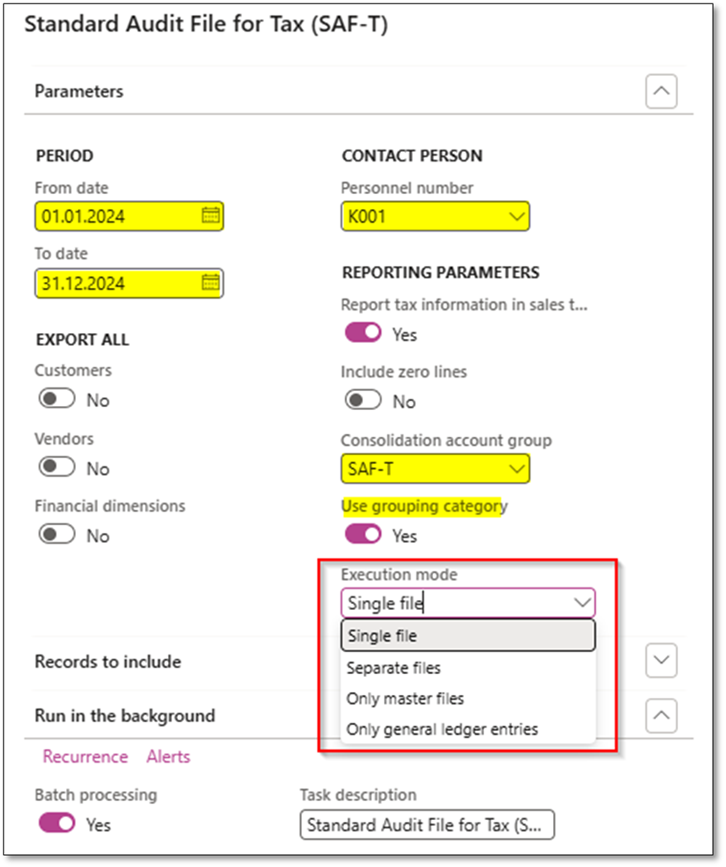
Ensure the following are filled:
- 📅 From/To Dates
- 👤 Personnel Number
- 💱 Report tax in sales tax code currency (optional)
- 📘 Consolidation Account Group
- 📂 Use Grouping Category
- ⚙️ Execution Mode – choose from:
- Single File: One XML zipped file
- Separate Files: One zip for Master Files, one for Ledger Entries
- Only Master Files
- Only Ledger Entries
💡 These modes help reduce memory consumption and allow faster, more stable generation.
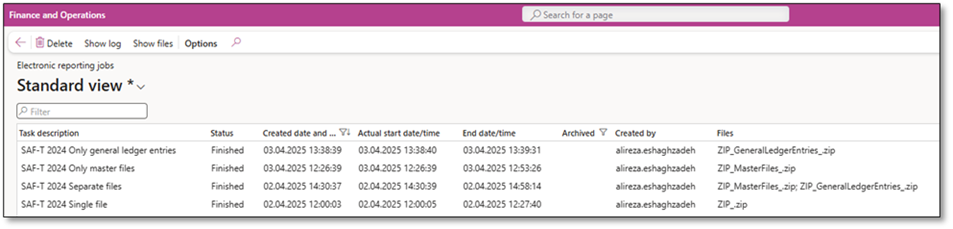
✅ Use Batch Processing to run the report. The output appears in:
Organization Administration > Electronic Reporting > Electronic Reporting Jobs
🧯 Troubleshooting SAF-T File Generation Issues
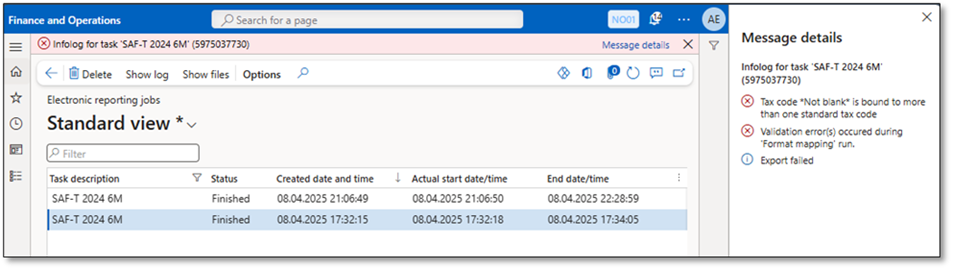
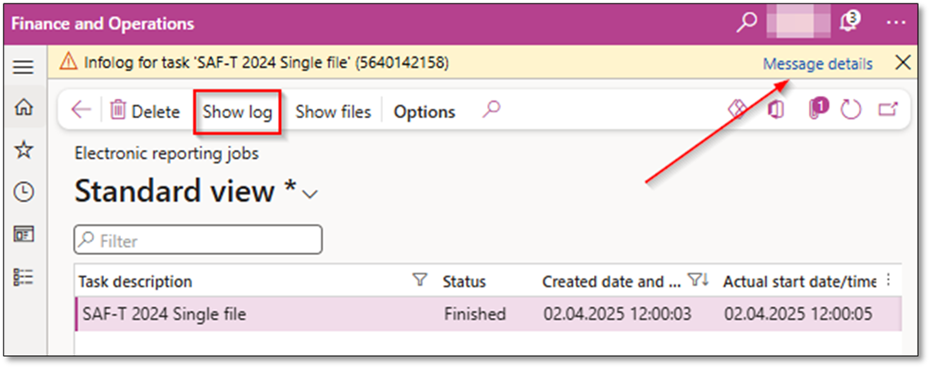
In some cases, you might not see a generated file in Electronic Reporting Jobs, or you may receive an error message in the batch job despite the job showing a “Finished” status. Here’s how to identify and resolve these issues:
🔍 Step 1: Check the Error Message
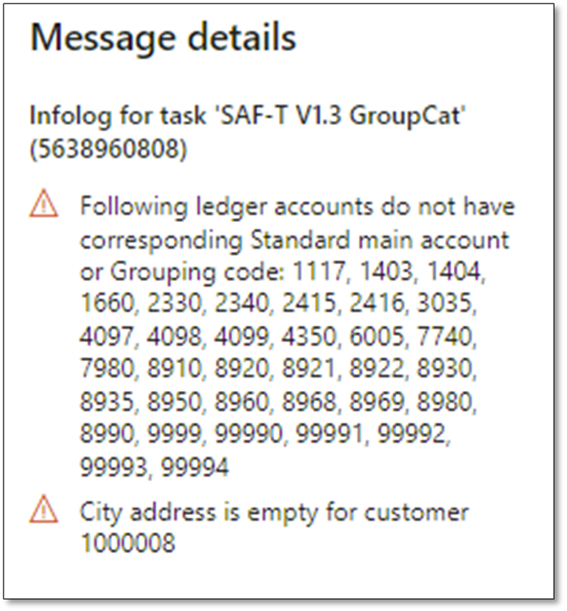
Always start by reviewing the error details in the batch job log. Most errors are traceable and often related to incomplete configurations, such as:
- Missing tax code mappings
- Missing main account mappings
For example, if your error message references a TaxInformation element or undefined tax code, this points directly to a missing or incomplete Tax Code Mapping Table. Revisit the section “Import Tax Code Mapping Table” to verify your configuration.
🔍 Step 2: Consider Execution Timing and Volume
If there are no explicit errors, but the file fails to generate after a long time, the issue may relate to:
- The data volume (e.g., high transaction count or use of many financial dimensions)
- The execution window (running large jobs during peak business hours)
🛠 Recommended Actions:
- ✅ Use shorter date intervals to generate SAF-T files incrementally.
- ✅ Take advantage of the new Execution Mode options (Master only, Ledger only, Separate files) to isolate and reduce processing load.
- ✅ Run the SAF-T job after business hours or outside of month-end periods to avoid contention with other batch jobs.
- ✅ Monitor batch job status and server load during execution. If the batch is running, allow sufficient time based on your organization’s transaction volume and dimension usage.
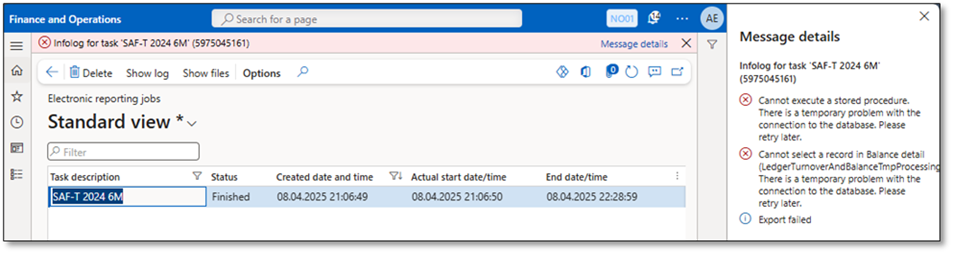
🧠 Pro tip: SAF-T generation performance is highly dependent on the combination master data (Financial dimensions, Main accounts, customers, vendors and tax codes and transactions in the selected period. Optimize ranges where possible and take advantage of Execution mode.
By following these steps, you can proactively avoid common pitfalls and ensure smooth SAF-T file generation—even for large data sets.
✅ Validating SAF-T in D365FO
Before submission or sharing with auditors, validate your SAF-T file for completeness. Ensure the following fields are populated:
- Selection date
- City
- Postal code
- Contact person
- Company registration number
- Tax code collection
- Category group
This step ensures compliance with SAF-T requirements and avoids errors during submission or audit.
🧪 External Validation with SAF-T XML Validator
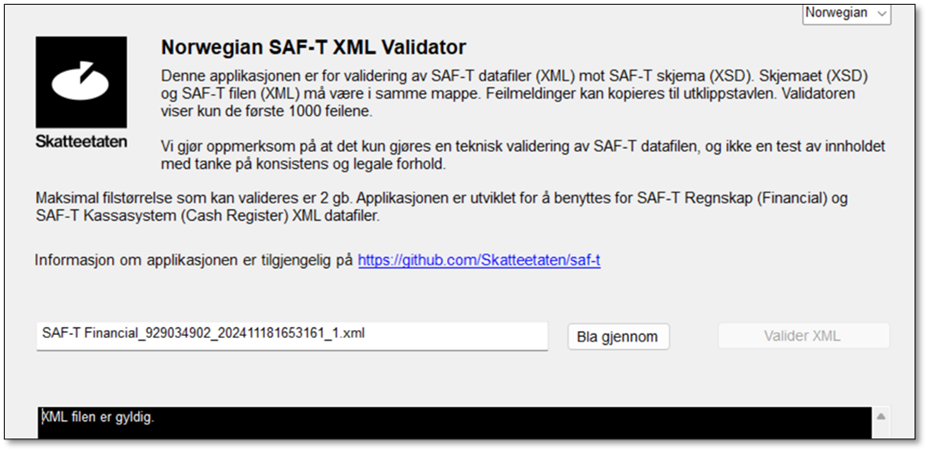
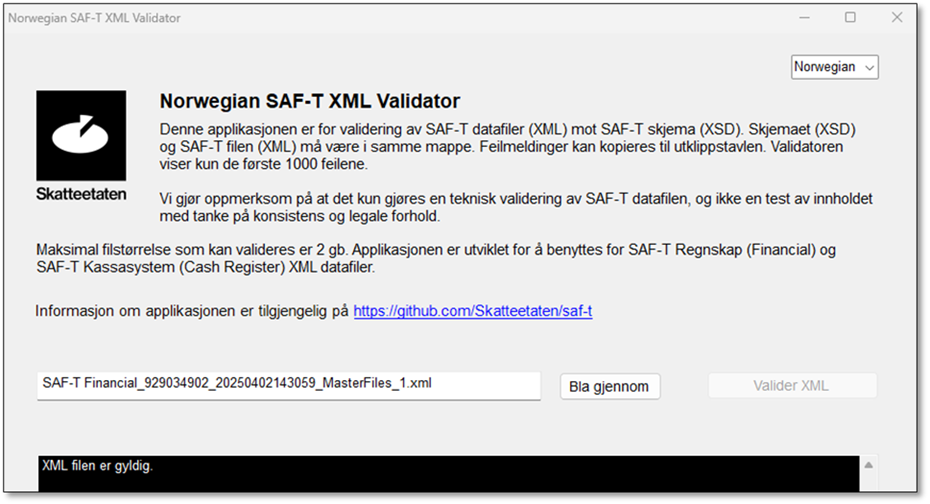
You can try validating of SAF-T file, Master files and Ledger entiries through Norwegian SAF-T validator by:
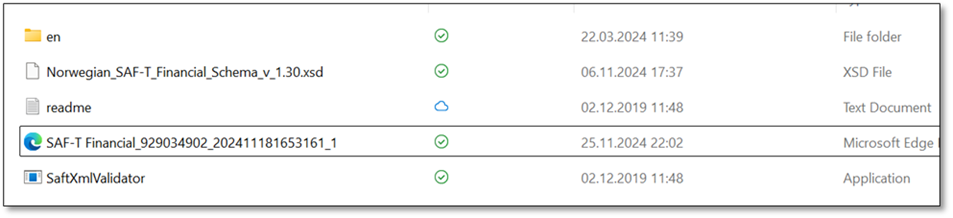
- Download the Norwegian SAF-T XML Validator.
- Ensure the 1.3.xsd file is in the correct folder.
- Copy the generated SAF-T file to the validator folder.
- Open SAFXMLValidator, upload the file, and click Validate XML.
📣 Final Thoughts
These improvements are a must for any organization working with SAF-T in D365 Finance. By breaking large exports into manageable files, reducing memory consumption, and enhancing flexibility, Microsoft has dramatically improved SAF-T (NO) usability and reliability.
✔️ Ensure your environment is on a supported version
✔️ Update your ER configurations
✔️ Make full use of Execution Modes and batch processing
For complete coverage of SAF-T (NO) and Version 1.3, visit Dynfotech’s SAF-T resources or refer to Microsoft’s official documentation.
Thanks for reading! Got questions or tips? Feel free to drop them in the comments!
 DynFOTech