
Electronic invoicing (e-invoicing) is increasingly mandated across countries to ensure compliance with local tax regulations for B2G, B2B, and B2C transactions. In many cases, it is necessary to include supporting documents as attachments within the e-invoice file.
This blog explains how e-invoice attachments work, what formats are allowed, and how to embed attachments in Dynamics 365 Finance & Operations (D365FO).
Why Attachments Matter in e-Invoicing
While the invoice data must always be in XML format (as required by standards like Peppol BIS), additional documents such as delivery notes, timesheets, terms and conditions, or product specifications can be attached to provide extra context.
However, not every format allows the same attachment types, so let’s review the rules by standard.
Allowed Attachment Formats by Standard
Before attaching documents, check what your e-invoicing standard supports:
| Standard | Embedded in XML | Allowed Formats | Format | Notes | Source |
|---|---|---|---|---|---|
| Peppol BIS 3.0 | Yes | PDF, PNG, JPEG, CSV, XLSX, ODS | base64Binary | Embed via <cac:AdditionalDocumentReference> <cac:Attachment> <cbc:EmbeddedDocumentBinaryObject> with valid mimeCode and filename. Attachments must have unique filenames and are for supporting docs only—not invoice copies. :contentReference[oaicite:1]{index=1}
|
Peppol BIS 3.0 MimeCode list |
| XRechnung | Yes | PDF/A‑3, PDF, PNG, JPEG, CSV, XLSX, ODS, XML | base64Binary | Allows up to 200 attachments (≤100 MB total for Peppol); supports including a human-readable PDF/A‑3 invoice copy. :contentReference[oaicite:2]{index=2} | XRechnung technical terms |
| FatturaPA (SDI) | Yes | TXT, XML, DOC, PDF, etc. | base64Binary | Supports multiple attachments via <FatturaElettronicaBody><Allegati> using <FormatoAttachment> tags. | FatturaPA spec v1.4 |
✅ All attachments must be base64 encoded and embedded inside the invoice XML file.
Example: Peppol BIS 3.0 XML

<cac:AdditionalDocumentReference>
   <cbc:ID>Attachment RecId</cbc:ID>
   <cac:Attachment>
      <cbc:EmbeddedDocumentBinaryObject mimeCode="application/pdf" filename="Hours-spent.pdf">
Attachment file converted in B64 encoded
</cbc:EmbeddedDocumentBinaryObject>
  </cbc:Attachment>
</cac:AdditionalDocumentReference>
mimeCode values must match the file type, e.g.:
- application/pdf
- image/png
- image/jpeg
- text/csv
- application/vnd.openxmlformats-officedocument.spreadsheetml.sheet
- application/vnd.oasis.opendocument.spreadsheet
filename is mandatory and must be unique if multiple attachments are included.
How to Add Attachments in D365FO
Attachments in D365FO are linked to document records and can be marked for inclusion in the e-invoice file. Here’s how:
Step 1 – Add Attachments
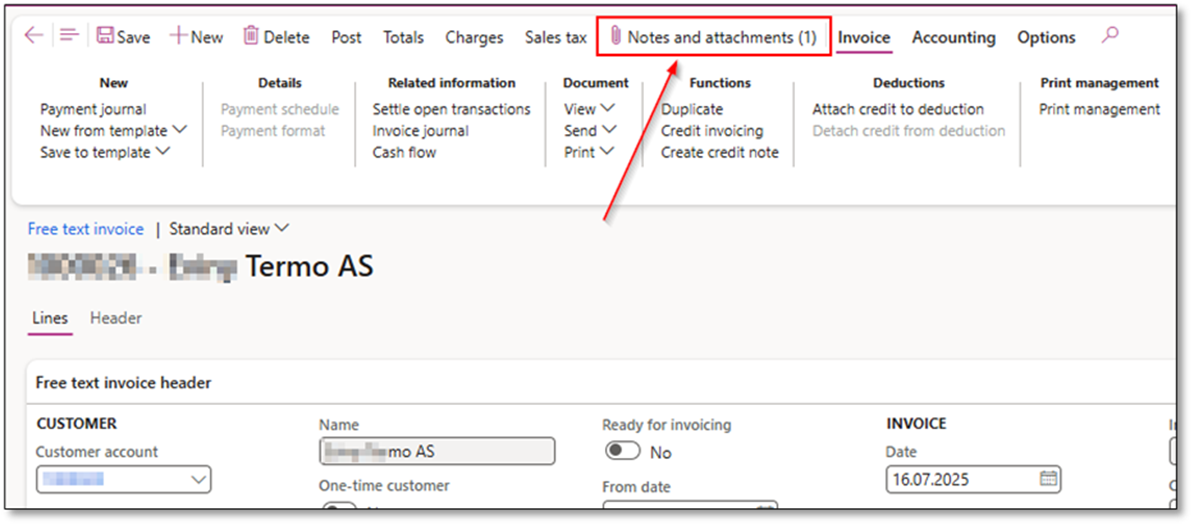
- Go to the invoice or related document (e.g., sales order, free text invoice, project invoice, collection letter).
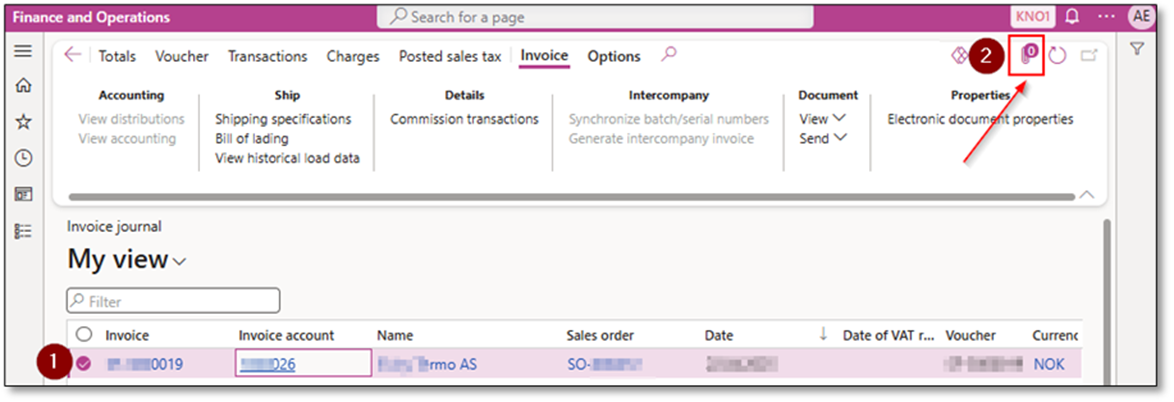
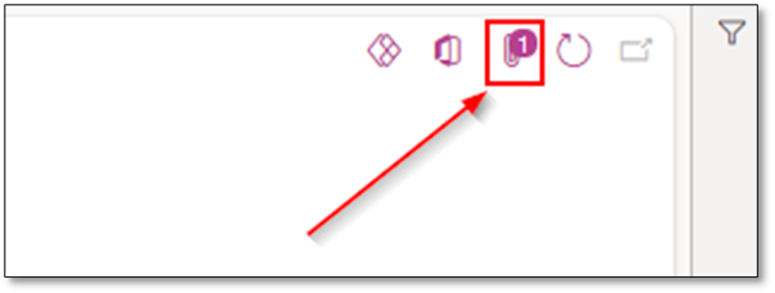
- Click the Attachment (paperclip) button.
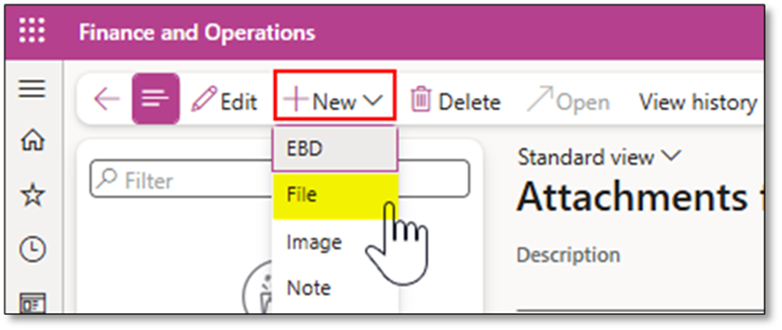
- Click + New, then select File to upload your attachment.
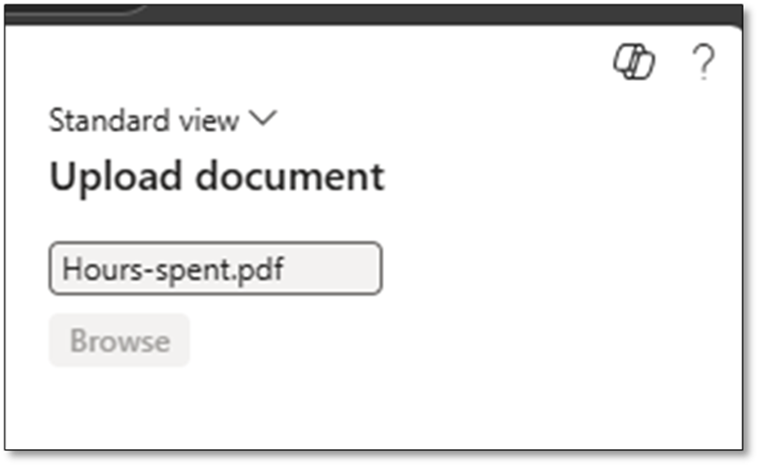
- Repeat for multiple attachments if needed.
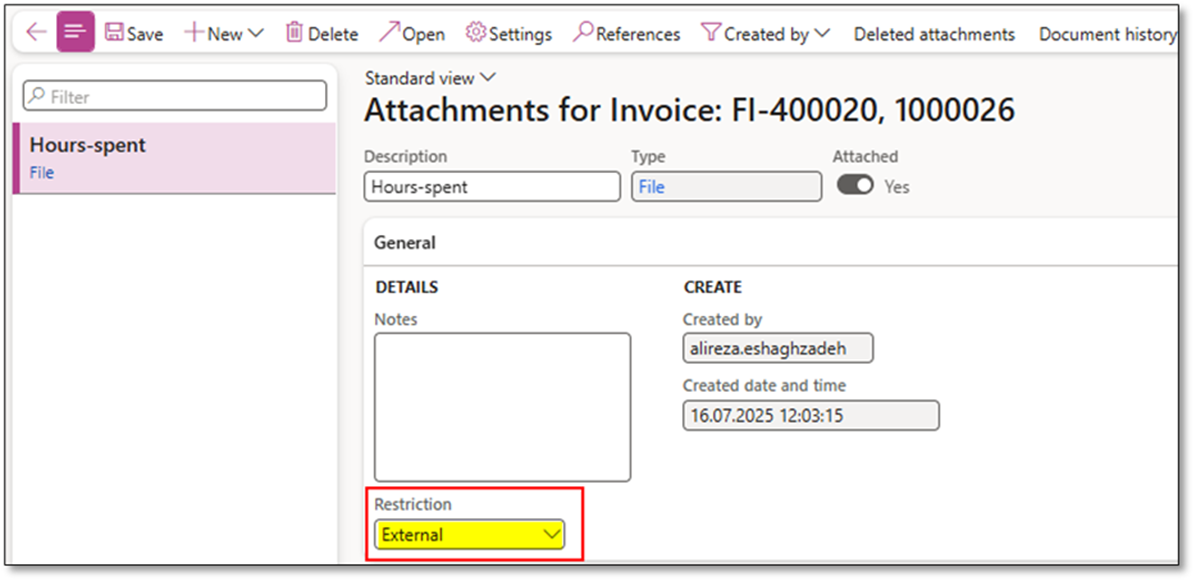
Step 2 – Set Restriction to “External”
- In the attachment properties, set Restriction = External.
This ensures the attachment will be included in the e-invoice XML.
Attachments marked as Internal remain for internal use only.
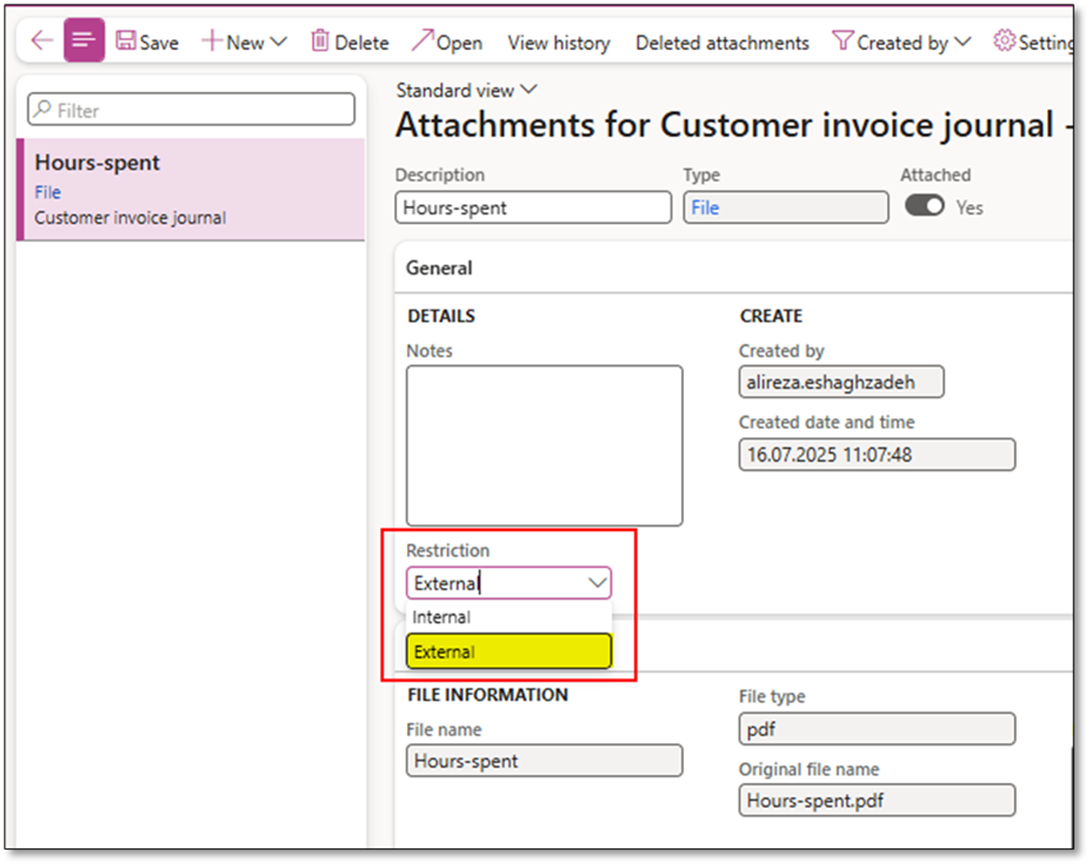
Step 3 – Verify Attachment Flow
Attachments flow from the source document to the journal tables during posting:
| Document | Journal Table | Attachment Flow |
|---|---|---|
| Sales Order | CustInvoiceJour | Yes – via Sales Order before posting |
| Free Text Invoice | CustInvoiceJour | Yes – via Free Text Invoice before posting |
| Project Invoice | ProjInvoiceJour | Yes – via Project Proposal |
| Collection Letter | CustCollectionLetterJour | Yes – via “Review and Process” letters |
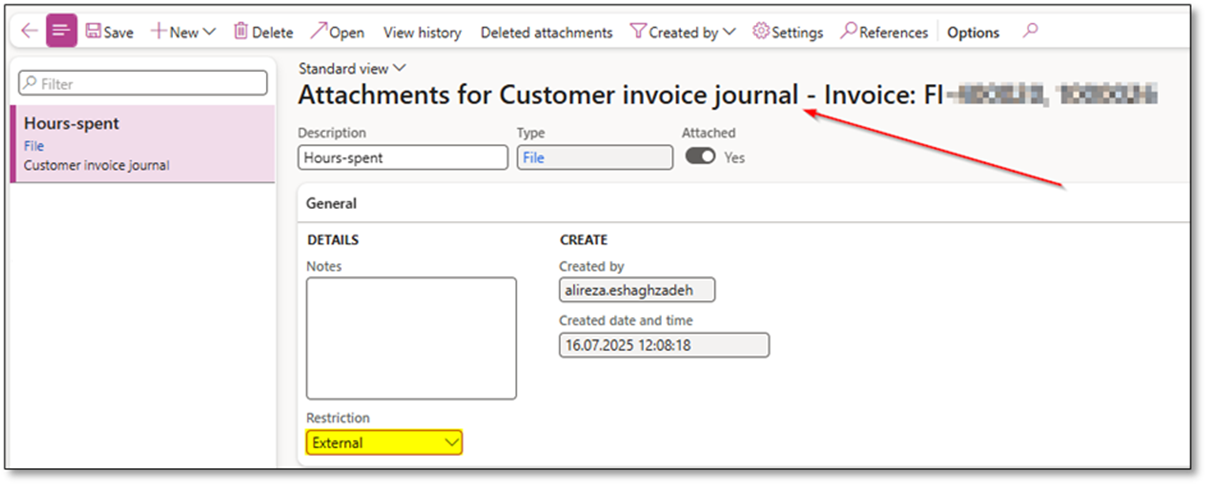
If needed, add attachments at journal level before generating the e-invoice.
Important Notes
- Timing matters: Add attachments before e-invoice generation.
- If attachments are missing, add them to the journal record and regenerate the file.
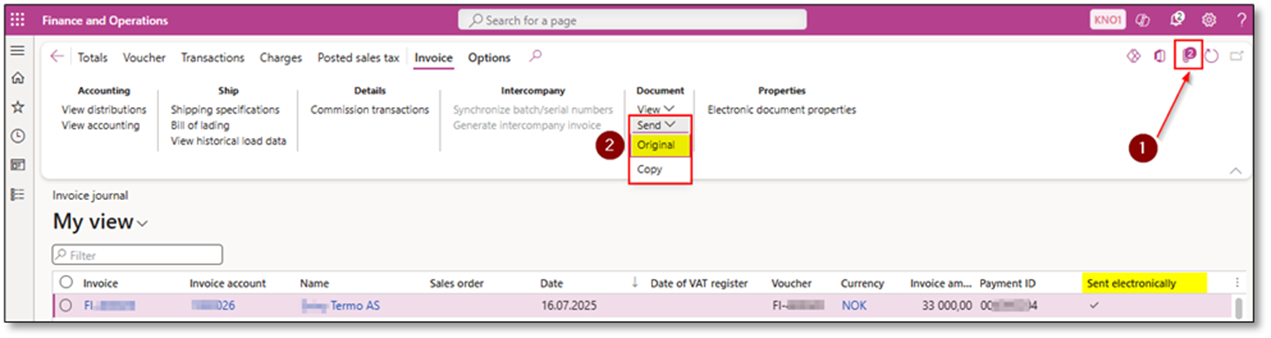
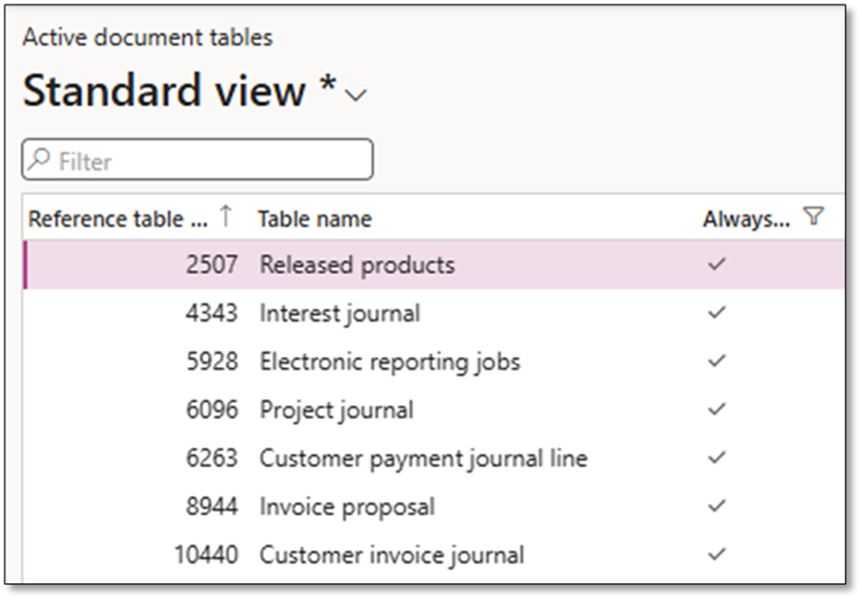
- Ensure Active document tables are enabled for the required tables so that users can upload attachments.
Organization administration > Document management > Active document tables.
- Users must have a security role with access to manage attachments.
With this setup, attachments are automatically embedded in the e-invoice XML in the correct format for your compliance standard (Peppol, XRechnung, FatturaPA, etc.).
Summary
Embedding attachments in e‑invoices within D365FO is efficient, robust, and standard-compliant—as long as you:
- Use supported formats.
- Respect each standard’s limitations (size, count, copy rules).
- Add attachments before invoice posting or e-Invoice file generation.
- Ensure Active document tables are enabled and users have security access to the required attachment tables (e.g., CustInvoiceJour, ProjInvoiceJour, CustCollectionLetterJour) so files can actually be attached and exported.
- Consider merging multiple files into a single attachment for clarity and better receiver processing.
By following these guidelines, you can create richer, more compliant e‑invoices that satisfy both tax authorities and your customers—and automate large parts of your invoicing process effectively.
 DynFOTech
2 Comments Add yours