
The Norwegian Tax Administration requires VAT return reporting with direct digital submission. Microsoft Dynamics 365 Finance & Operations (D365FO) supports this regulatory mandate and enables electronic submission of the modernized VAT Return via APIs provided by the Tax Administration.
While Microsoft has documented the feature and its application configuration, Norwegian customers typically require guidance on the full end-to-end establishment of authentication through ID-Porten and the Samarbeidsportalen integration point. This blog provides a detailed step-by-step reference for D365FO super users and IT administrators on how to:
• Authenticate with ID-Porten (via BankID)
• Register and configure an integration in Samarbeidsportalen
• Set up D365FO to submit VAT returns directly to Altinn
This article complements Microsoft documentation (see official docs) by demonstrating the practical steps required to activate interoperability.
Structure of the Article
To align with Samarbeidsportalen and common implementation practice, the content is divided into three phases:
- Planning
- Integration
- Production and Support
1. Planning
The planning phase includes one-time activities required to obtain access, establish permissions, and prepare the organization for API interoperability.
Required Planning Activities
- Delegate rights for Altinn
- Get started with ID-Porten (Mva-meldingen)
- Create an account in Samarbeidsportalen (ID-porten | Samarbeidsportalen)
- Contact Skatteetaten to enable scope access
1.1 Delegate Rights for Altinn
Ensure that the correct users have “Programming Interface – API” rights in Altinn.
If an external company will act on behalf of your organization for Maskinporten lookup, rights can be delegated via Altinn (only applies to scopes using Altinn as delegation source).
Steps:
• Log in using BankID
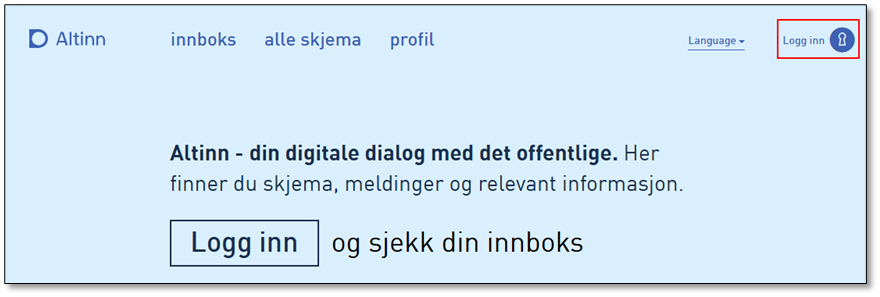
• Navigate to Profile
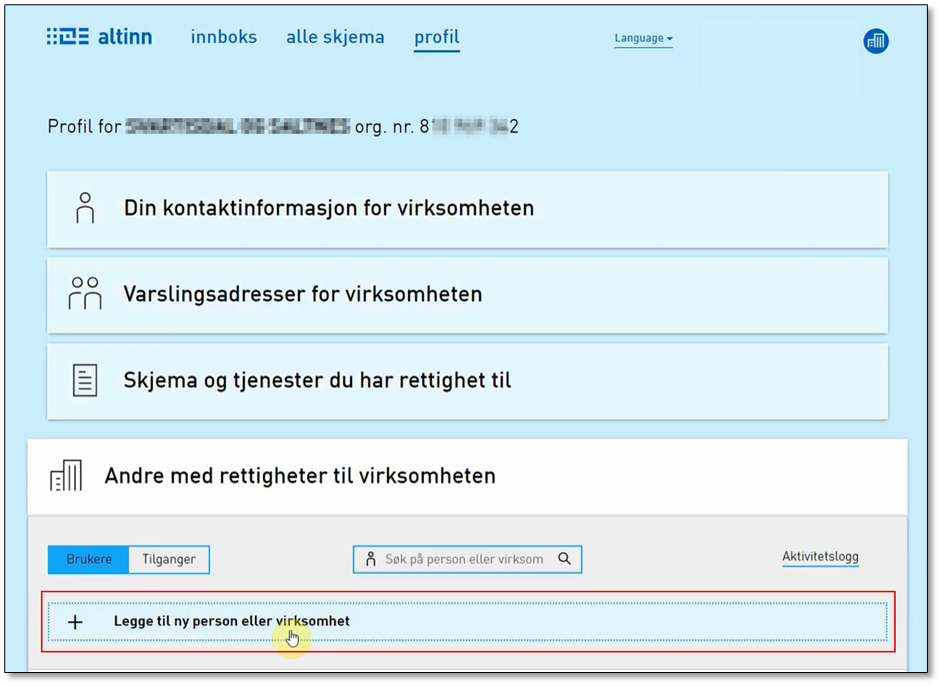
• Open “Other with rights to the business” (Andre med rettigheter til virksomheten)
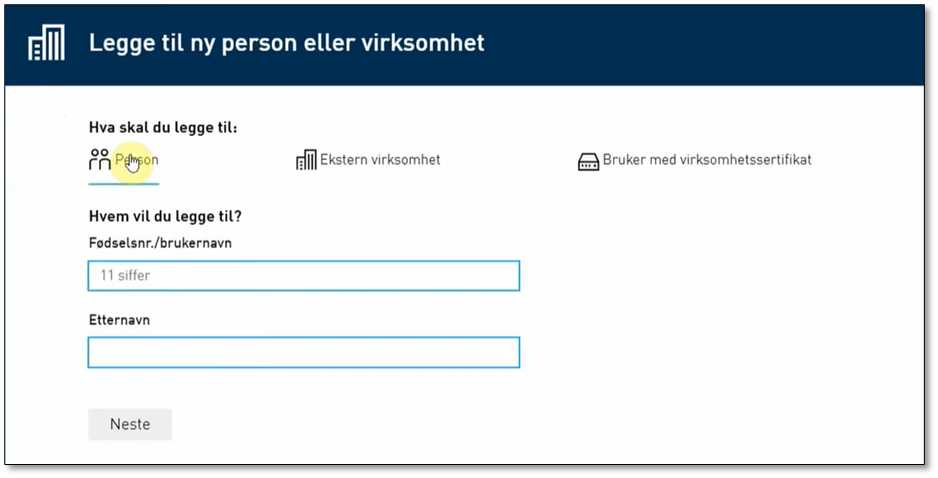
• Assign access to internal users or external entities
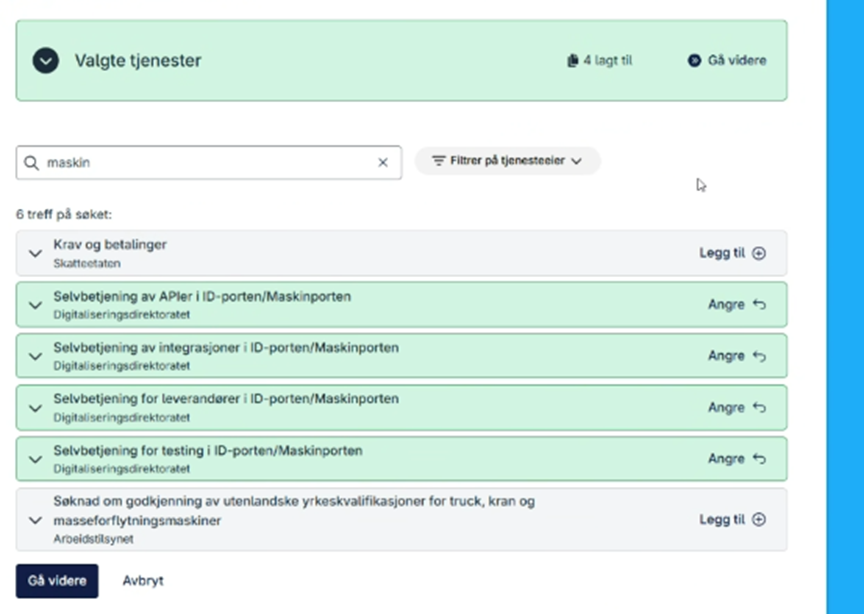
For external business delegation, refer to Maskinporten self-service documentation (Selvbetjening av Maskinporten via Samarbeidsportalen | Maskinporten)
1.2 Get Started with ID-Porten
Skatteetaten recommends initiating ID-Porten access early.
To do so, you must request access from DigDir (Digitaliseringsdirektoratet). During this process your organization receives access to Samarbeidsportalen, which is where integrations are created.
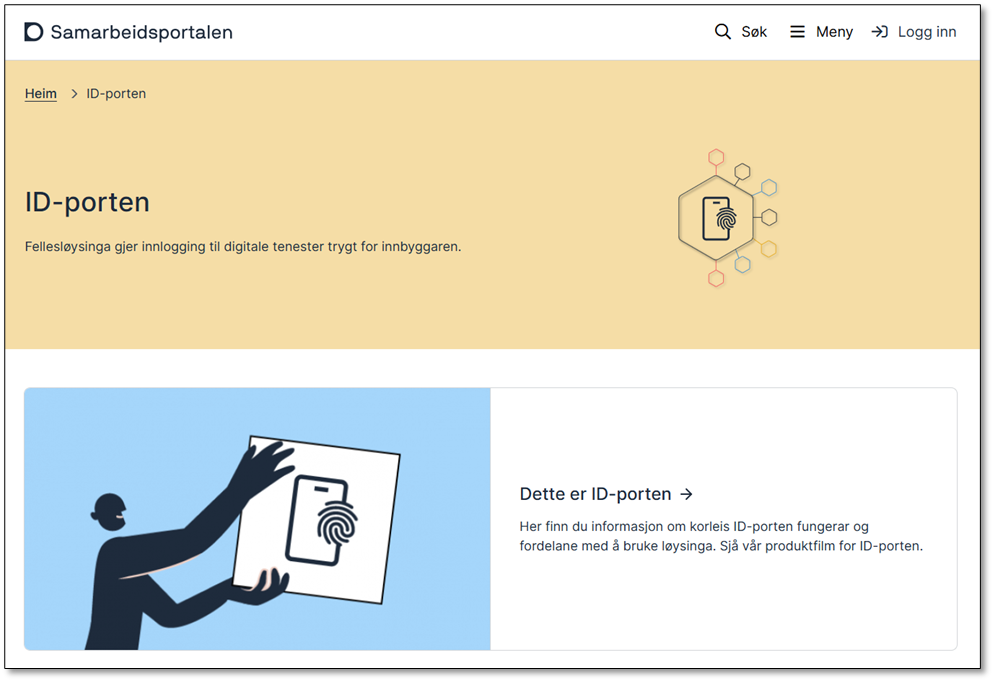
Documentation: Mva-meldingen
1.3 Create an Account in Samarbeidsportalen
If you do not already have a DigDir account, create one via Logg inn på Felles brukerhåndtering
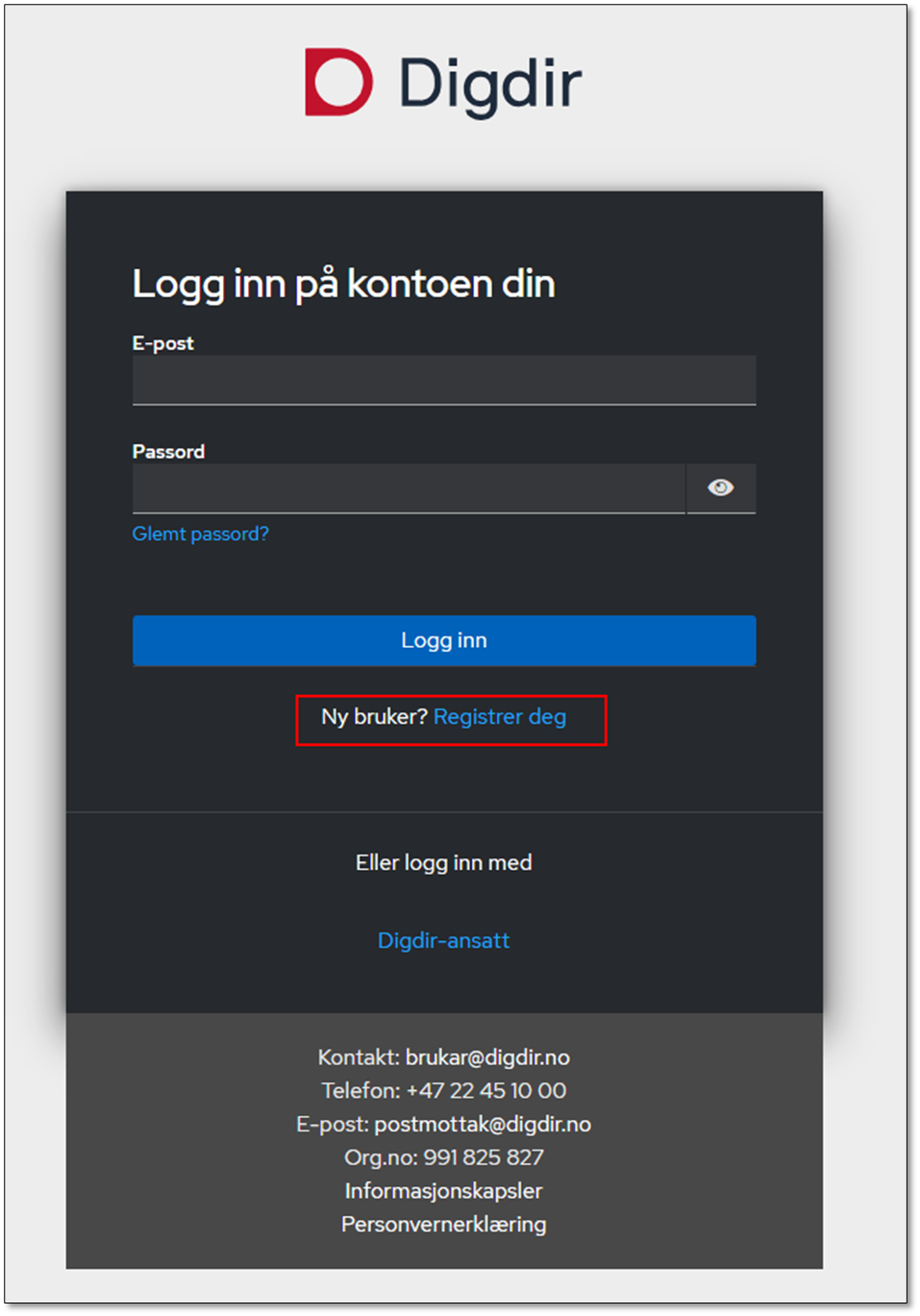
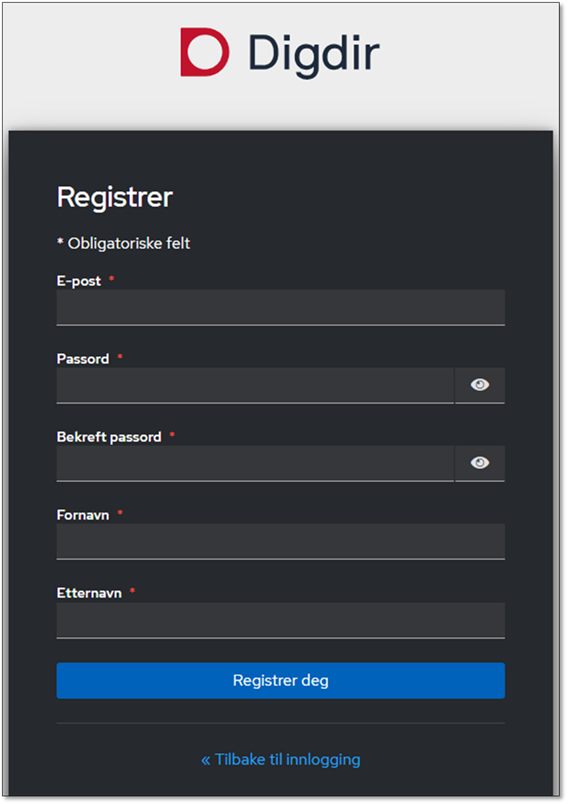
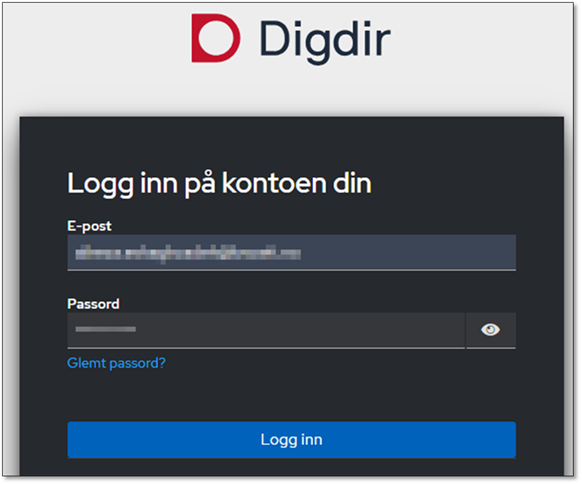
Once registered, log into Samarbeidsportalen using BankID.
1.4 Contact Skatteetaten for Scope Access
The DigDir account owner needs access to specific scopes that manage resource authorization for validation and submission.
Required scopes:
• openid
• skatteetaten:mvameldingvalidering
• skatteetaten:mvameldinginnsending
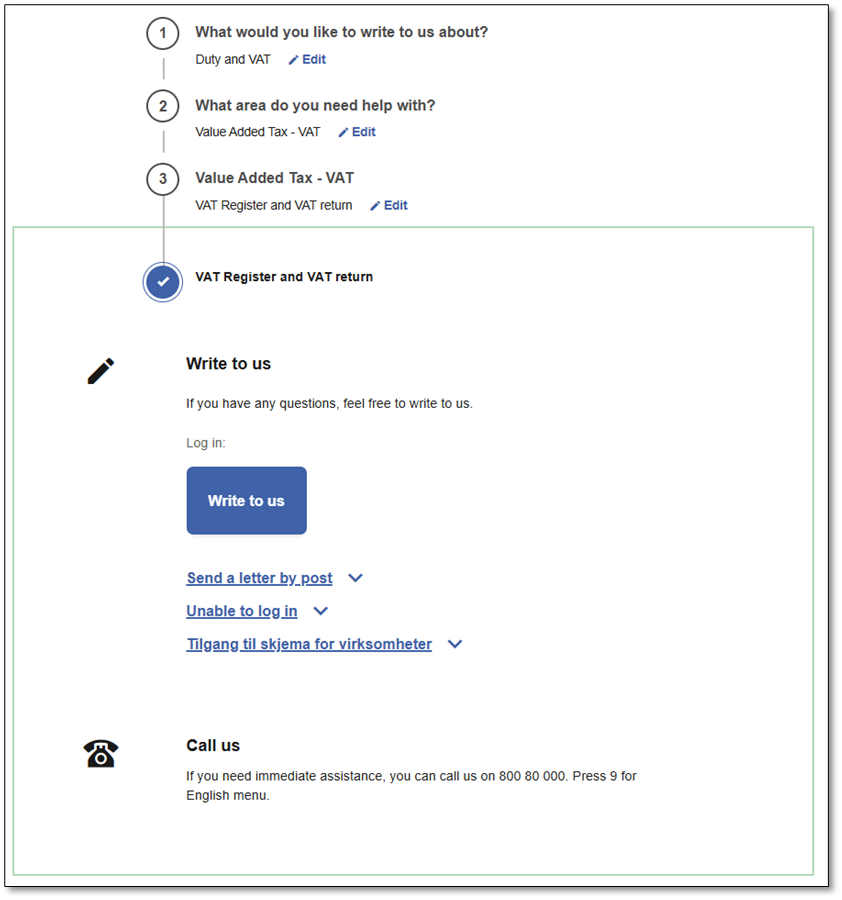
To gain access, contact Skatteetaten via their Skriv til oss – Skatteetaten channel and provide the organization number responsible for the integration.
Documentation: Mva-meldingen
2. Integration
Once planning is completed, the next phase covers configuration in D365FO, Samarbeidsportalen, and interoperability with ID-Porten and Altinn.
Integration activities include:
- Import ER configuration for NO VAT Return in D365FO
- Configure Electronic Messages in D365FO
- Configure an integration in Samarbeidsportalen
- Interoperate with ID-Porten and Altinn web services
2.1 Import ER configuration for NO VAT Return in D365FO
Import the required configurations from the Dataverse repository to prepare D365FO for VAT return generation or you can import required configurations from GitHub and “Altinn” file map.
• GitHub: https://github.com/Alireza-Eshaghzadeh/DynFOTech-Altinn
Required configuration packages include (example list formatted for reference):
| Configuration | Version | Default for model mapping |
|---|---|---|
| Electronic Messages framework model | 51, 47 | |
| Altinn VAT authorization format (NO) | 51.10 | |
| Altinn VAT import Altinn token format (NO) | 47.4 | |
| Altinn VAT import feedback status format (NO) | 47.4 | |
| Altinn VAT import ID-Porten token format (NO) | 47.4 | |
| Altinn VAT import instance format (NO) | 47.4 | |
| Altinn VAT import validation result format (NO) | 47.5 | |
| Altinn VAT model mapping | 47.9 | Yes |
| Altinn VAT web request headers format (NO) | 47.6 | |
| Tax declaration model | 180, 112 | |
| Altinn VAT interoperation (NO) | 112.7 | |
| Tax declaration model mapping | 180.357 | Yes |
| VAT Declaration XML (NO) | 112.72 | |
| VAT Declaration Excel (NO) | 112.72.61 |
2.2 Configure Electronic Messages in D365FO
After importing ER configurations, Electronic Messages must be configured. Microsoft provides a ZIP package that can be imported through DMF per legal entity.
Package sources:
• GitHub (e.g. Alireza-Eshaghzadeh/DynFOTech-Altinn: VAT return with direct submission to Altinn in D365FO)
• LCS Asset Library > Data package > “NO VAT return Altinn v4 ID854065”
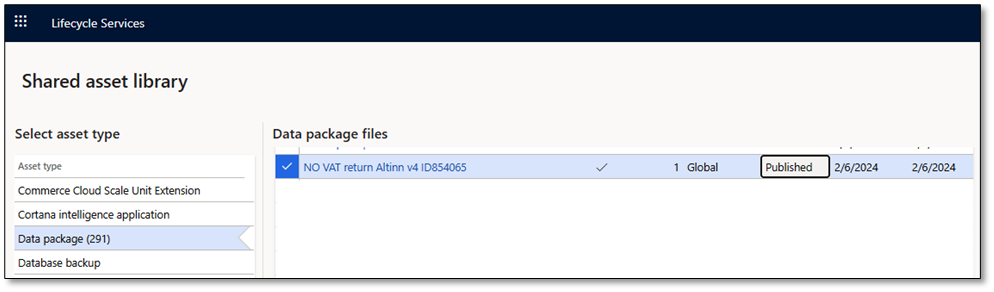
Once you have downloaded the ZIP file, open the relevant legal entity in D365FO and proceed as follows:
- Go to Workspaces > Data management.
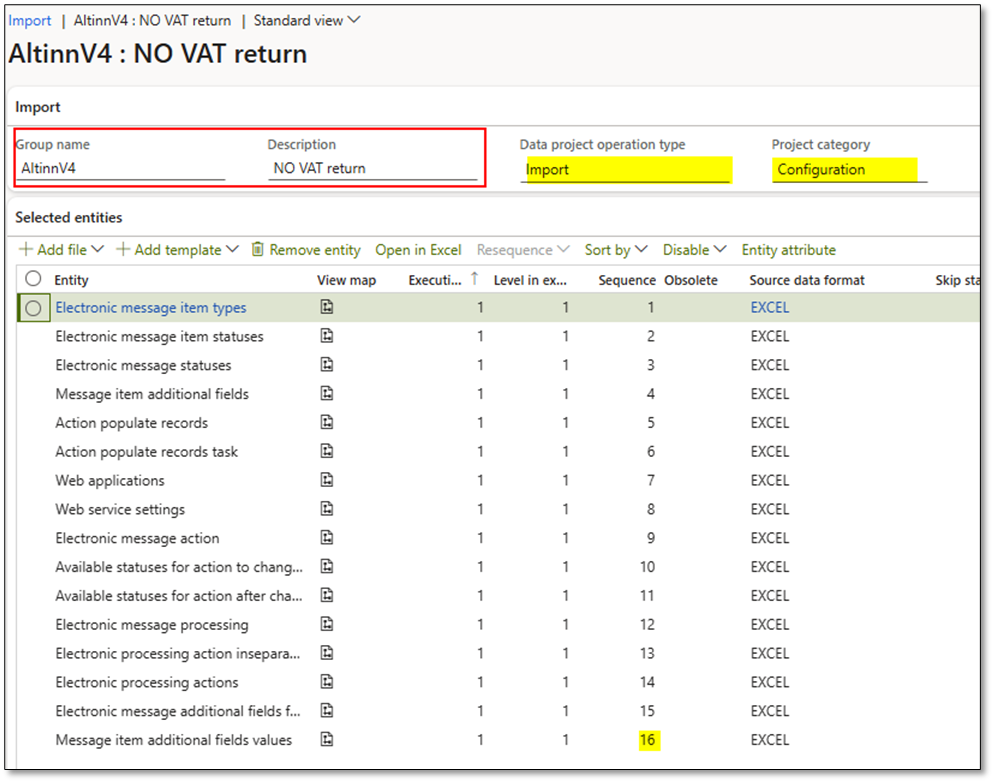
- Select Import and create a new import project. Provide a Group name and Description.
- Select Add file and upload the ZIP file.
- After upload, 16 data entities will appear in the entity list.
- Select Import to execute the job.
When the job is completed, go to:
Tax > Setup > Electronic messages > Web applications
Locate the record named “NO ID-Porten” and verify that the Authorization URL path and Token URL path are correctly set for your environment.
For production, the following values can be used (per 20.01.2026):
- Authorization URL path: https://login.idporten.no/authorize
- Token URL path: https://idporten.no/token
2.3 Configure an Integration in Samarbeidsportalen
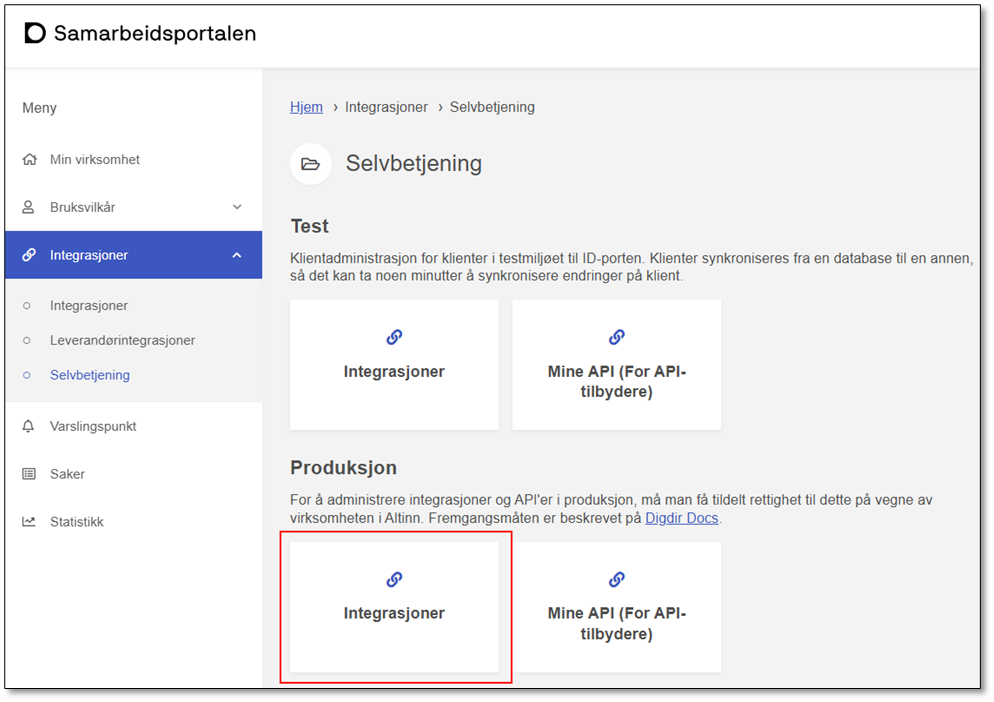
Customers must use Self-Service (Selvbetjening) in Samarbeidsportalen to register their integration. Perform the following steps:
- Navigate to Min virksomhet | Samarbeidsportalen.
- Select Integrasjoner.
- Choose Self-Service/Selvbetjening → Integrations /Integrasjoner (production environment).
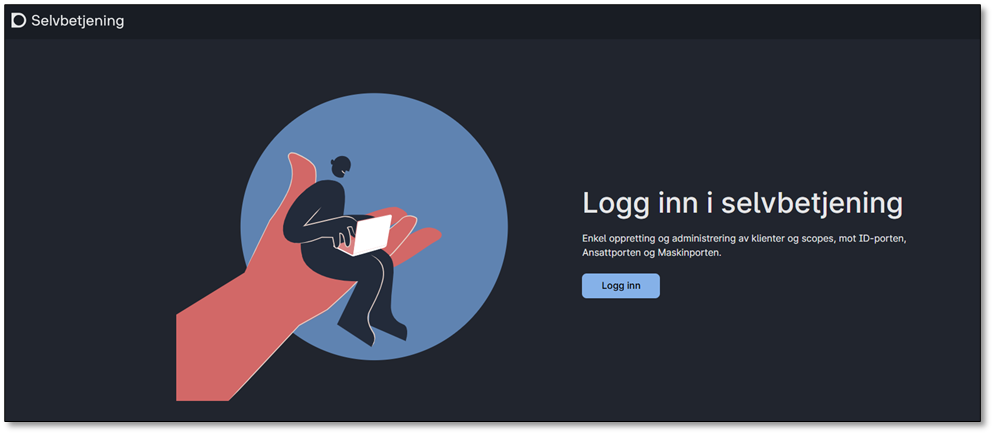
- Select Logg inn.
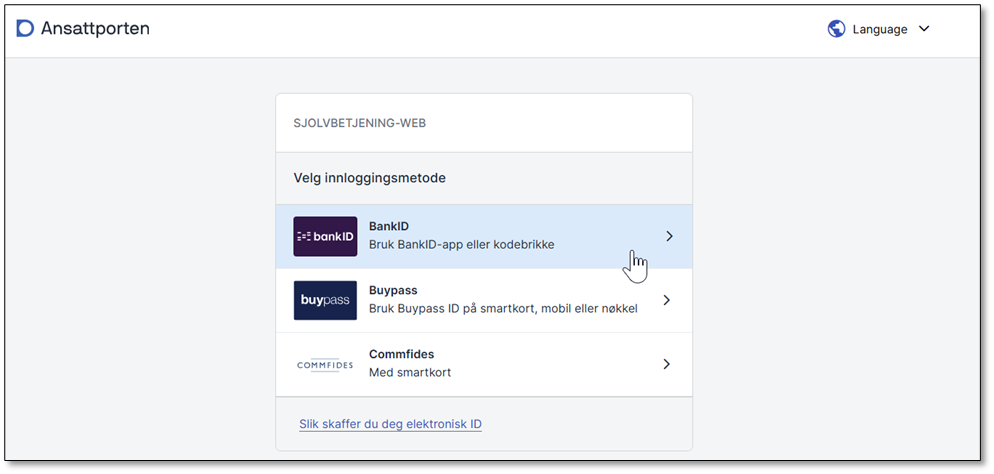
- Authenticate using BankID.
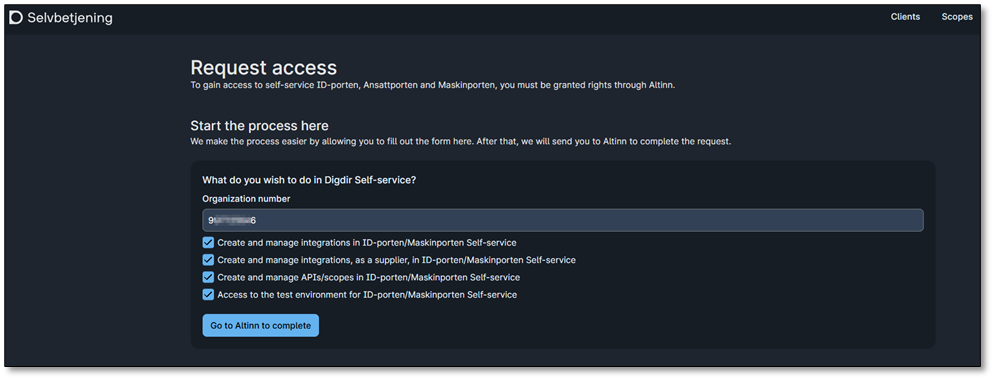
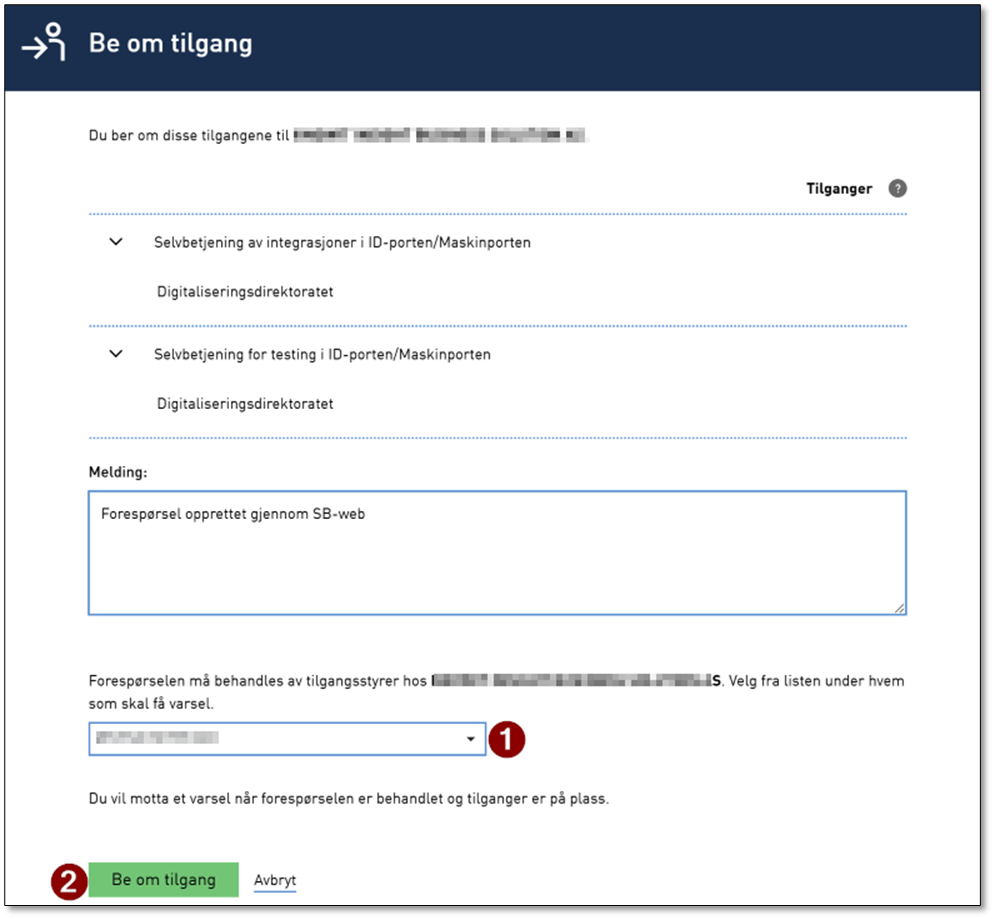
If you do not already have access to Self-Service in ID-Porten, select “Request access,” enter your organization number, and choose “Go to Altinn to complete.” After authenticating with BankID, the access request must be submitted to the appropriate person within your organization for approval.
- Select Clients and choose ID-Porten.
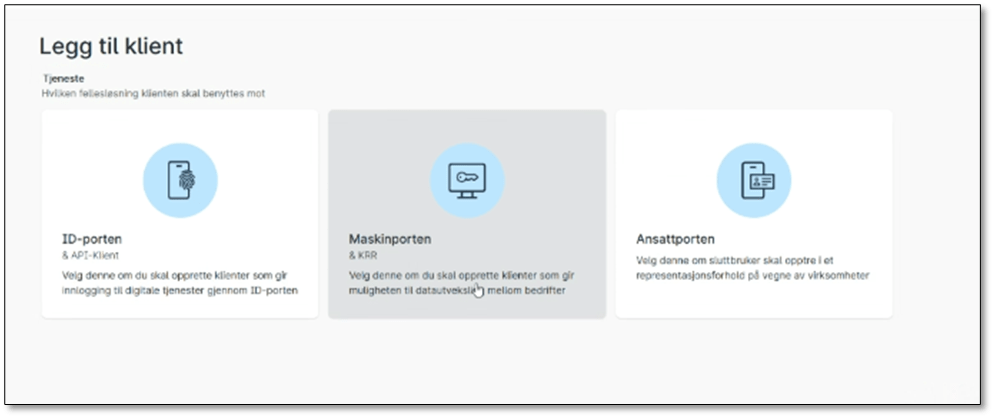
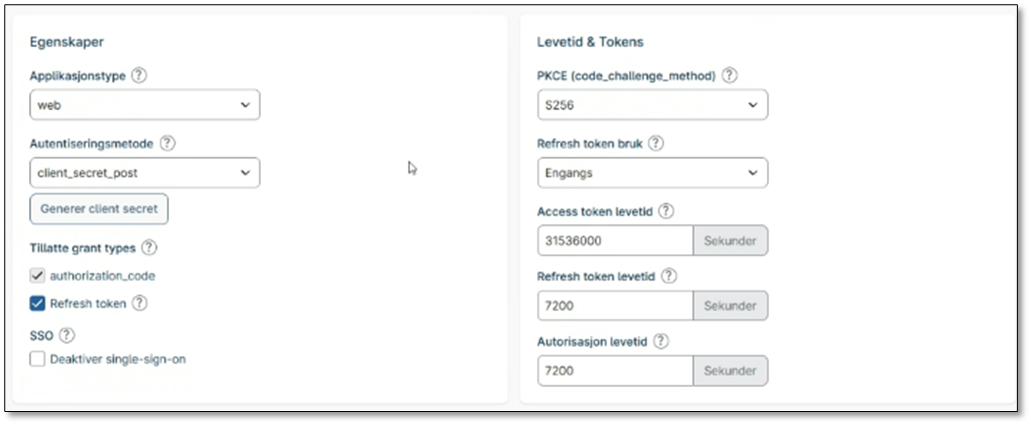
On the ID-Porten Client page, enter the values as described in https://learn.microsoft.com/en-us/dynamics365/finance/localizations/norway/emea-nor-vat-return-integration-point to obtain the required identifiers for D365FO:
- Client_Id
- Client_secret
To facilitate correct configuration of the Client-Id for D365FO, the following table provides reference values:
| Section | Category | Field | Value |
|---|---|---|---|
| Detaljer | Generelt | Navn på eigar av tjenesta må vere med | Microsoft Dynamics 365 Finance & Operations Prod |
| Detaljer | Generelt | Beskrivelse | Microsoft Dynamics 365 Finance & Operations Prod |
| Detaljer | Egenskaper | Applikasjonstype | Web |
| Detaljer | Egenskaper | Autentiseringsmetode | Client_Secret_Post |
| Detaljer | Egenskaper | Tillatte grant types | authorization_code |
| Detaljer | Egenskaper | Tillatte grant types | Refresh token |
| Detaljer | Levetid & Tokens | PKCE (Code_challenge_method) | S256 |
| Detaljer | Levetid & Tokens | Refresh token bruk | Engangs |
| Detaljer | Levetid & Tokens | Access token levetid | 31536000 |
| Detaljer | Levetid & Tokens | Refresh token levetid | 7200 |
| Detaljer | Levetid & Tokens | Autorisasjon levetid | 7200 |
| Detaljer | URI | Redirect URI-er | Add D365FO Prod URL from Tax > Setup > Electronic messages > Web applications |
| Detaljer | URI | Post logout redirect URI-er | Add D365FO Prod URL |
| Detaljer | URI | Frontchannel logout URI | Add D365FO Prod URL |
| Scopes | Scopes | Tilgjengelige scopes | skatteetaten:mvameldinginnsending |
| Scopes | Scopes | Tilgjengelige scopes | skatteetaten:mvameldingvalidering |
| Scopes | Scopes | Tilgjengelige scopes | openid |
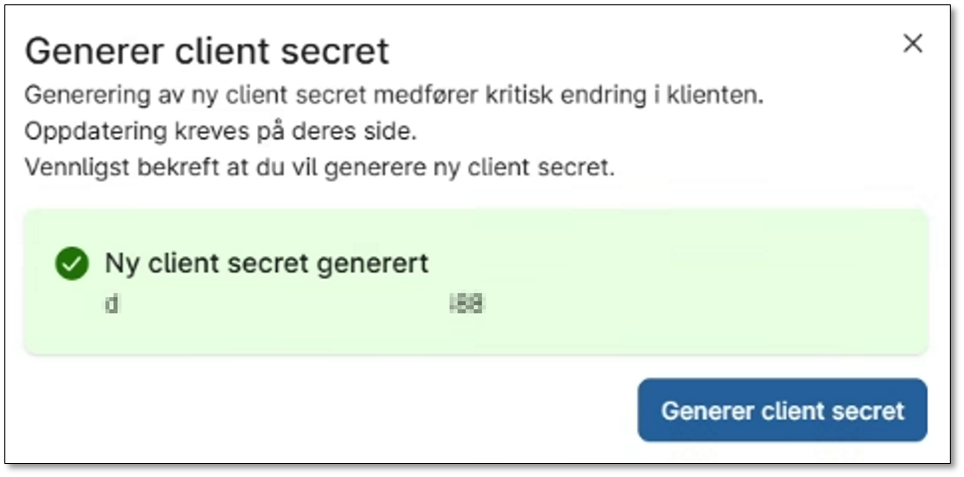
After entering the configuration values, select Generer client secret. Store the generated secret securely in the company key vault. This value is required in D365FO and must be retained.
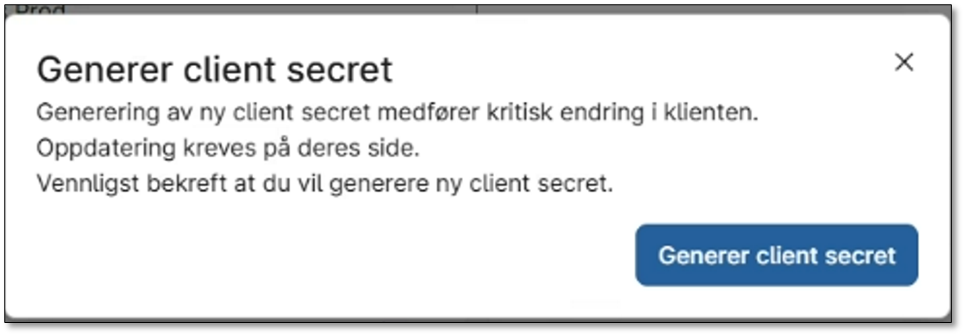
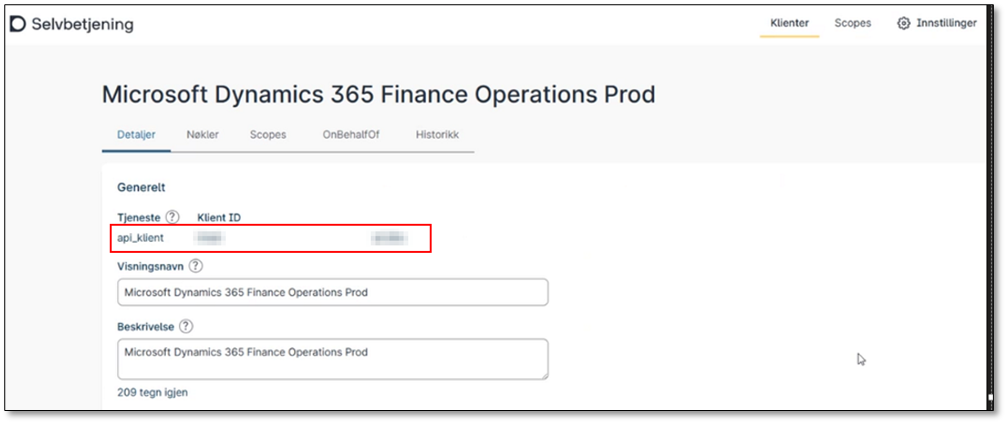
After the integration is created and the client secret is generated, the field Api_klient will be visible on the Detaljer tab.
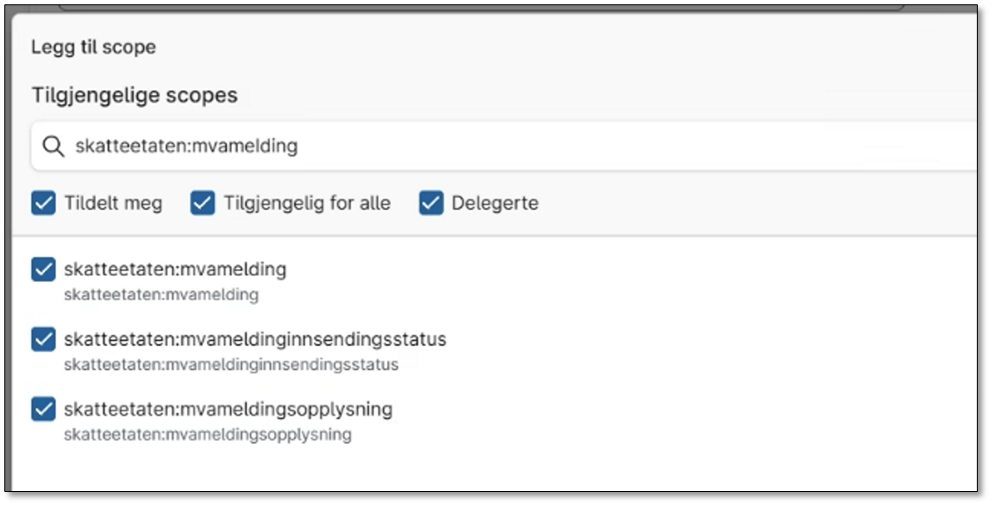
Navigate to the Scope tab and add the following scopes:
- openid
- skatteetaten:mvameldinginnsending
- skatteetaten:mvameldingvalidering
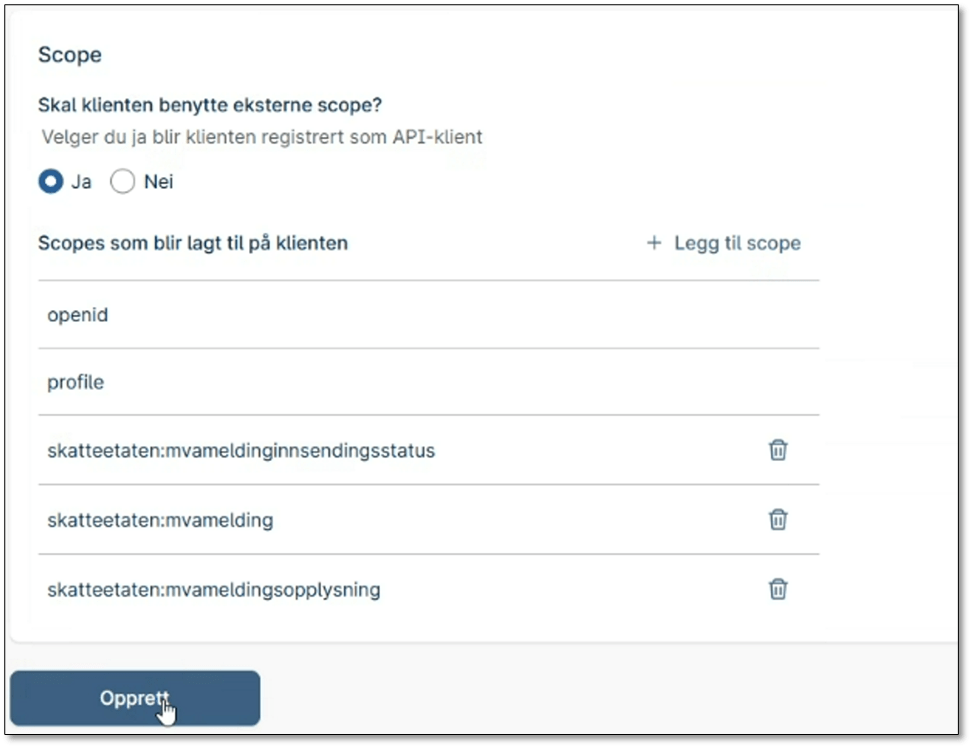
Configure an Integration in Samarbeidsportalen (Ta i bruk ID-porten | Samarbeidsportalen)
2.4 Interoperate with ID-porten and Altinn web services
After the integration has been created in Samarbeidsportalen, D365FO must be enabled to interoperate with ID-Porten. Before proceeding, ensure the following activities have been completed:
- Import ER configuration for NO VAT Return in D365FO
- Configure Electronic Messages in D365FO
- Configure an integration in Samarbeidsportalen
If all prerequisites are satisfied, proceed in the relevant legal entity:
- Navigate to Tax > Setup > Electronic messages > Web applications.
- Select “NO ID-Porten”.
- Perform the following steps:
- Copy the URL from the form and paste it into the Redirect URL field (example: https://Dynamics.operations.eu.dynamics.com/?cmp=NOMF&mi=EMWebApplication)
- Enter Client_Id and Client_Secret from Samarbeidsportalen.
- Assign the required security roles for users who will authenticate.
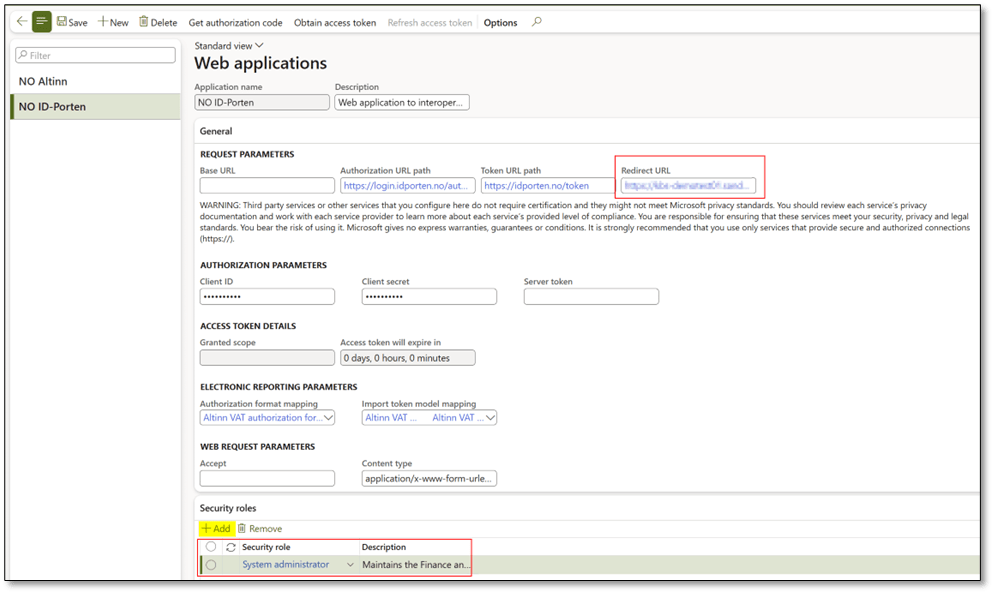
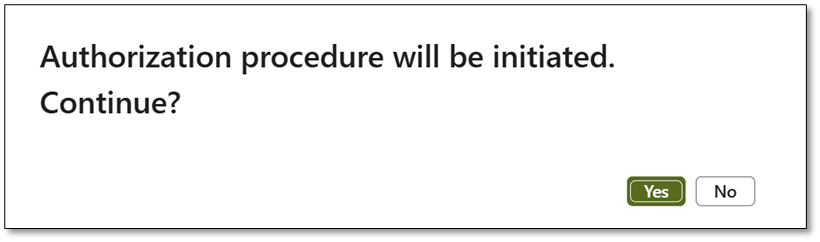
Select Get authorization code to initiate the token activation, and confirm with Yes.
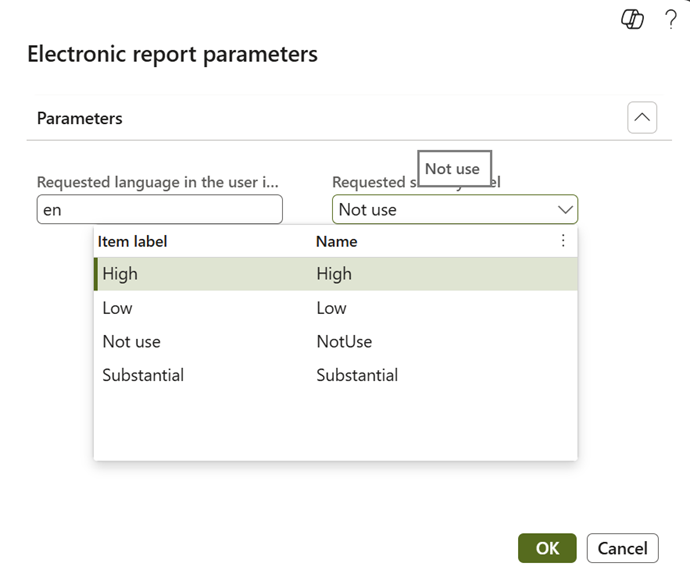
In the dialog, specify Language (such as en or nb) and set Requested security level to NotUse.
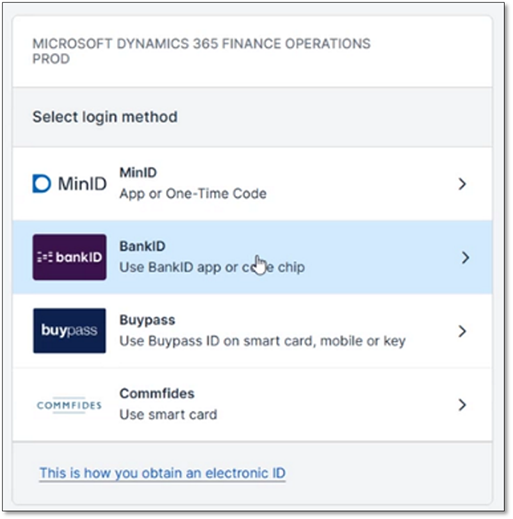
You will be redirected to the BankID portal. Complete authentication using your credentials.
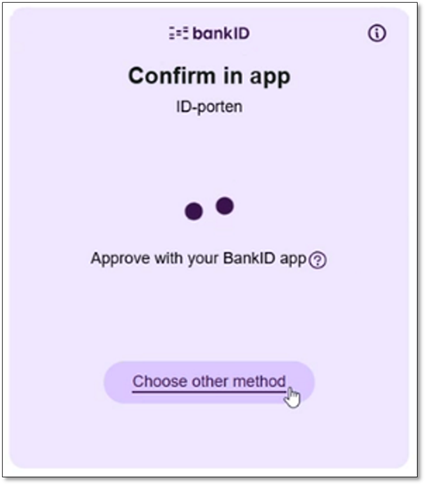
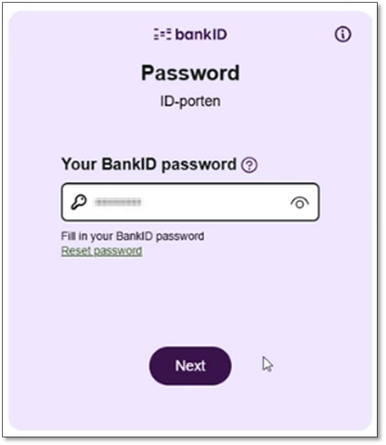
After successful verification, a confirmation dialog will appear.
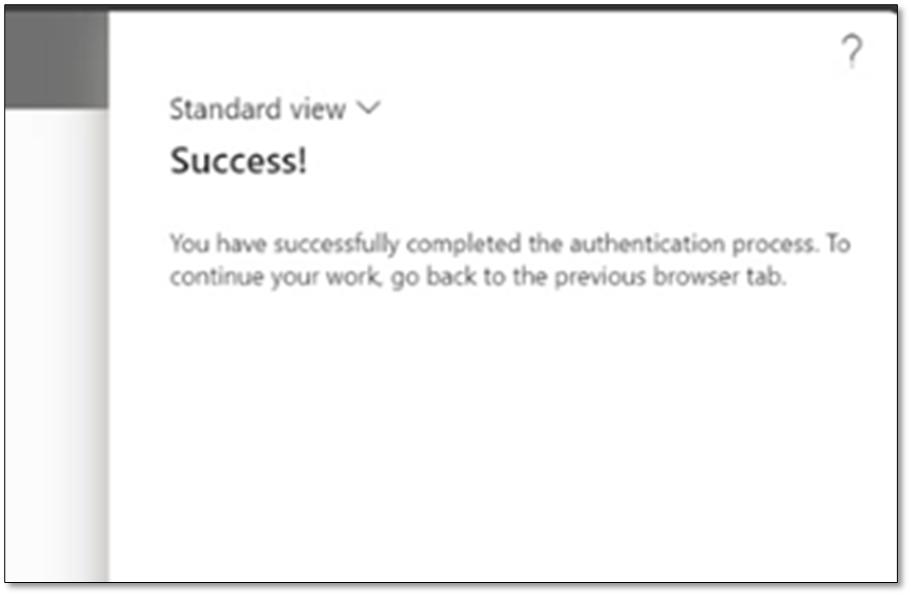
***Important*** Return to the Web applications page, refresh the form in D365FO, and select Obtain access token to activate the token.
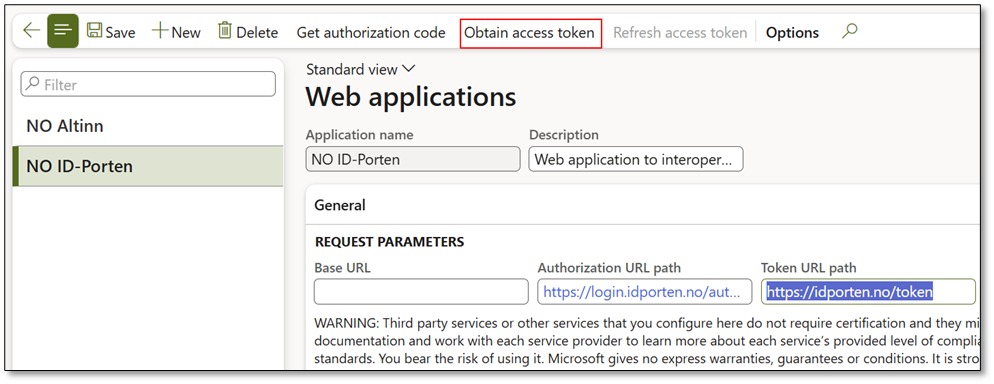

By activating the token, access token will be activated in hours.
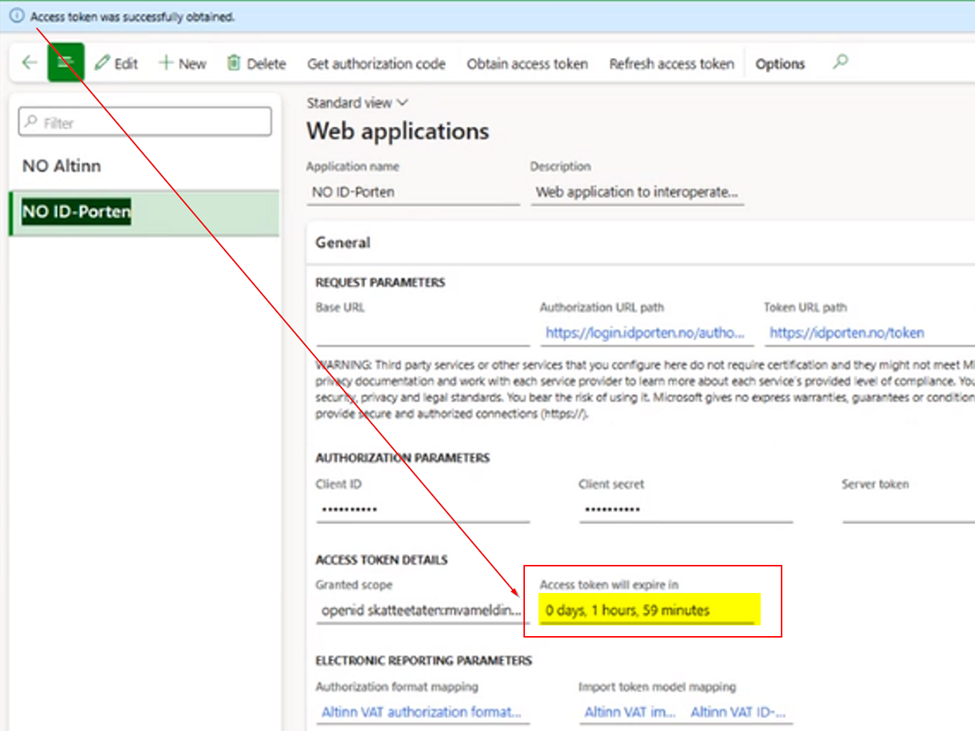
Once the token is activated, an access token will be available for its defined lifetime (i.e. 2 hours). At this point, D365FO is prepared to submit VAT declarations directly to Altinn using Electronic Messages. Ensure that all required steps have been completed per legal entity that needs to be reported before initiating actual submissions.
3. Production & Support
Once the integration has been configured and tested, the solution transitions into production usage where VAT returns are submitted directly from D365FO to Altinn. In this phase, it is important to ensure that all involved parties understand their operational responsibilities. Typically, the finance team manages the periodic VAT declaration process, while IT administrators retain responsibility for monitoring authentication, token validity, and the underlying API integration. After go-live, submissions should be verified regularly to ensure that Altinn returns the correct status responses and that no validation errors are generated. In parallel, access rights within ID-Porten, Samarbeidsportalen, and Altinn must be maintained to reflect organizational changes, particularly for roles with signing authority or those responsible for approving requests.
Support during production usually consists of first-line functional assistance for end users dealing with rejected submissions, validation errors, or reporting discrepancies, and second-line technical assistance for matters related to authentication, certificate renewal, or API communication failures. Although Microsoft provides application-level documentation and support for the D365FO feature, Norwegian organizations need to maintain internal procedures for handling submission incidents, expired certificates, user access changes, and changes to the Tax Administration APIs. When these elements are properly established, the solution becomes sustainable and low-touch, allowing organizations to comply with the Norwegian digital VAT reporting mandate with predictable operational overhead.
D365FO provides complete capabilities to meet the Norwegian VAT return digital submission requirement, but enabling interoperability requires coordination between DigDir, Skatteetaten, Samarbeidsportalen, and Altinn. By completing the planning, integration, and configuration steps described in this article, organizations can securely authenticate with ID-Porten and automate VAT return submission directly from D365FO.
Microsoft documentation covers the feature implementation, while this guide focuses on the practical authentication and integration requirements that Norwegian organizations must fulfill in order to activate the process end-to-end.
If you have questions regarding this setup, feel free to comment or contact the author. This guide is intended to support both the Dynamics 365 community and Norwegian customers in achieving a compliant VAT submission process.
 DynFOTech