
This blog provides a comprehensive guide on preparing a company for generating SAF-T(NO) reports using mapping tables. To generate accurate SAF-T reports, it is essential to define mapping tables for main accounts and tax codes. These mapping tables can be accessed through the “Application specific parameters” section in the Electronic reporting parameters of the Organization administration workspace (Organization administration > Workspaces > Electronic reporting > Electronic reporting parameters)

For specific requirements in Norway, it’s necessary to establish a mapping table for standard tax codes and standard main accounts. If you’re using version 175.119 or any newer versions, you have the capability to define both the main account and sales tax code mapping table within the SAF-T Format (NO) “Application specific parameters.” However, if you’re working with version 65.107 or older, you’ll only have access to “StandardMainAccount” for defining standard main account mappings.
In version 175.119 or newer you can choose “StandardTaxCodes_Lookup” to map standard tax codes to the company’s tax codes:
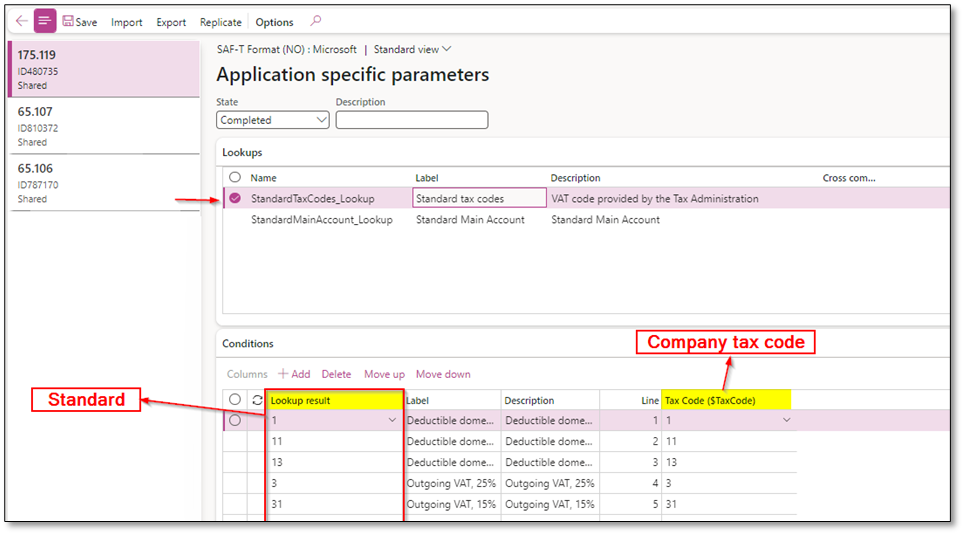
To ensure proper mapping of sales tax codes in the selected company, follow these steps:
- If multiple sales tax code in the company should result in the same standard account, add a separate line for each main account and specify the same standard account for each one.
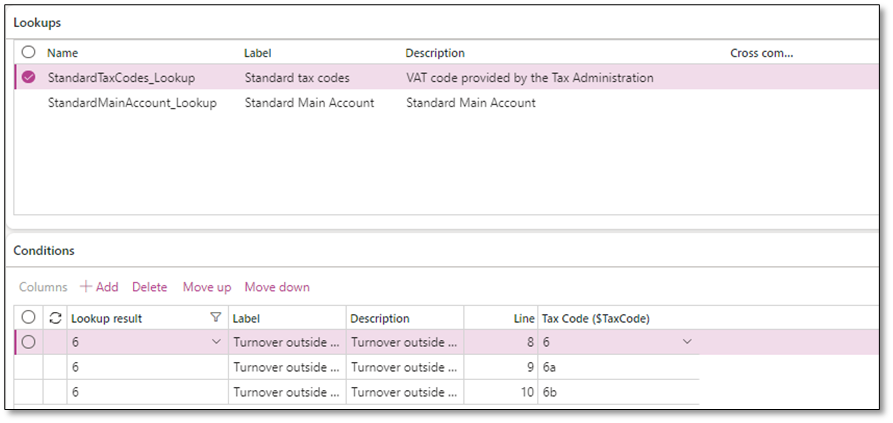
- In the list of conditions, select the value “Other” as the last condition. Set it to Not blank and Blank in the Tax code column.
- Once you have finished setting up the conditions, set the State field to “Completed” and save your change.
- Close the page to finalize the setup.
You can include the main account mapping table in the SAF-T Format (NO) “Application specific parameters.” In the “Look up result” field, you can select the appropriate standard main account, and then attach it to the corresponding “Account ID (MainAccount).” This mapping ensures accurate mapping of main accounts in the SAF-T report generation process.
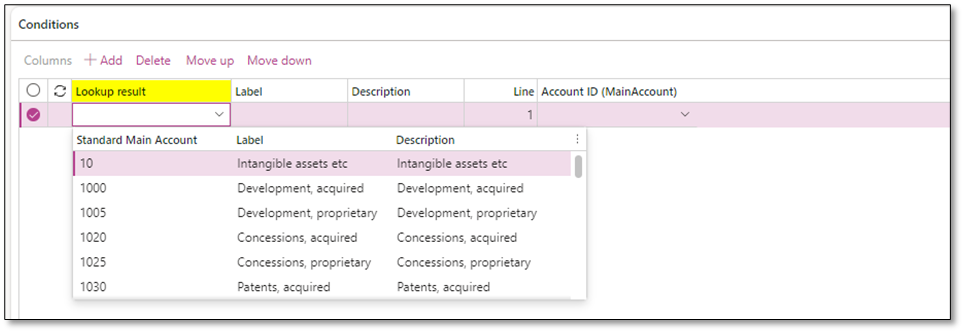
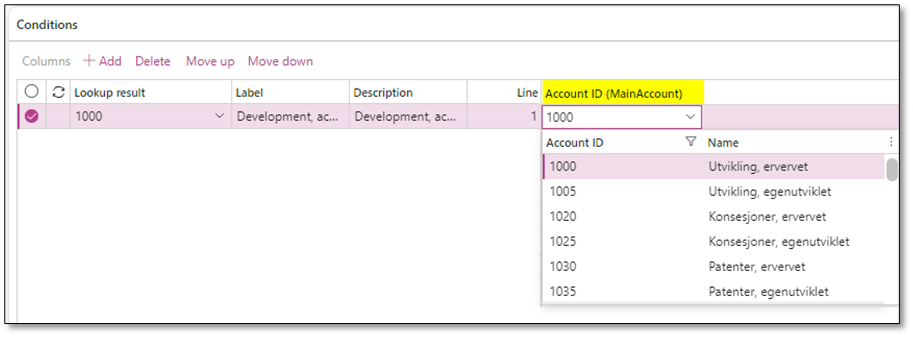
To ensure proper mapping of main accounts in the selected company, follow these steps:
- If multiple main accounts in the company should result in the same standard account, add a separate line for each main account and specify the same standard account for each one.
- In the list of conditions, select the value “NA” as the last condition. Set it to Not blank and Blank in the Main account column. It is important to verify that “NA” appears as the last condition in the table.
- Once you have finished setting up the conditions, set the State field to “Completed” and save your change.
- Close the page to finalize the setup.
By following these actions, you will ensure the appropriate mapping of main accounts in the SAF-T report generation process.

In the main account mapping table of the SAF-T file, the mapping is indicated under the “GeneralLedgerAccount” section.

The inclusion of “NA” (Not Applicable) as the last condition in the list for the main account mapping table serves the purpose of ensuring that the <StandardAccountID> field in the XML file does not contain an empty value. This helps maintain data integrity and consistency in the generated SAF-T file.
There are two methods to copy this configuration to other companies:
- Export/Import
There is a standard function available to export the mapping table(s) as an XML file. This file can then be imported into other companies that have the same chart of accounts or tax codes. When using this method, make sure to set the state of the imported configuration to “Completed” after the import is completed.


- Replicate
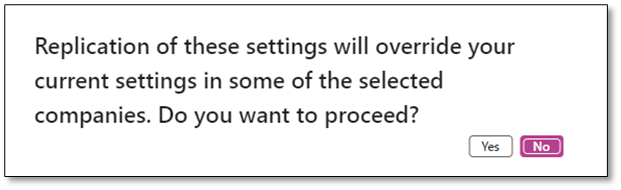
The replicate function is specifically designed to copy the mapping table(s) to one or multiple companies that share the same chart of accounts and tax codes. When using this method, the state of the configuration will automatically be changed to “Completed” during the replication process.


To map Norwegian standard VAT codes to company sales tax codes, follow these steps:
- Navigate to Tax > Indirect taxes > Sales tax > Sales tax codes.
- Select the relevant sales tax code and click on “External codes”.

- On header level, add a line and enter the specific code and definition. You can add one header and one line per sales tax code. Alternatively, you can group standard codes together and create a separate header and line for non-standard codes.
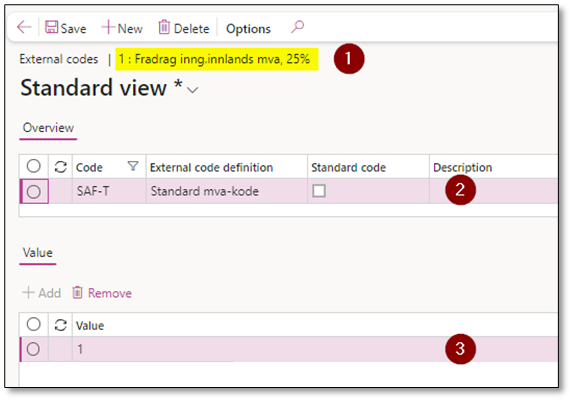
Repeat these steps for each sales tax code in the company.
To copy this mapping table to other companies, you will need to copy the header and lines tables. Please note that until version 10.0.35 (10.0.1627.64), there is only a standard entity available for the header called “External code classes for tax code”, while there is no standard entity available for the lines.
In the SAF-T file, the sales tax mapping can be found under “TaxTable” > ”TaxTableEntry” > “TaxCodeDetails”.

It is important to add mapping tables for SAF-T(NO), in this regards, if you use version 65.107 or older versions you need to set standard tax code mapping table on external codes for sales tax codes, while if you use version 175.119 or newer versions, both mapping tables can be added/replicated via Organization administration > Workspaces > Electronic reporting > Reporting configurations > SAF-T(NO) > Configurations > Application specific parameters > Setup.
I hope you found this post on SAF-T (NO) mapping and configuration replication insightful. If you have any further questions or feedback, please feel free to use the ‘Leave a Reply’ feature. We greatly value your thoughts and inquiries. Thank you for reading!
 DynFOTech