
Generating the Standard Audit File for Tax (SAF-T) in Dynamics 365 Finance and Operations (D365FO) is a crucial step to ensure compliance with legal requirements. This blog post provides a concise guide on how to generate SAF-T(NO) files seamlessly.
Prior to generating the SAF-T file, ensure that you have installed the latest configurations for:
- SAF-T Format (NO)
- SAF-T Financial Data Model Mapping (Default for model mapping = Yes)
You can import the most recent configurations from Microsoft Dataverse.

Once you’ve configured and mapped main accounts and sales tax codes, initiating the SAF-T report generation is straightforward. Start by navigating to General ledger > Ledger setup > General ledger parameter > Standard Audit File for Tax (SAF-T) and confirming the ER config for SAF-T aligns with the legal entity’s needs (i.e., for Norwegian legal entities, SAF-T Format (NO) and for Danish ones SAF-T Format (DK)).

Note: When the checkbox for “Use common menu item” is enabled a common “Standard Audit File for Tax (SAF-T)” menu item is used to execute the report. It means that once this alternative is enabled, you need to run the report from Electronic Reporting side and no longer via standard function for “Standard Audit File for Tax (SAF-T)”.
Next, go to General ledger > Inquiries and reports > Standard Audit File for Tax (SAF-T) > Standard Audit File for Tax (SAF-T)

Key Configuration Parameters:
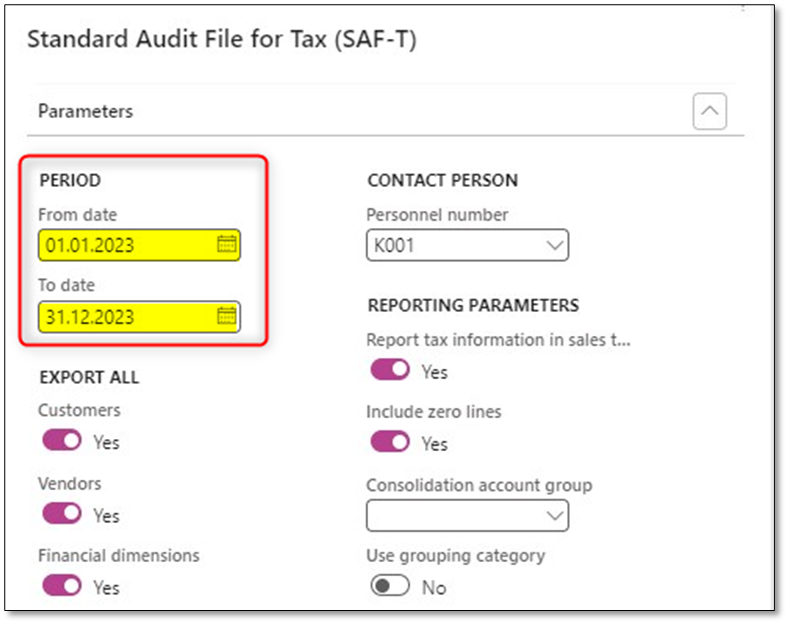
1. PERIOD
The period configuration is essential for defining the time frame of the SAF-T report. The “From date” and “To date” options allow you to specify the range for the report.
- From date (Date)
- To date (Date)
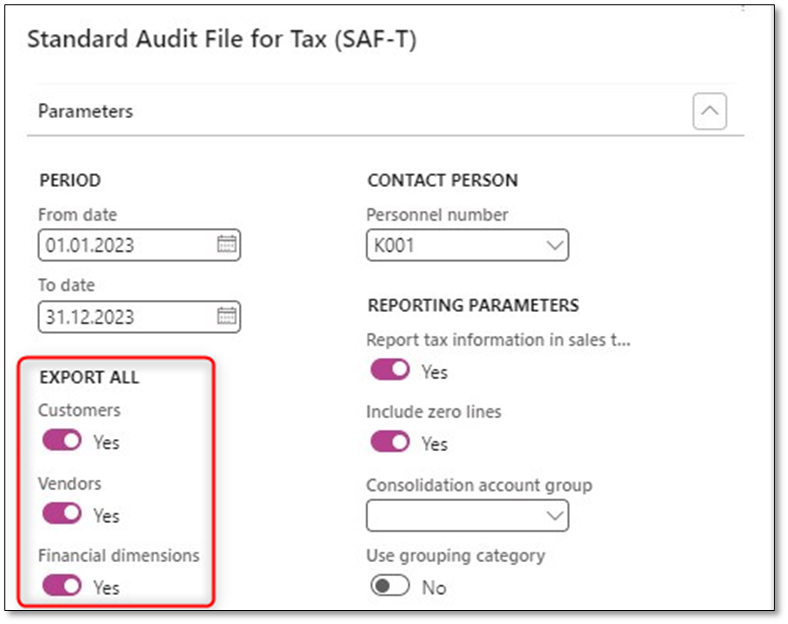
2. EXPORT ALL
With this option you can either choose Customers, Vendors, and Financial Dimensions that have balance on the provided date interval or do not have zero opening balance.
Yes: Export all
No: Export Customers, Vendors, and Financial Dimensions based on their balance on the provided date interval.
- Customers (No/Yes)
- Vendors (No/Yes)
- Financial dimensions (No/Yes)
3. CONTACT PERSON
You need to specify an employee who generated the SAF-T file.
- Personnel number (ID)


4. REPORTING PARAMETERS
- Report tax information in sales tax code currency (No/Yes)
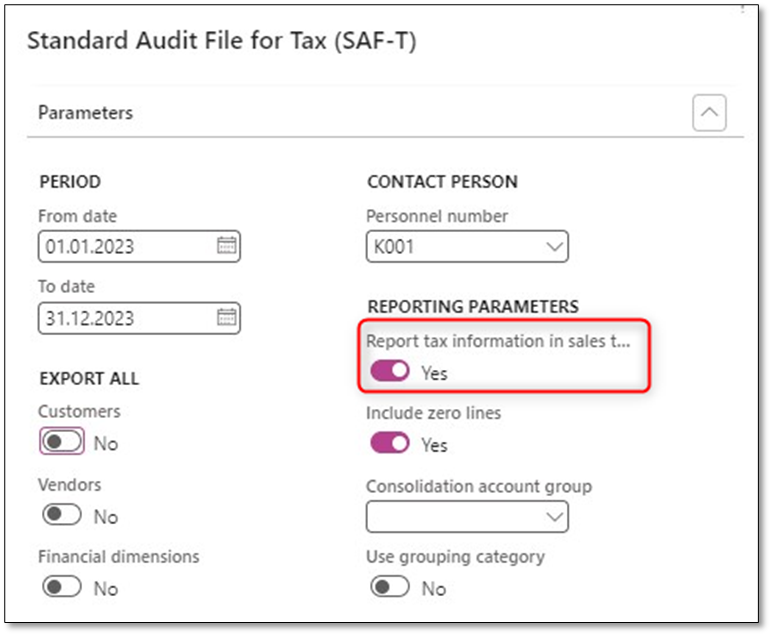
Mark the checkbox to report amounts in the “TaxInformation” element of the report in the sales tax code currency. When it is unmarked, amounts in the “TaxInformation” element of the report will be reported in the accounting currency (“TaxAmount” and “TaxBaseAmount”). This selection will impact the “TaxBase” and “TaxAmount” fields for transaction lines in the SAF-T file.

- Include zero lines (No/Yes)

This option excludes general journal account entry records with zero accounting currency amounts. Mark the checkbox if you use currency revaluation, especially in the AP model. When you run the AP currency revaluation, multiple entries with the same voucher number/TransactionID are created in the SAF-T report with types “Purchase expenditure for product” or “Purchase, accrual.” The TransactionID should be unique in the SAF-T report. Additionally, this type of transaction should not be reported at all in the SAF-T report, and VAT data must be reported for the general ledger account entry of “Purchase accrual” posting type.
It is recommended to generate the report with “Include zero lines” set to YES. With this parameter enabled, the tax information is reported on the general journal account entry of the “Purchase expenditure for product” posting type.
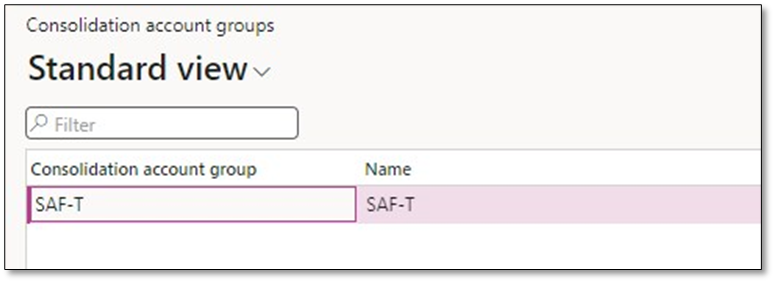
- Consolidation account group (Id)

If you choose a consolidation account group, it will be utilized instead of the StandardMainAccount_Lookup application-specific parameter on SAF-T Format (NO). To define a consolidation account group, go to General ledger > Chart of accounts > Accounts > Consolidation account groups to create the group, and then proceed to General ledger > Chart of accounts > Accounts > Additional consolidation accounts to define the mapping table:

- Use grouping category (No/Yes)

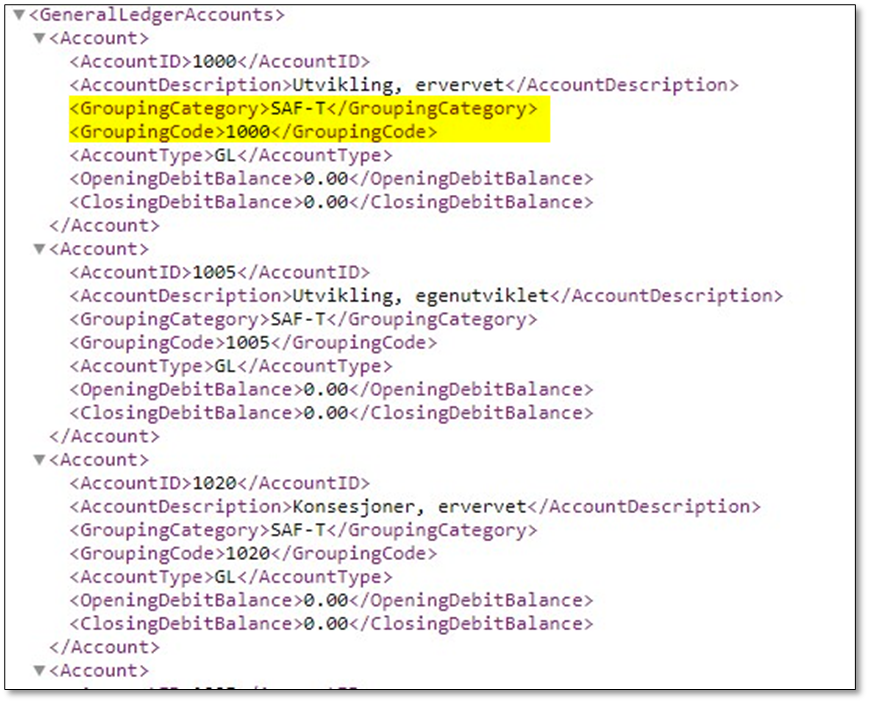
This option will force the generation of GroupingCategory and GroupingCode nodes, replacing StandardAccountID in the GeneralLedgerAccounts list. The value for the GroupingCategory field will be copied from the consolidation account group name, making the selection of a consolidation account group mandatory when utilizing this option.
Efficiently generating SAF-T files in D365FO ensures adherence to tax regulations and simplifies the process for financial reporting. Properly configuring the essential parameters outlined in this guide will streamline the generation process for a compliant and accurate SAF-T report.
I hope that this post has provided valuable insights into generating SAF-T files. Should you have any further questions or feedback, please feel free to utilize the ‘Leave a Reply’ feature. Your thoughts and inquiries are highly appreciated!
 DynFOTech