
The Standard Audit File for Tax (SAF-T) is an internationally recognized standard for electronically exchanging reliable accounting data between organizations and national tax authorities or external auditors. It enables the export of various types of accounting transactional data in XML format. SAF-T Financial is a standard developed collaboratively by the business community, the accounting sector, and the Norwegian Tax Administration, based on recommendations by the OECD.
What’s New in SAF-T Financial Version 1.3
SAF-T Financial has been revised and updated, with the new version (1.3) becoming mandatory from 1 January 2025, though enterprises can adopt it earlier if preferred.
The Ministry of Finance mandates that enterprises with a bookkeeping obligation and digital accounting systems must reproduce (export) accounting data in a specific, standardized format (bokføringsforskriften § 7-8 annet ledd). Enterprises with less than NOK 5 million in turnover are exempt unless their accounting data is available digitally (Reference: skatteetaten).
For further details, visit:
Changes in Version 1.3
Key updates in SAF-T Financial Version 1.3 include changes to mandatory fields, new field additions, and updates to format types. For a detailed overview, refer to the official documentation: Documentation – Norwegian Tax Administration
| Segment | Main Node | Description | Direction |
|---|---|---|---|
| SelectionCriteria | Header | Changed from Optional to Mandatory. | <Header><SelectionCriteria> |
| StandardTaxCode | TaxTable | Now Mandatory in accordance with the documentation. | <TaxTable><TaxCodeDetails><StandardTaxCode> |
| GroupingCategory | MasterFiles | Changed from Optional to Mandatory. | <MasterFiles><Account><GroupingCategory> |
| GroupingCode | MasterFiles | Changed from Optional to Mandatory. | <MasterFiles><Account><GroupingCode> |
| BalanceAccountStructure | MasterFiles | New structure; amount elements are Mandatory. |
<BalanceAccountStructure><Account><OpeningDebitBalance> / <OpeningCreditBalance> <BalanceAccountStructure><Account><ClosingDebitBalance> / <ClosingCreditBalance> |
| VoucherType | MasterFiles | New optional element. | <GeneralLedgerEntries><Journal><Transaction><VoucherType> |
| VoucherDescription | MasterFiles | New optional element. | <GeneralLedgerEntries><Journal><Transaction><VoucherDescription> |
| ModificationDate | MasterFiles | New optional element. | <GeneralLedgerEntries><Journal><Transaction><ModificationDate> |
| DebitTaxAmount | GeneralLedgerEntries | <TaxAmount> replaced with <DebitTaxAmount> and <CreditTaxAmount>. | <GeneralLedgerEntries><Journal><Transaction><Line><TaxInformation><DebitTaxAmount> |
| CreditTaxAmount | GeneralLedgerEntries | <TaxAmount> replaced with <DebitTaxAmount> and <CreditTaxAmount>. | <GeneralLedgerEntries><Journal><Transaction><Line><TaxInformation><CreditTaxAmount> |
| DebitAnalysisAmount | MasterFiles | <AnalysisAmount> replaced with <DebitAnalysisAmount> and <CreditAnalysisAmount>. | <MasterFiles><AnalysisTypeTable><AnalysisTypeTableEntry><DebitAnalysisAmount> |
| CreditAnalysisAmount | MasterFiles | <AnalysisAmount> replaced with <DebitAnalysisAmount> and <CreditAnalysisAmount>. | <MasterFiles><AnalysisTypeTable><AnalysisTypeTableEntry><CreditAnalysisAmount> |
| Name, UserID, GroupingCategory, TaxCode, City, Region, StreetName, AdditionalAddressDetail, Number, PostalCode | * | Text type (maximum length) updated. | * |
How to Generate SAF-T Financial V1.3 in D365FO
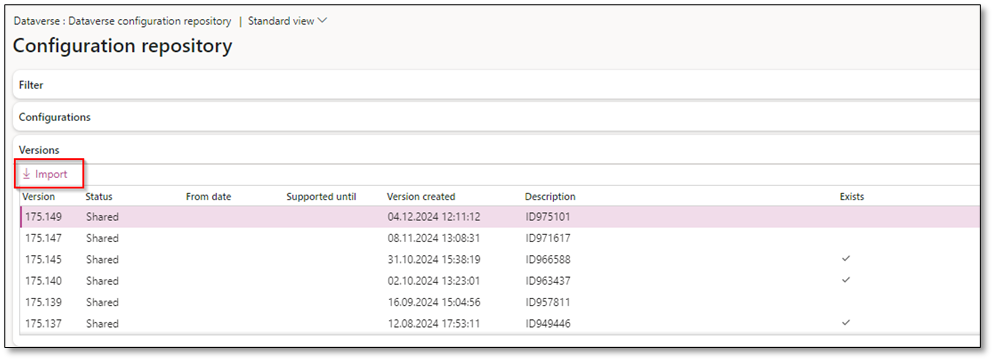
1. Import the Latest SAF-T Configuration
- Download the latest SAF-T Format (NO) from the Dataverse repositories. The current version is 175.149.
2. Activate Model Mapping for SAF-T
- Set the model mapping “SAF-T Financial data model mapping” as the default for model mapping.

3. Import Tax Code Mapping Table
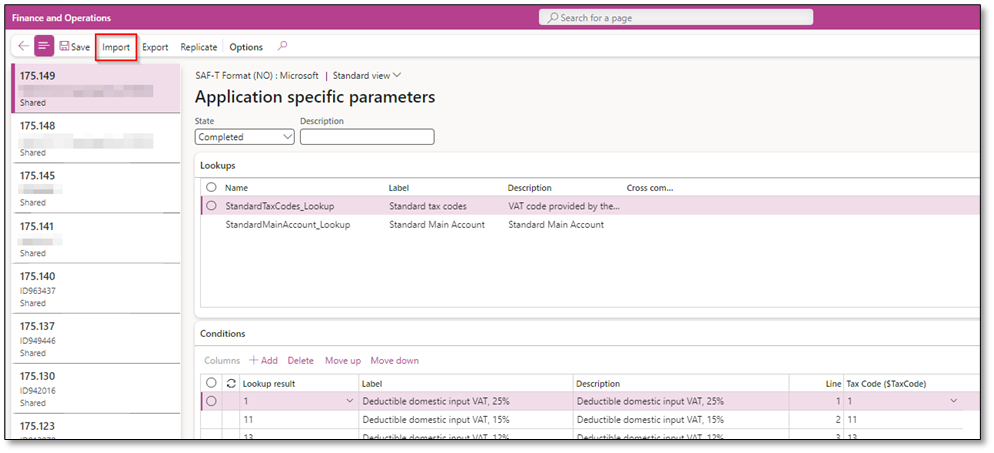
- Import the tax code mapping table through Application Specific Parameters:
- Navigate to a previous version, export the mapping table, and import it into the latest version.
- Alternatively, manually import the table or use the copy-paste function.
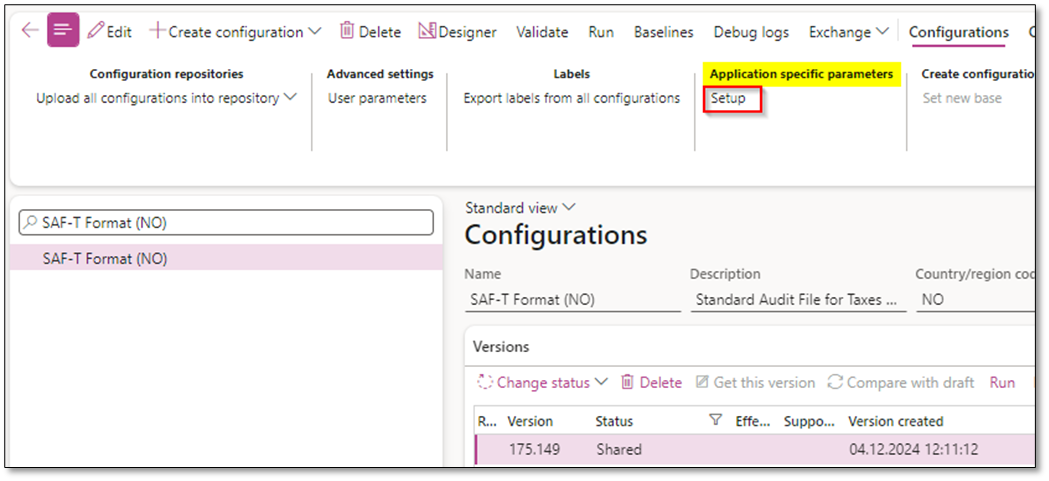
Note: Opening “Application Specific Parameters” may take a few minutes.
- Add “NA” as the last line for tax codes that lack mapping. You can use “NA” for tax codes that do not have a corresponding standard tax code in the mapping table.
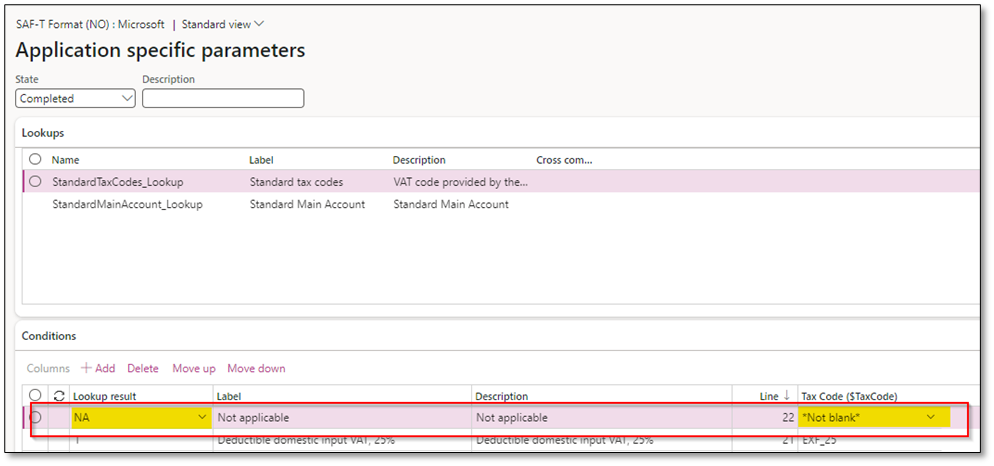
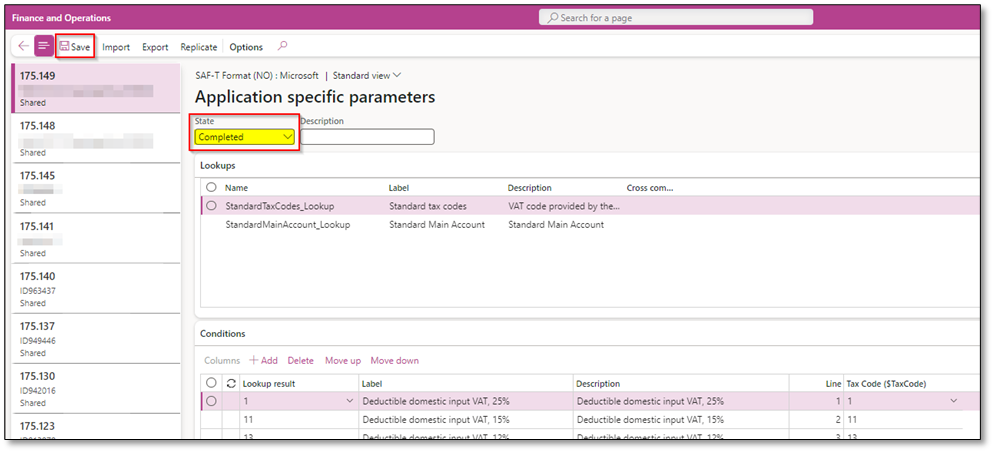
- Set the state to “Completed” and save.
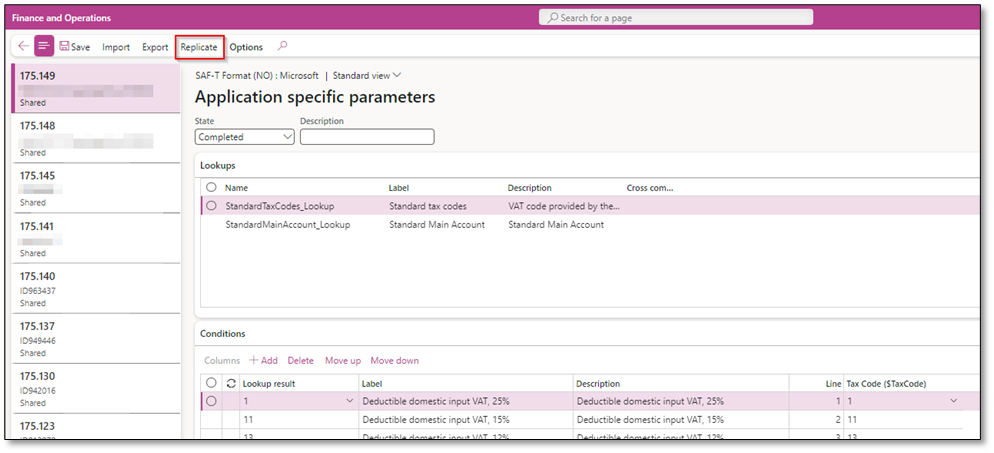
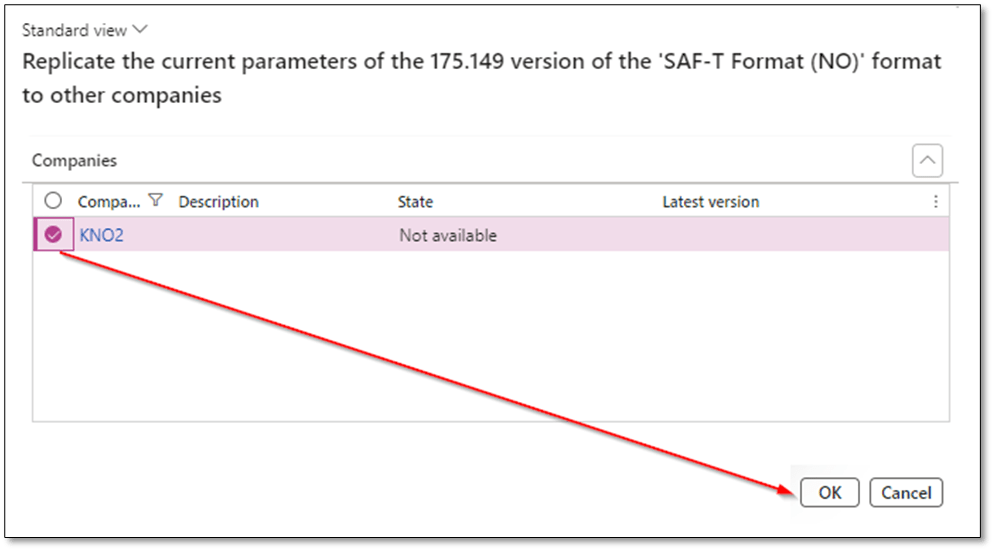
- Use the Replicate function to copy the mapping table across companies.
4. Add Main Account Mapping Table
- Version 1.3 uses the Additional Consolidation Accounts feature instead of Application Specific Parameters for main account mapping:
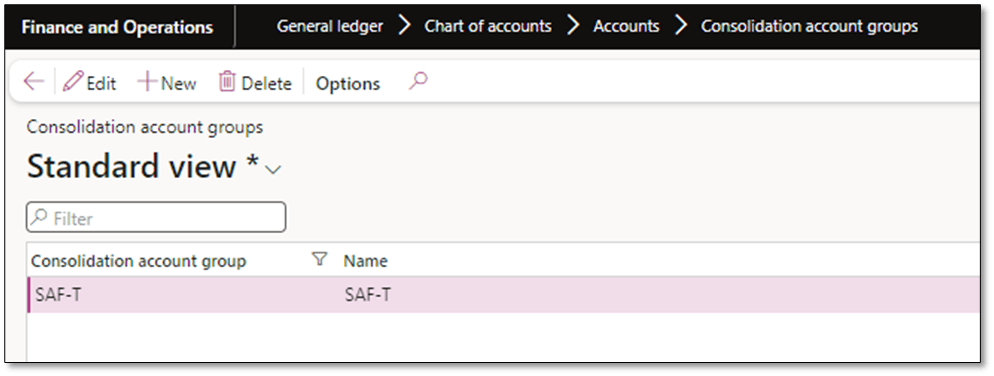
- Create a Consolidation Account Group in General Ledger > Chart of Accounts > Accounts > Consolidation Account Groups.
- Import the main account table to map the company’s COA to the standard chart of accounts via Additional Consolidation Accounts.
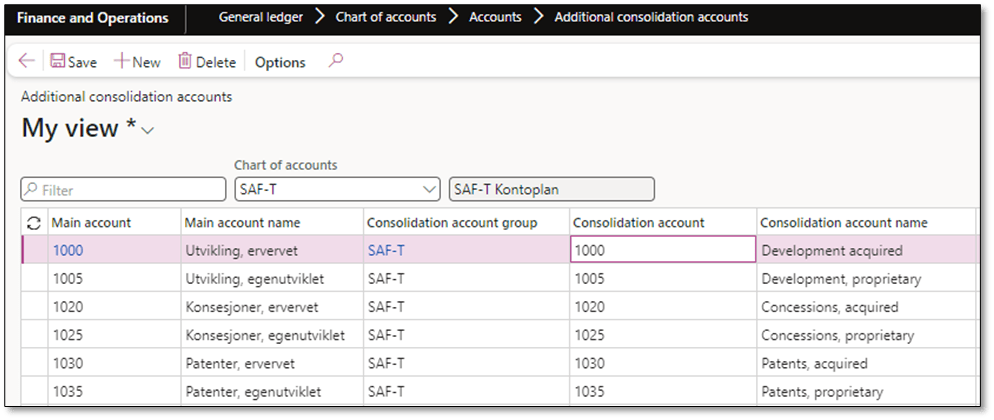
- Use Excel Add-In or Data Management Framework (DMF) with the entity “Consolidation Groups and Accounts”.
- The consolidation account group applies to the entire chart of accounts and does not need replication across companies.
- Access standard main accounts through the CSV file provided by the Norwegian Tax Administration on GitHub.
5. Activate Features
Enable the necessary SAF-T features in D365FO as a system administrator.
-Accelerate the ER labels storage
-Optimize datasets memory consumption at ER reports runtime
-Validate obsolete elements of Electronic Reporting data sources

Generating SAF-T File
- Navigate to General Ledger > Inquiries and Reports > Standard Audit File for Tax (SAF-T).
- Ensure the following criteria are completed:
- Period: From date and To date
- Personnel number
- Report tax information in sales tax code currency (when unchecked, amounts in the “TaxInformation” element will be reported in accounting currency).
- Consolidation account group
- Use grouping category
- Batch processing
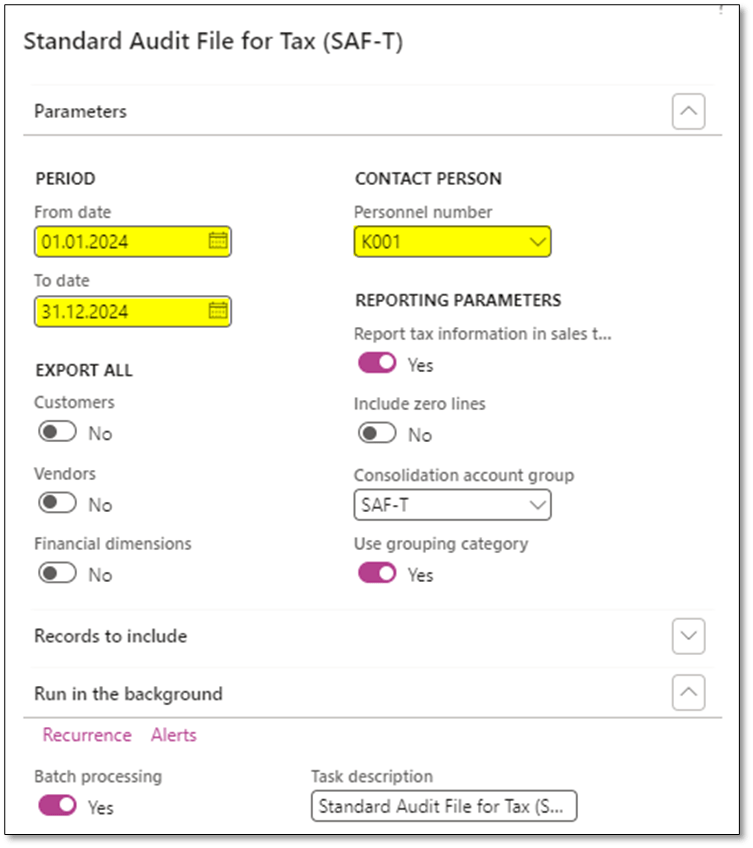
- Run the batch process to generate the SAF-T file. The output file will be stored in Organization Administration > Electronic Reporting > Electronic Reporting Jobs.

SAF-T Validations in D365FO
Validate the SAF-T file to ensure no missing values in these fields:
- Selection date
- City
- Postal code
- Contact person
- Company registration number
- Tax code collection
- Category group
This step ensures compliance with SAF-T requirements and avoids errors during submission or audit.
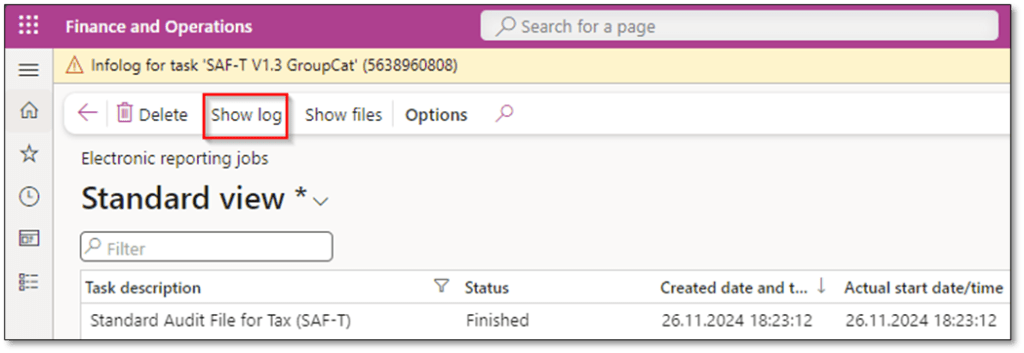

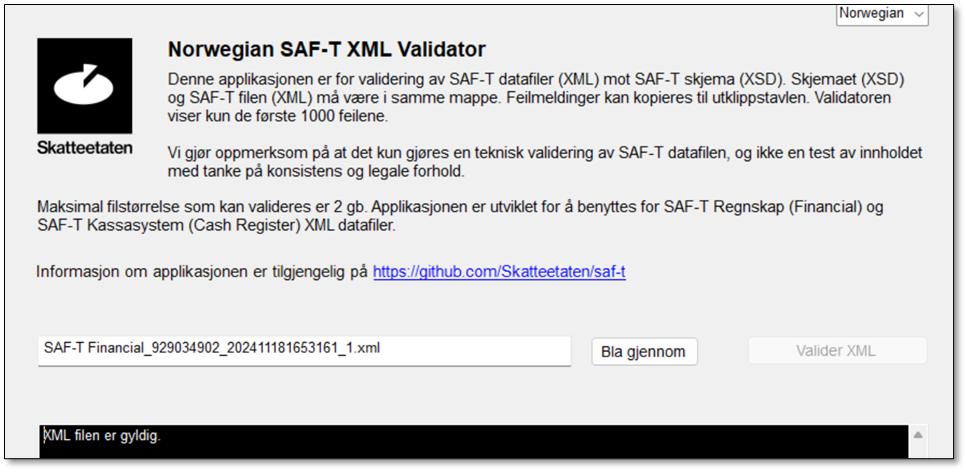
Validating SAF-T Files with the Norwegian SAF-T XML Validator
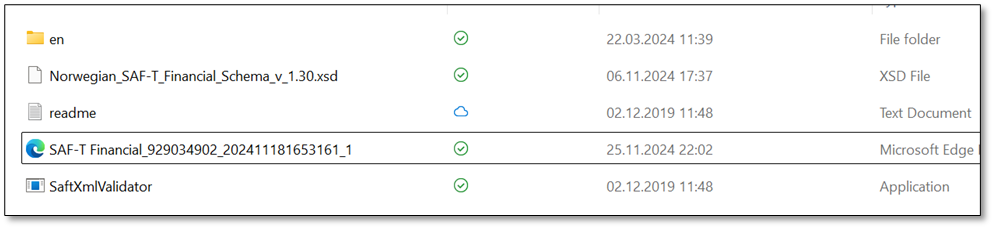
- Download the Norwegian SAF-T XML Validator.
- Ensure the Norwegian_SAF-T_Finanical_Schema_v_1.3.xsd file is in the correct folder.
- Copy the generated SAF-T file to the validator folder.
- Open SAFXMLValidator, upload the file, and click Validate XML.
I hope you found this post insightful and useful for generating SAF-T (NO) files in D365FO. If you have questions or feedback, please leave a reply. For more information, visit Dynfotech’s SAF-T Resources. Thank you for reading!
 DynFOTech
Thank you very much for another detailed and useful article
LikeLiked by 1 person