
Microsoft Dynamics 365 Finance & Operations (D365FO) includes a built‑in capability—eInvoice attachment—that can automatically generate a PDF copy of the printable invoice and embed it inside the structured e‑invoice file (Peppol BIS, XRechnung, FatturaPA, or other ER‑driven formats). When enabled for selected customers, the PDF is rendered at posting time (from SSRS or Configurable Business Document layouts), stored as a document attachment on the posted journal record, and then included in the e‑invoice XML output produced by Electronic Reporting (ER).
This feature reduces custom integration effort with Access Points and consolidates invoice distribution flows across customer types—B2G, B2B, and B2C.
Why Use the eInvoice attachment Feature?
Many organizations operate in mixed customer landscapes: some customers (often business or public sector) are eligible for structured e‑invoices over networks such as Peppol, while others—especially private consumers (B2C)—still require a human‑readable invoice delivered by email or even print/post.
If you send all invoices to an Access Point (AP), that provider may:
- Deliver structured XML to customers who support e‑invoicing.
- Convert XML to PDF layout and send by email (or print/post) to recipients who do not support e‑invoicing.
Embedding a ready‑to‑send PDF invoice copy in the e‑invoice XML can lower AP conversion costs and avoid additional custom mappings on the Access Point side—especially in markets like Norway, where many APs offer XML‑to‑PDF fallback services for non‑Peppol customers.
Access Point Compatibility Is Critical
Before enabling this feature in production:
- Confirm with your Access Point that they accept e‑invoice payloads containing an embedded PDF copy.
- Verify whether the AP can extract that embedded PDF and use the customer email address (sent in the e‑invoice payload) to deliver the attachment by email.
- Agree on size limits and whether multiple attachments are allowed.
ER Configuration Consideration
If your downstream AP relies on the customer email address to forward the PDF, add a validation in your e‑invoice ER configuration to ensure the customer email is populated (fail or warn otherwise). Making this field effectively mandatory helps avoid unrouteable invoices.
How the Feature Works
High‑level flow:
- You enable eInvoice and eInvoice attachment on the Customer record.
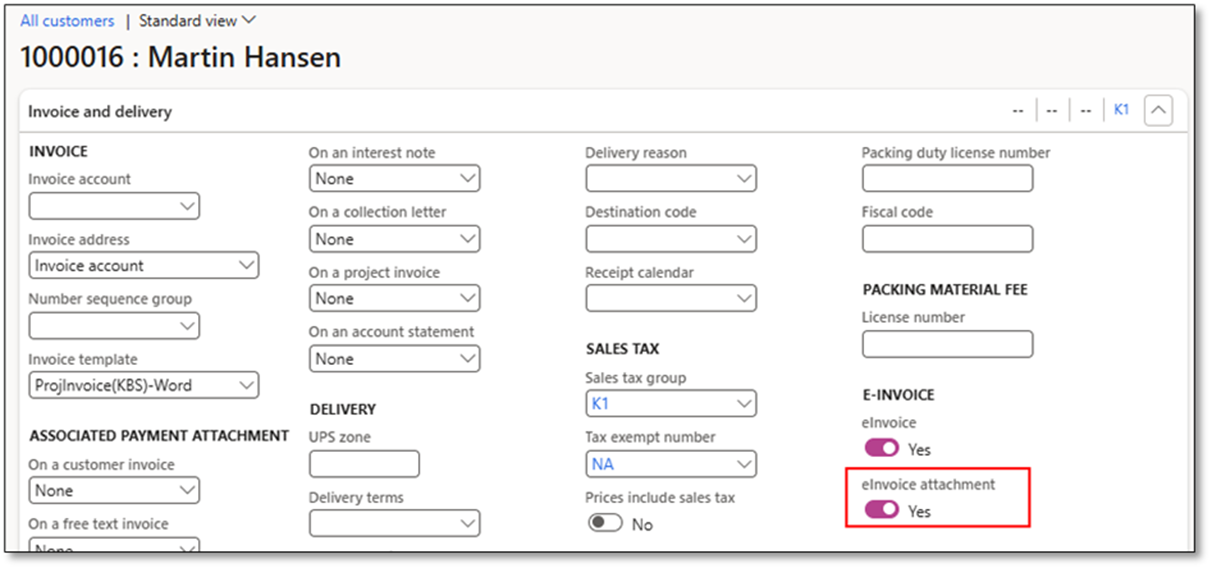
- You configure Print management for the source document (Sales invoice, Free text invoice, Project invoice, Collection letter, etc.).
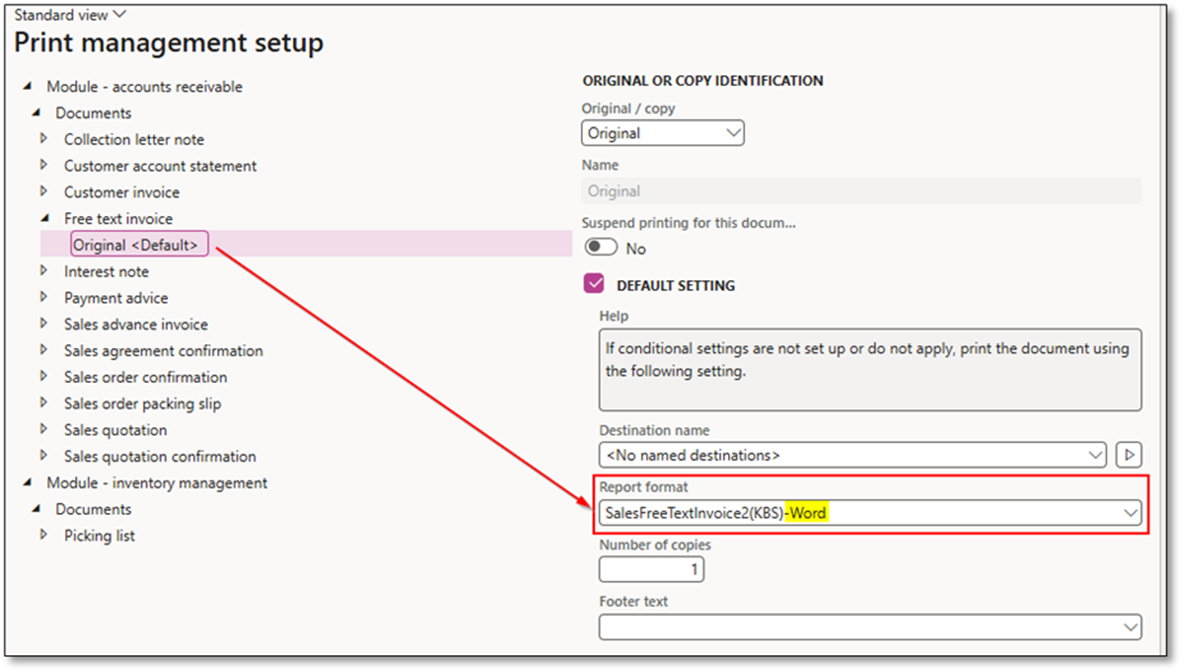
- At invoice posting, if Print invoice = Yes, D365FO renders the printable document to PDF (SSRS or CBD/EBD) and attaches it to the posted journal (e.g., CustInvoiceJour).
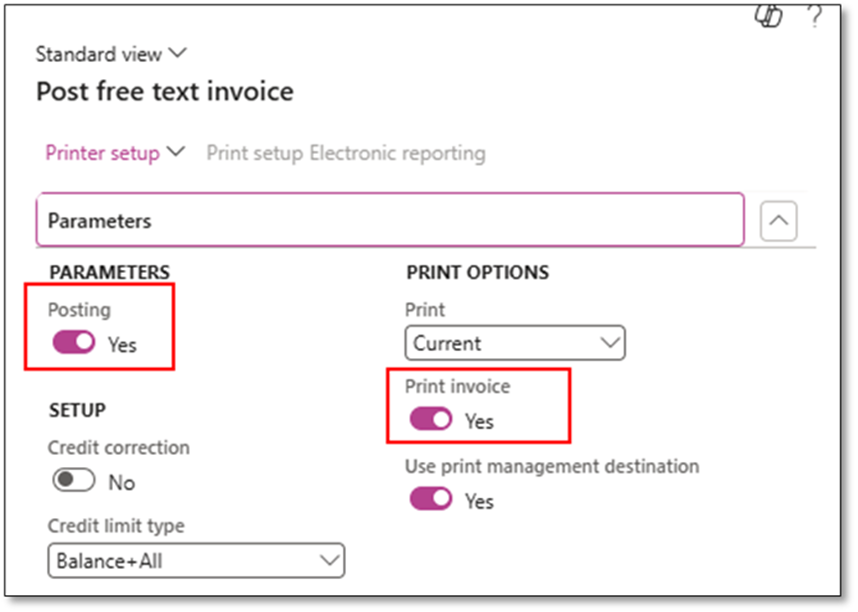
- Your e‑invoice ER format runs (immediately or in batch) and picks up the attachment for embedding (base64) within the generated e‑invoice XML.
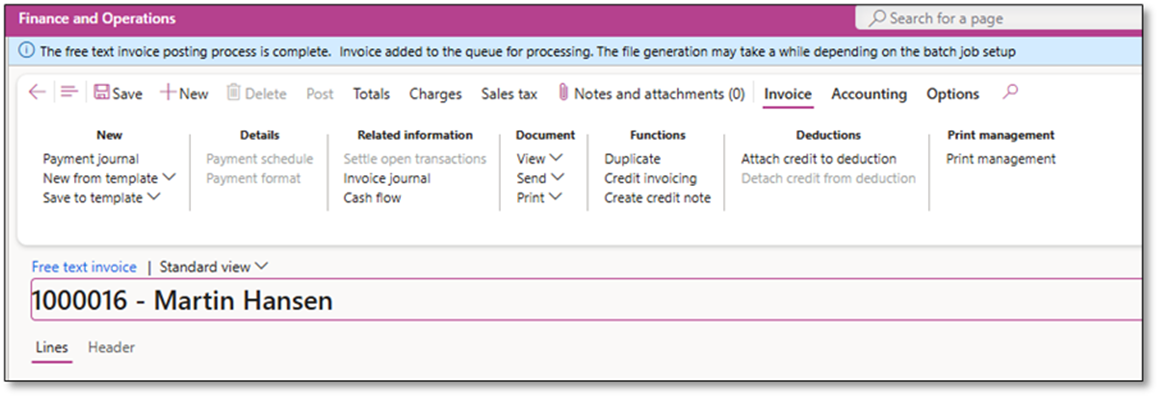
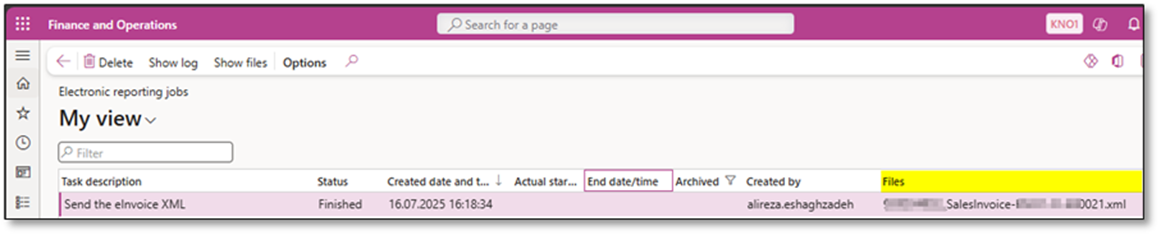
- The outbound payload—XML + embedded PDF—is sent to your Access Point / integration layer.
You can review DynFOTech earlier blogs for detailed e‑invoicing setup guidance:
- https://dynfotech.com/2025/07/16/e-invoice-attachments-in-d365fo/
- https://dynfotech.com/2025/06/04/understanding-electronic-invoicing-in-dynamics-365-finance-operations-d365fo/
- https://dynfotech.com/tag/peppol-bis-billing-3-0/
Prerequisites
Before testing the feature, confirm the following platform and functional prerequisites are in place:
- Electronic Reporting (ER) framework configured and the relevant e‑invoice formats imported (Peppol BIS Billing 3.0 or local variant).
- Document management enabled for the tables that will store the posted invoice attachments (see section below).

- Security roles allow users to upload, view, and mark attachments as External.
- Print management configured to render documents at posting.

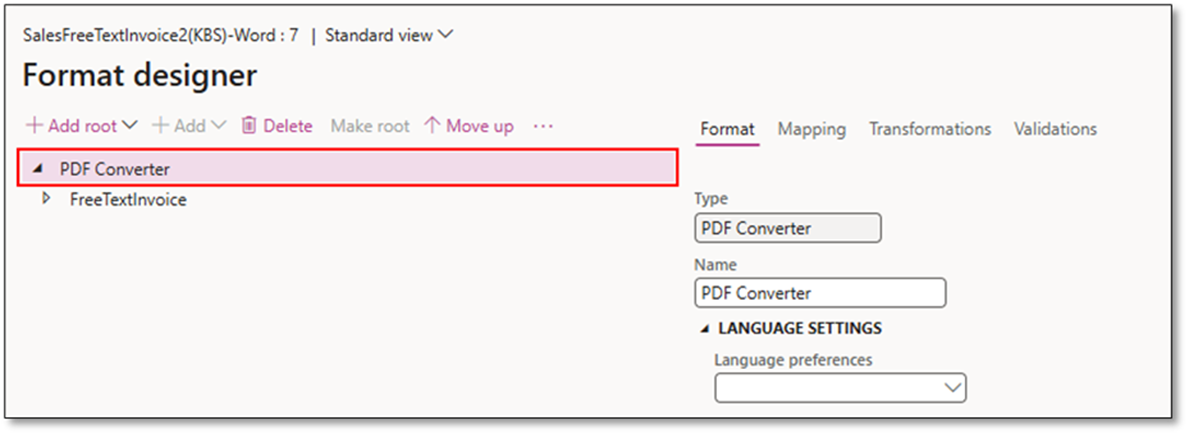
- PDF Converter configured (if using Configurable Business Documents) so the rendered output is PDF, not DOCX/XLSX.
- Customer master data includes valid electronic address / email values if required by the receiving AP.
Note: Test end‑to‑end in a sandbox with an Access Point test endpoint to confirm that the embedded PDF is successfully extracted and deliverable.
Step 1 – Enable e‑Invoice + eInvoice attachment on Customers
- Navigate to Accounts receivable > Customers > All customers.
- Open the customer record.
- On the Invoice and delivery (or localization‑specific) FastTab, locate e‑invoicing fields.
- Set eInvoice = Yes.
- Set eInvoice attachment = Yes.
- Confirm email address and any required e‑address / electronic format identifiers (e.g., Peppol Participant ID, GLN, OVT, etc.) are populated.
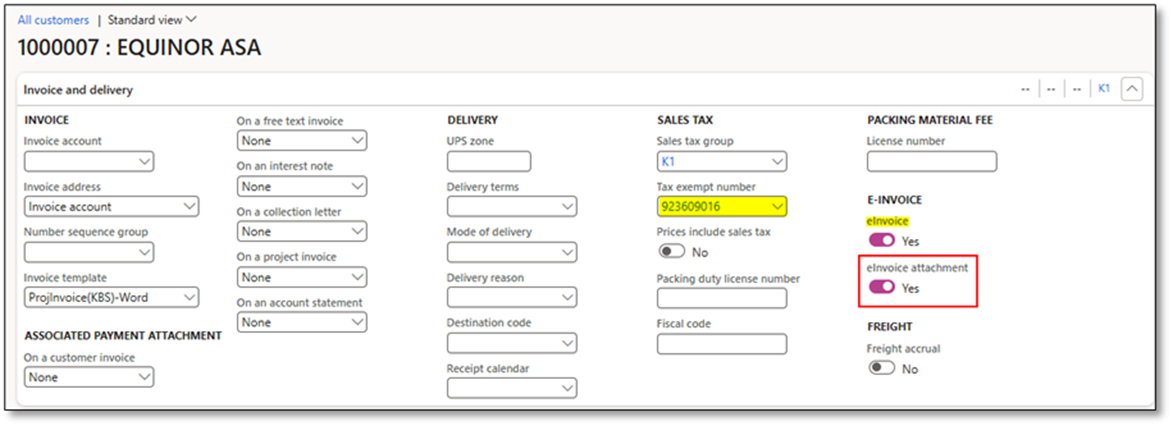
[!IMPORTANT] Only enable eInvoice attachment for customers whose receiving channel or Access Point workflow supports XML containing embedded binary documents.
Step 2 – Configure Print Management Output
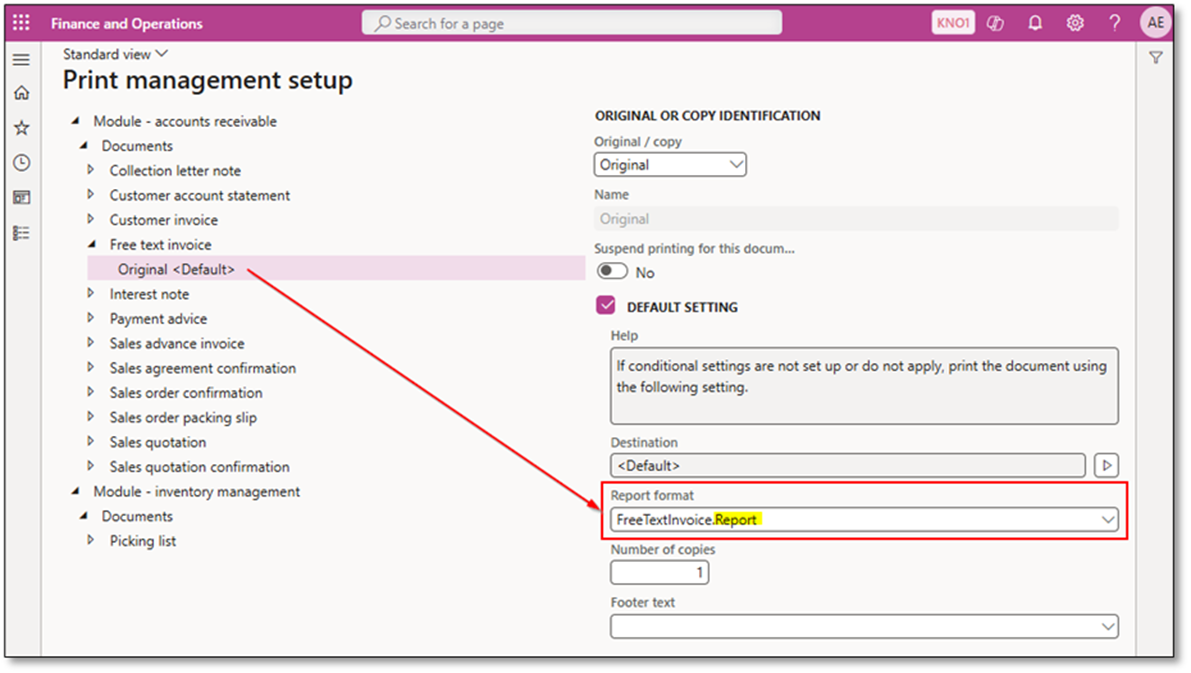
Correct print management is essential—this is what produces the PDF that becomes the embedded attachment.
If Using SSRS Reports
If your legal documents (Sales invoice, Free text invoice, etc.) use standard SSRS report designs, no special layout change is required. Ensure Print invoice = Yes when posting and that the destination is allowed to produce a file.
If Using Configurable Business Documents (CBD/EBD)
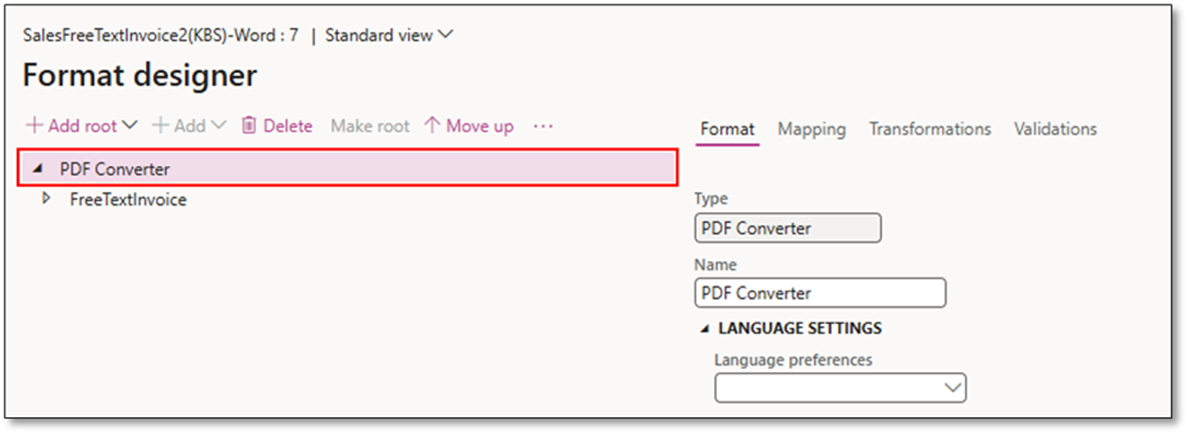
If you’ve replaced SSRS with Business Documents (Electronic Reporting‑designed layouts), you must ensure the design outputs PDF.
In Format designer:
- Add a PDF Converter component at the Root of the output node.
- Map the document so that the run‑time output is rendered to PDF regardless of the design authoring tool (Word/Excel template).
This guarantees the attachment added to the journal is a PDF (required by most Access Points), not DOCX or XLSX.


ER Destination Tip
You can also configure ER destinations so that PDF conversion happens in the ER pipeline rather than relying on the interactive “Convert to PDF” option during posting. This removes user dependency and supports batch automation.

Step 3 – Post with Print invoice = Yes
During posting (Sales order invoice, Free text invoice posting, Project invoice proposal posting, Collection letter update):
- Set Print invoice = Yes in the posting dialog.
- Post the document.
Behind the scenes, D365FO will:
- Post the document (journal created).
- Render the printable invoice layout to PDF.
- Attach the PDF to the posted journal table (CustInvoiceJour, ProjInvoiceJour, or CustCollectionLetterJour).
- Run the ER e‑invoice format (immediate or batch) that reads the journal record and, because the customer is flagged for eInvoice attachment, embeds the PDF as base64 in the XML.

Result: PDF Embedded in e‑Invoice XML
Open the generated e‑invoice file in XML view. You should see a structure similar to (Peppol BIS Billing 3.0 style illustration):
<cac:AdditionalDocumentReference>
    <cbc:ID>5637303583</cbc:ID>
    <cac:Attachment>
      <cbc:EmbeddedDocumentBinaryObject mimeCode="application/pdf" filename="FreeTextInvoice.Report.pdf">JVBERi0... (base64 content trimmed)
    </cbc:EmbeddedDocumentBinaryObject>
  </cac:Attachment>
</cac:AdditionalDocumentReference>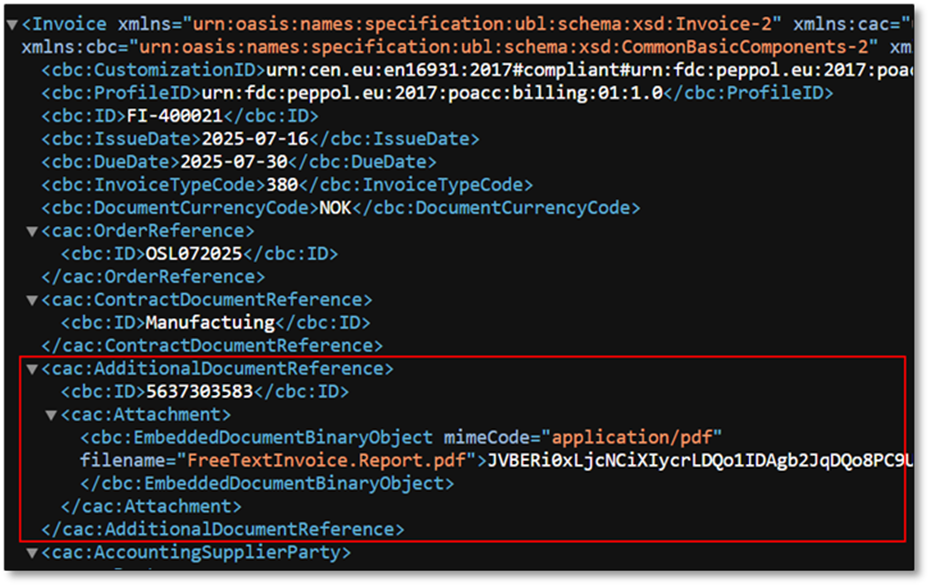
Exact element paths vary by e‑invoice format (Peppol vs. FatturaPA vs. custom), but the principle is the same: the rendered PDF becomes a base64‑encoded binary attachment within the e‑invoice message.
What If Print invoice = No? (Manual Attach & Re‑send)
If you post with Print invoice = No:
- No PDF is rendered.
- No automatic embedded attachment.
- No e‑invoice is generated (in most standard ER e‑invoice flows that rely on print generation).
Recovery option:
- Open the posted invoice journal (e.g., Accounts receivable > Inquiries and reports > Invoices > Invoice journal).
- Select the journal line and click View > Original view (or open the document menu depending on form).

- This function will work based on ER destinations setup and then attached PDF copy of invoice as an attachment to the journal.


- Re‑run the e‑invoice ER process to regenerate the XML; the PDF attachment will now be included.
This same recovery applies to ProjInvoiceJour and CustCollectionLetterJour.
Supported Documents & Tables
| Document Type | Origin / Module Path | Posted Journal Table | Auto PDF Attach When Print invoice = Yes? |
| Sales invoice | Accounts receivable > Inquiries and reports > Invoices > Invoice journal | CustInvoiceJour | ✔ Yes |
| Free text invoice | Accounts receivable > Inquiries and reports > Invoices > Invoice journal | CustInvoiceJour | ✔ Yes |
| Project invoice | Project management & accounting > Project invoices > Project invoices | ProjInvoiceJour | ✔ Yes |
| Collection letter | Credit and collections > Collection letters > Review and process collection letters | CustCollectionLetterJour | ✔ Yes |
[!NOTE] Attachments on open source documents typically flow forward to the posted journal during posting—confirm in your environment and customization layer.
Access, Security & Document Management Setup
Attachments depend on D365FO Document management. Make sure it’s active for the posted journal tables that will store generated PDFs and any supporting files.
- Go to Organization administration > Document management > Active document tables.
- Enable document handling if not already enabled.
- Add/Select:
- CustInvoiceJour
- ProjInvoiceJour
- CustCollectionLetterJour
- (Optional) other tables if you plan to embed additional docs.
- Mark as Always enabled where appropriate.
Security
Ensure users who post invoices or troubleshoot attachments have roles including:
- Maintain document attachments
- View document attachments
Without permission, the paperclip icon may not include “+New” and PDFs won’t be visible/attachable.
Troubleshooting & Tips
| Symptom | Possible Cause | Resolution |
| No PDF embedded in XML | Print invoice = No at posting Customer card is not enabled with einvoice attachment | Re-print the journal to populated the attachment. |
| Embedded file not PDF | CBD/EBD layout missing PDF Converter root | Edit ER format; add PDF Converter; redeploy. |
| Attachment missing in journal | Document management inactive for that table | Activate table in Document management > Active document tables. |
| Access Point rejects payload | Unsupported attachment type/size | Confirm AP limits; compress or reduce PDF size. |
| Generic PDF filename | Current standard naming behavior | Vote for enhancement (see Idea below). |
Known Limitations & Network Considerations
- Peppol BIS guidance: Attachments are allowed for supporting documents; invoice copies are not required and networks may impose size limits. Validate your use case with your AP and your local tax/industry guidance.
- Attachment Size: Large PDF designs (many pages, embedded graphics) can cause rejection; some networks cap payloads (e.g., 10–100 MB). Confirm limits.
- Performance: Rendering PDFs at posting adds processing time; consider batch posting if volume is high.
Summary Checklist
Embedding attachments in e‑invoices within D365FO is efficient, robust, and standard‑compliant—as long as you:
- Use supported formats. (Most scenarios require PDF.)
- Respect each standard’s limitations (size, count, invoice‑copy rules).
- Add attachments before posting or e‑invoice generation.
- Ensure Document management is enabled and users have access to the required attachment (Active document) tables (CustInvoiceJour, ProjInvoiceJour, CustCollectionLetterJour, etc.).
- Enable eInvoice attachment on the customer when needed.
- Configure Print management & PDF Converter (CBD/EBD) to guarantee PDF output.
- Select Print invoice = Yes when posting to trigger PDF creation and embedding.
- Consider merging multiple files into a single PDF for clarity and network efficiency.
By following these guidelines, you can create richer, more compliant e‑invoices that satisfy both tax authorities and your customers—and automate large parts of your invoicing process effectively.
Additional Resources
Dynfotech Blog Series
- https://dynfotech.com/2025/07/16/e-invoice-attachments-in-d365fo/
- https://dynfotech.com/2025/06/04/understanding-electronic-invoicing-in-dynamics-365-finance-operations-d365fo/
- https://dynfotech.com/tag/peppol-bis-billing-3-0/
- https://dynfotech.com/category/business-documentsbd/
Microsoft Learn (sample areas to review)
- https://learn.microsoft.com/en-us/dynamics365/fin-ops-core/dev-itpro/analytics/electronic-reporting-destinations#use-the-pdf-conversion-component-in-er-format-configurations
- https://learn.microsoft.com/en-us/dynamics365/fin-ops-core/dev-itpro/analytics/er-business-document-management
Idea: Improve PDF filename for generated invoice copy
Vote or comment: https://experience.dynamics.com/ideas/idea/?ideaid=3235be56-512b-f011-9d48-7c1e52960760
 DynFOTech
Hi Alireza,
Very interesting article, thank you!
We’re facing an issue regarding the document type that seems to be defaulted to “File” when D365 F&O automatically attach the invoice to the invoice journal. Do you know if there is a possibility to choose the default document type that D365 F&O will use to attach the PDF document ?
We are using the PDF converter component in our ER Format.
Many thanks for your help,
David
LikeLike
Hi David,
Thanks for the feedback!
It is recommended to use File as the document type.
If you need to review or adjust the configuration, you can navigate to:
Organization administration > Document management parameters > Default document types
– to check the standard document type.
Workspaces / Immersive home > Electronic reporting > Electronic reporting parameters > Attachment
– to adjust the Job archive settings.
LikeLike